The more people in an organization manage devices, the more often a simple question arises: Who made that change – and when? A policy suddenly stops working, a device is assigned to a different group, or an app has disappeared. You can find this information in our activity log. It automatically records administrative changes in your organization – including the time, the person who made the change, and the affected component.
Note! This feature is only available to users of a Pro or Enterprise plan.
Note! The activity log is available exclusively in the new administration portal. Actions from the previous portal are also recorded and displayed there.
Events at a Glance
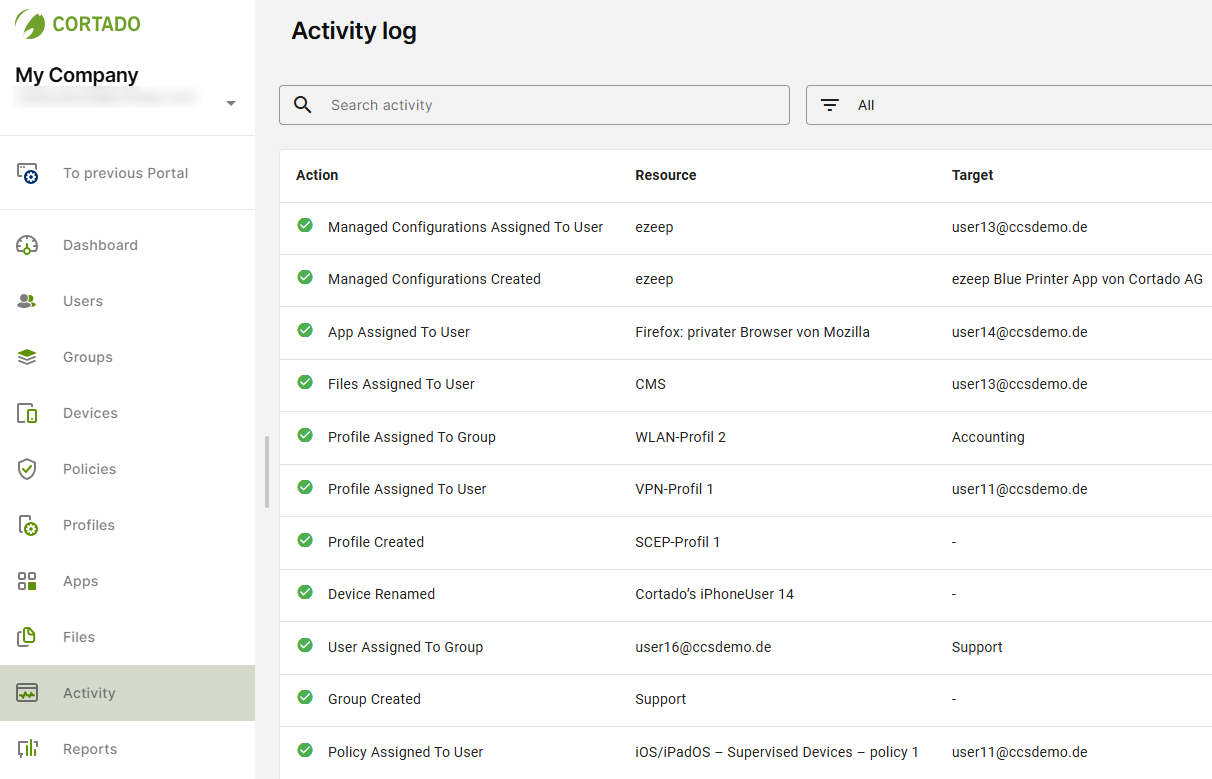
- Click Activity in the menu in the left column.
- You now have an overview of all recorded events.
Note! The activity log is currently available only to users with the Administrator role.
Note! It may take one to two minutes for an action to appear in the activity log after it has been performed.
You’ll find the following information about each event in your activity log:
Action: Here you can see what action was performed, such as Group created. The icon next to it indicates the severity of the event – a green checkmark means something was assigned, modified, renamed, or created; an orange exclamation point means something was removed or deleted.
Resource: The resource involved in the action: the resource (e.g., policy, group, file) that is being created, modified, or assigned. For Group created, this is the new group; for Profile assigned to user, it is the profile that was assigned.
Target: The object that receives the resource – for Profile assigned to user, it is the user who receives the profile. For actions that apply to only a single object, such as Group Deleted, the column remains empty.
Actor: The actor who triggered the action: the administrator’s email address, or System if a connected system (e.g., apps added from Apple Business Manager to Apps) triggered the change.
Source: The area of administration from which the action originated, for example, Group Management or App Management (left column).
Time: The date and time of the event.
The following events are recorded in the activity log:
| Category | Action Recorded |
|---|---|
| Users | Create, delete, rename, add to and remove from groups, transfer settings |
| Groups | Create, Delete, Rename, Enable, Disable, Transfer Settings |
| Devices | Delete, Rename, Assign to Users and Groups, Remove from Groups |
| Policies | Create, edit, rename, assign to, and remove users, groups, and devices |
| Profiles | Create, edit, rename, assign to, and remove users, groups, and devices |
| Apps | Add, modify the app policy, assign to, and remove users, groups, and devices |
| Managed Configurations | Modifying, Renaming, Assigning, and Removing Users, Groups, and Devices |
| Directory Synchronization | Importing users and groups from a connected directory, such as Google Workspace, and synchronization errors |
Event Details
You can use the drop-down menu (arrow in the image) to view more details about each activity:
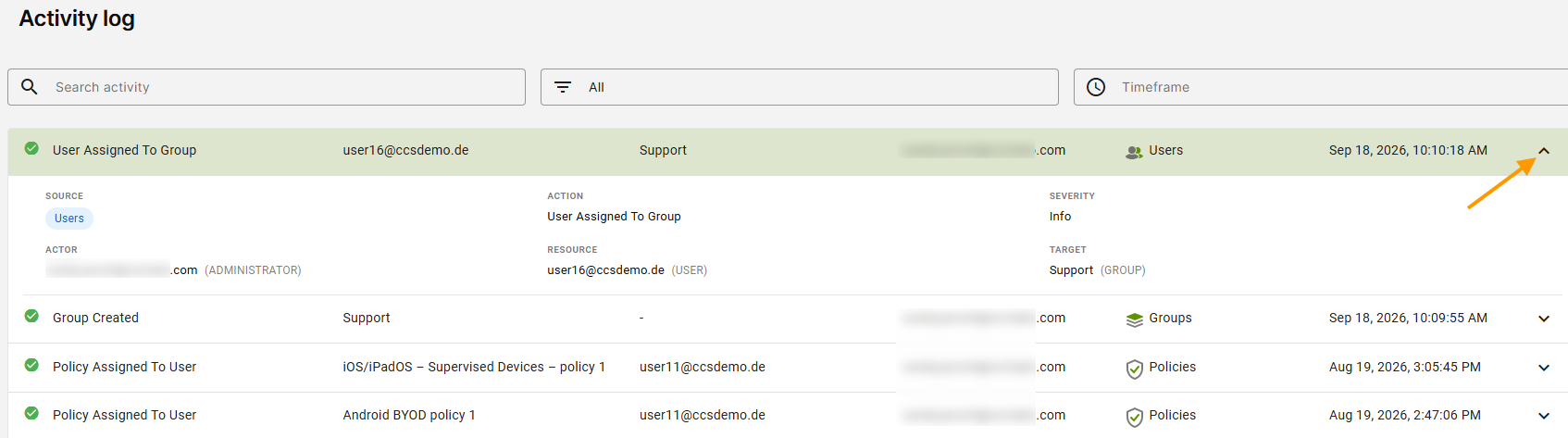
The detail view contains all the information from the overview as well as – if available – the Custom Data field. There you’ll find additional, event-specific information. This information is displayed only for events for which additional data is available. For example:
- When renaming an object, it displays the object's previous name.
- When transferring settings between two users, it shows which settings were transferred, such as policies or groups.
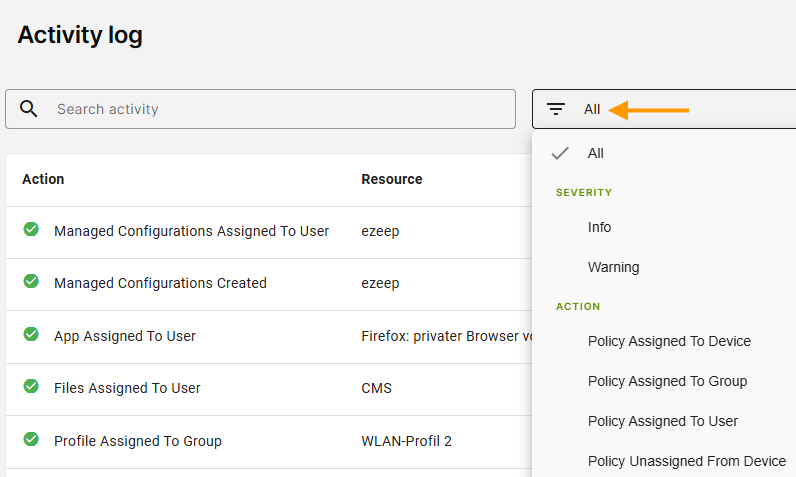
Filter events
Using the filter function (arrow in the image), you can filter events by severity, action, actor, or source:
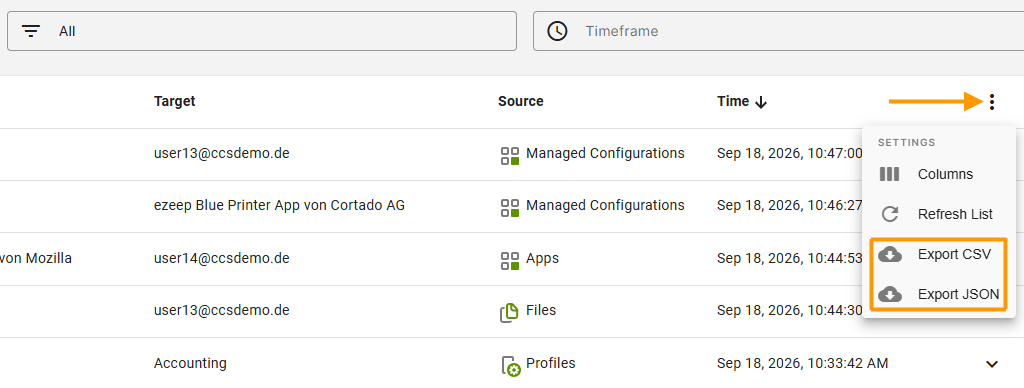
Export Logs
- You can export all the data by clicking the three dots in the upper-right corner of the activity log (arrow in the image).
- Select the export format (CSV or JSON) to download the activity log.
Note! Any filters, search terms, and time periods set previously will be included in the export.
Note! All events are stored for 90 days and then automatically deleted. If you want to keep events longer, export them in a timely manner.