The new administration portal is currently in the beta phase. You are welcome to send us your feedback on the new portal using the corresponding button (at the bottom left of the new administration portal).
You have the option of searching for users (groups) via an input field or filtering via a selection according to predefined criteria. You can then export the results to a CSV file.
Configure the View Mode in the Device Management
Search
- Enter a search term, e.g. a name, in the Search field (arrow in illus.).
- Then click the Enter button.
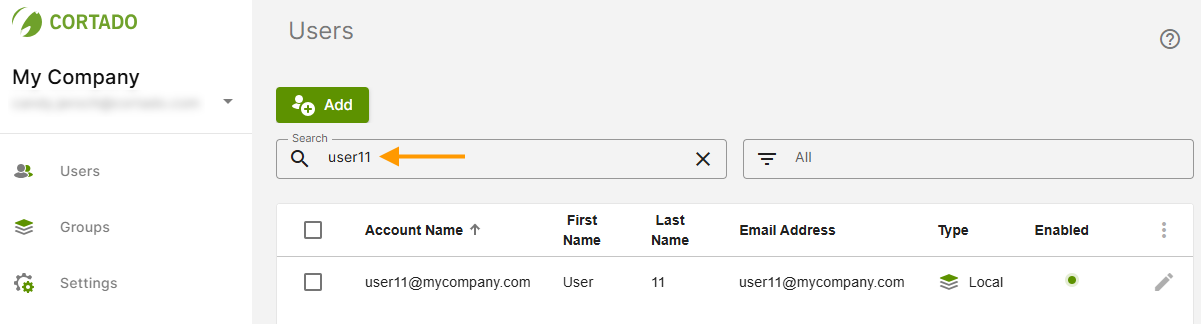
- You can now export the search result to a CSV file.
Filter
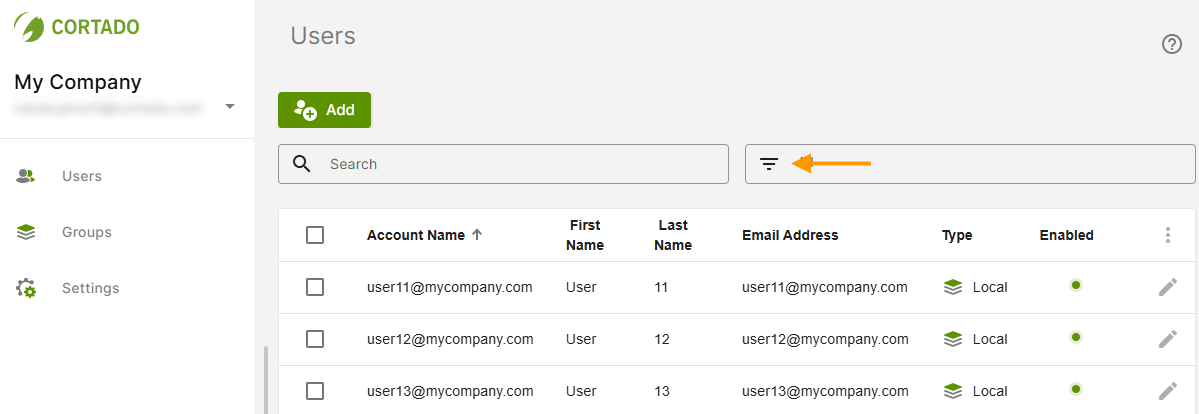
We provide you with a filter function so that you always have an overview of your users and groups.
- Open the user management (the same applies to groups) and select the filter (arrow in illus.).
- Now select one or more criteria according to which you would like to filter (example in the image).
- Only users (or groups) that match the selected criteria will then be displayed in the overview.
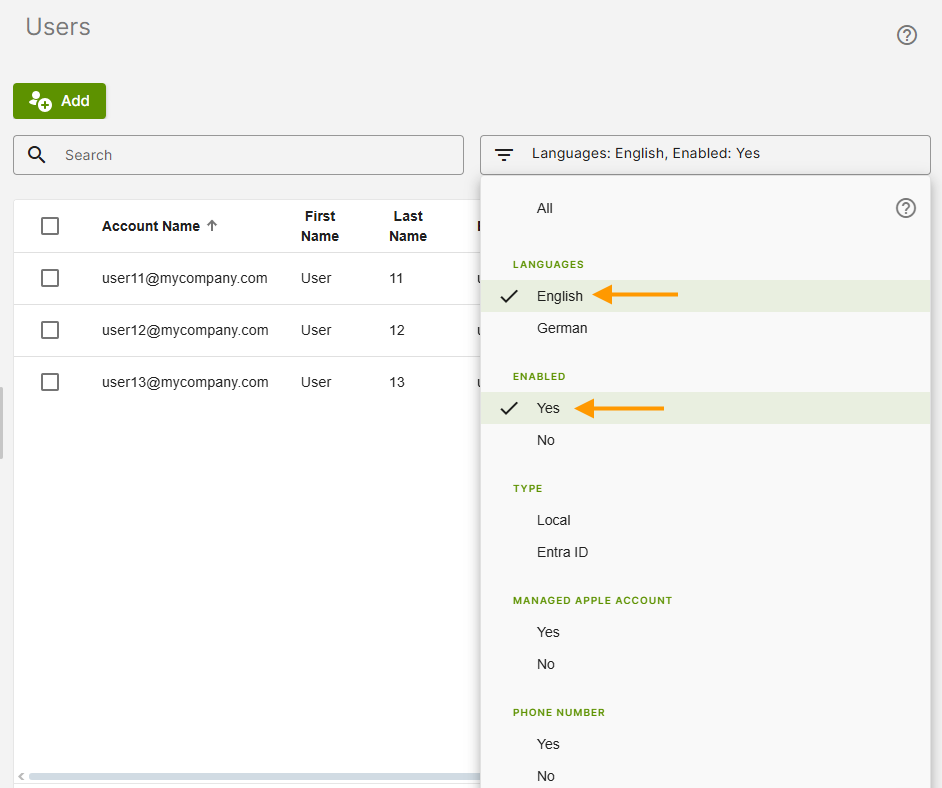
- You can now export the search result to a CSV file.
Export
- Open the burger menu at the top right of the table header (upper arrow in illus.).
Then click on Export (lower arrow in illus.). You can now export all selected users (groups) to a CSV file.
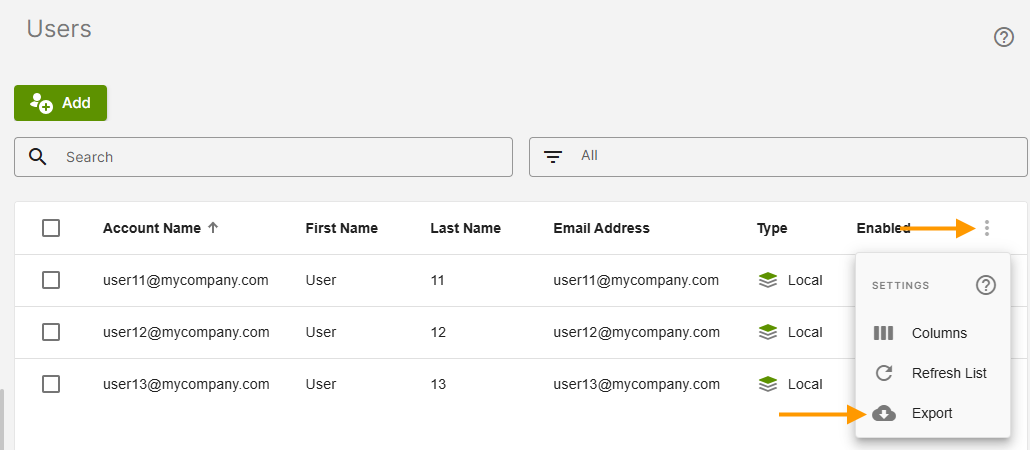
If you have previously used a filter or searched for specific names etc. using the search field, only your filter or search results will be exported.
You will find the exported data in a CSV file in the download folder.
Configure columns
You can configure the view in the user administration according to your wishes.
Note! The selection of columns has no influence on the export. All columns are always displayed in the exported table.
- Open the burger menu, top right in the table header (upper arrow in illus.) and then click on Columns (lower arrow in illus.).
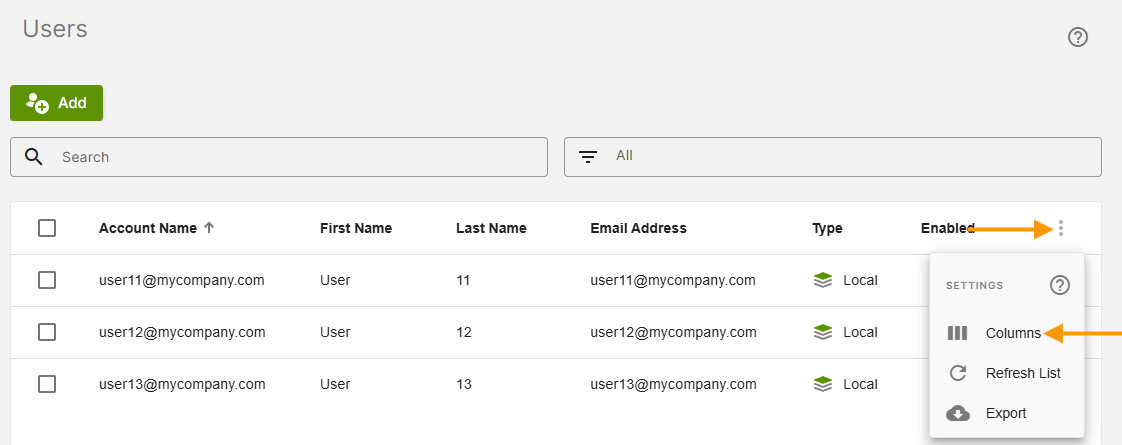
- Now you can configure the table header individually according to your wishes.
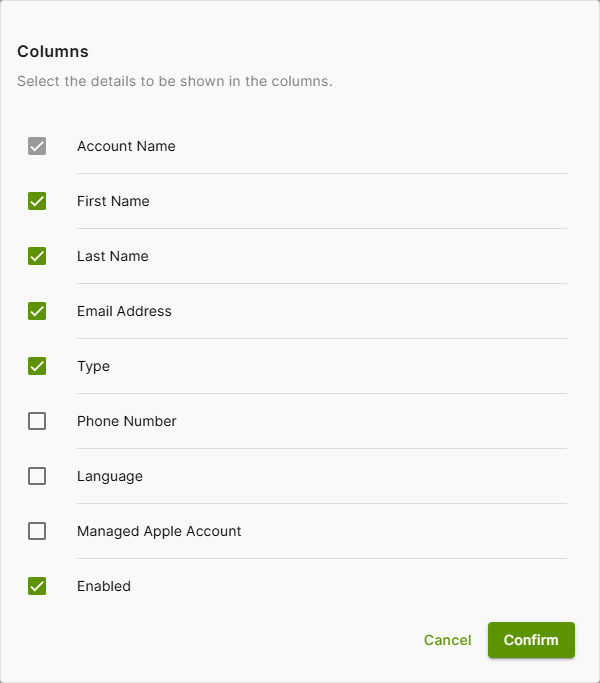
- Select the details to be displayed in the table columns.
- Then click on Confirm.
Configure the View Mode in the Device Management
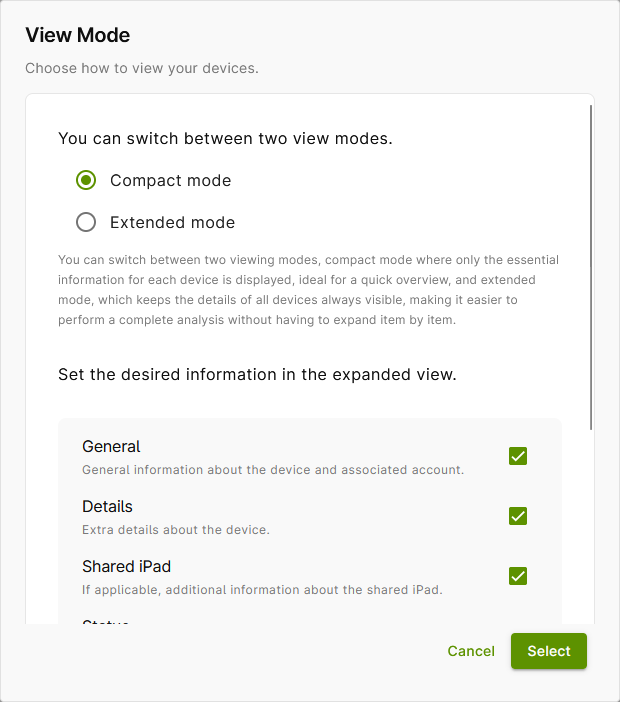
In Device Management, you can display device details in a compact or expanded format. The compact format is set by default (see illus.).
- Switch to Device Management and open the burger menu at the top right of the table header (upper arrow in illus.).
- Then click on View Mode (lower arrow in the illus.).
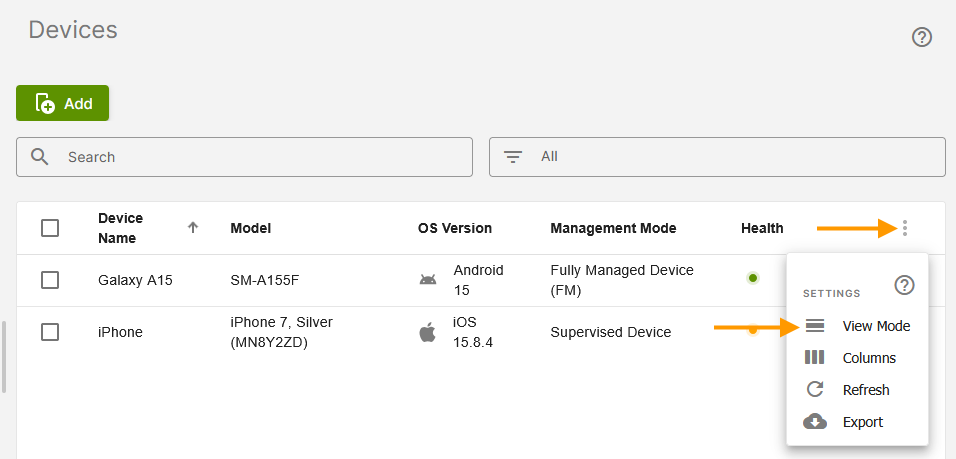
Here you can choose between Compact mode and Extended mode. You can also specify which information should be displayed in the advanced view.