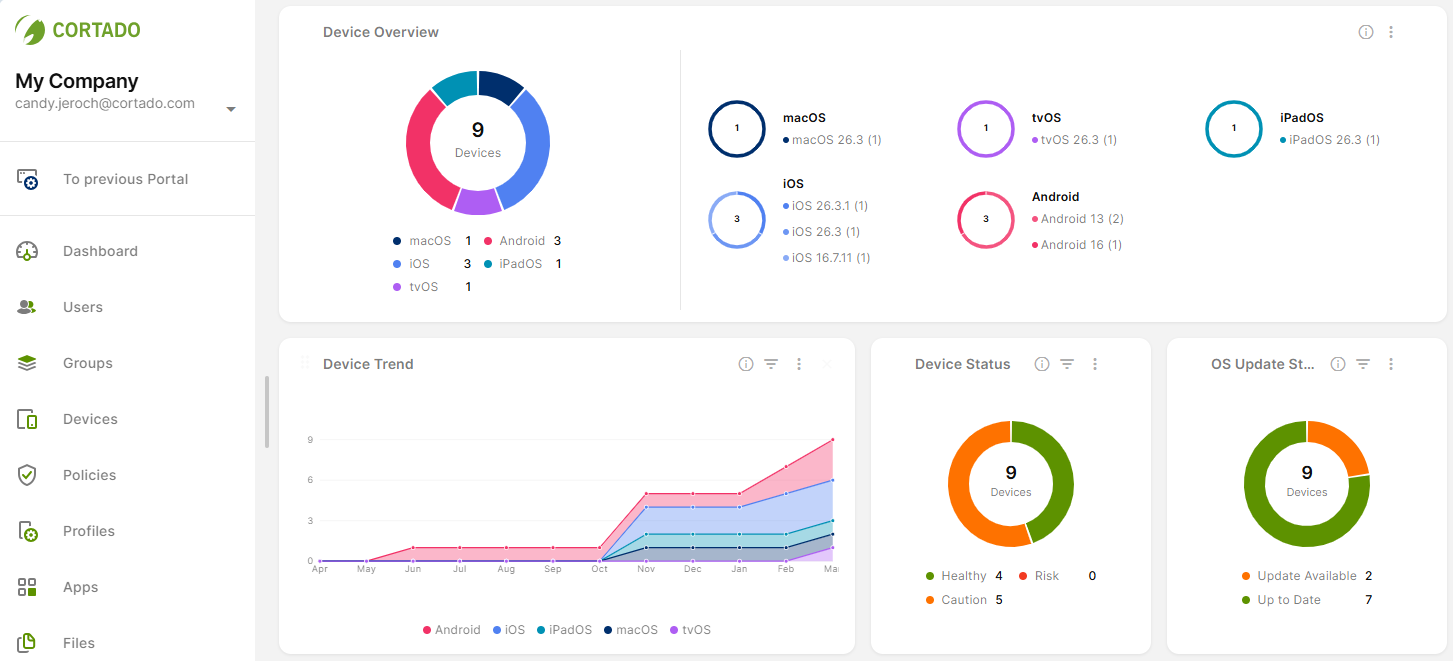
The dashboard provides you with the most important device management information at a glance. Various charts give you a quick overview of device status, the distribution of user types, and current user status, among other things. You’ll also get an overview of all models in use, operating systems, management types, and much more.
Aim
In this how-to, we’ll show you how to use the dashboard in the Cortado administration portal to get a better overview of the most important information.
Implementation
- Open the new Cortado administration portal.
- A variety of graphs (reports) provide you with an overview of your managed devices, users, and groups.
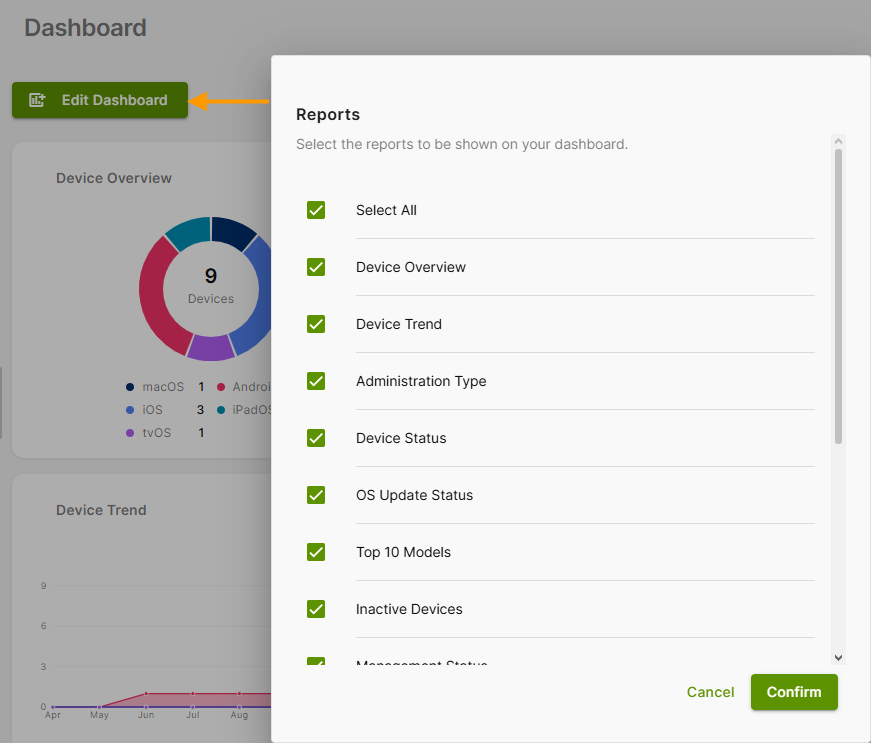
- You can choose which reports to display. Click “Edit Dashboard” (arrow in the image) and select the reports you want (example in the image).
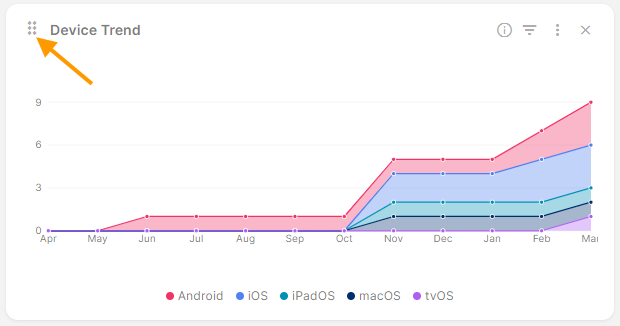
- You can also choose how the individual reports should be arranged.
- Hover your mouse over a report that you want to move to a different location.
- Click on the dots in the top-left corner (arrow in the image) and drag the report to the desired location.
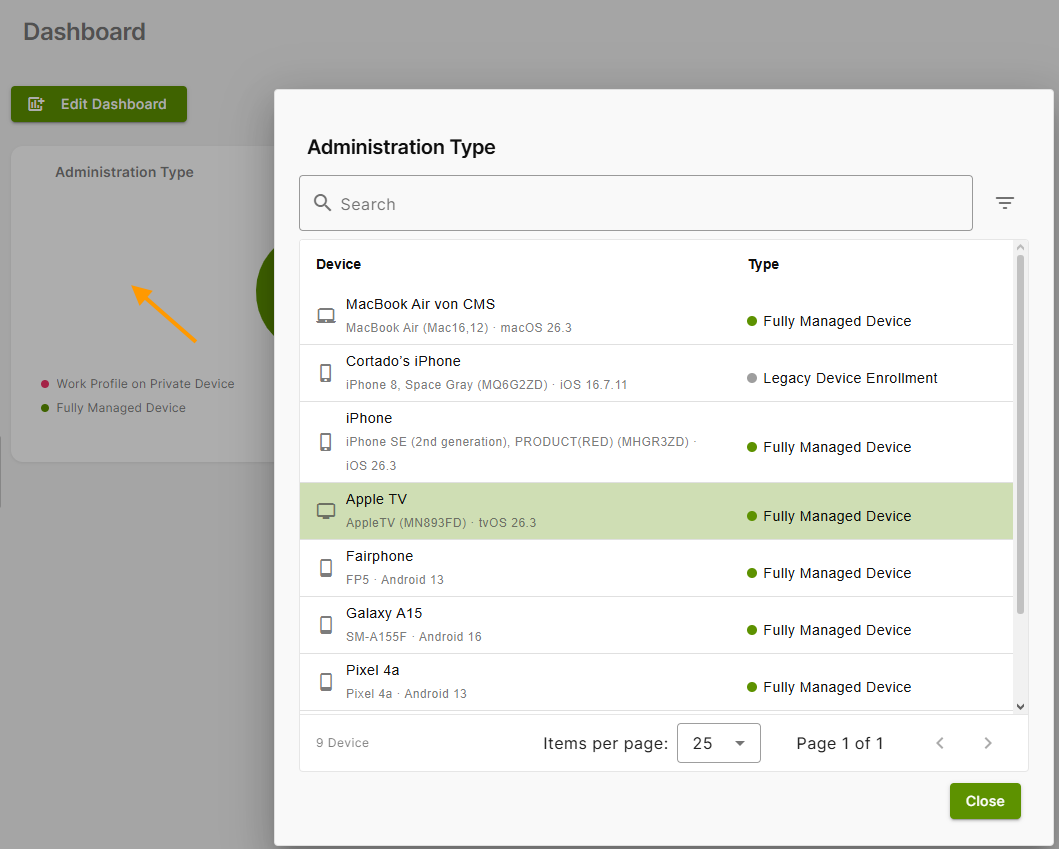
- When you click on a report (arrow in the image), you'll see a detailed overview of its contents, including search and filter options (example in the image).
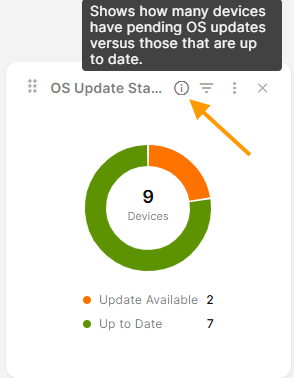
- Hover your mouse pointer over the info icon (arrow in the image) to see what's included in the selected report.
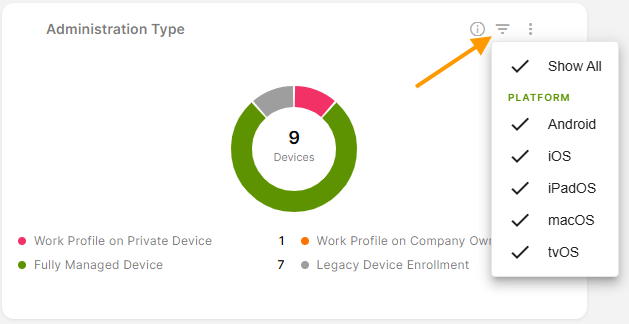
- Open the filter function (arrow in the image) to view the information you want for one or more platforms.
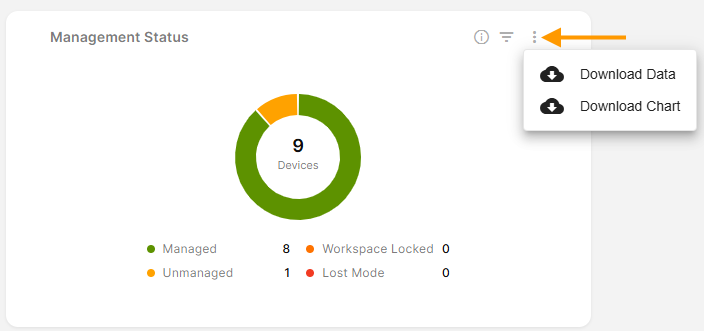
- By clicking on the three dots (indicated by the arrow in the image), you can download all the information from the graph to a CSV file.