This feature is already available in our new administration portal. The new portal is currently in beta. Instructions for using the new portal can be found at the end of this article.
When enrolling company-owned Android devices (COBO or COPE), users normally have to enter the login credentials for the Wi-Fi network they are currently connected to. If the devices are connected to the company Wi-Fi during setup, for example, you can instead store the login credentials in the administration portal. This way, users no longer have to type in these login credentials, which simplifies the registration process. Learn how to do this in this how-to guide.
- In the Cortado administration portal, select Administration→ Settings.
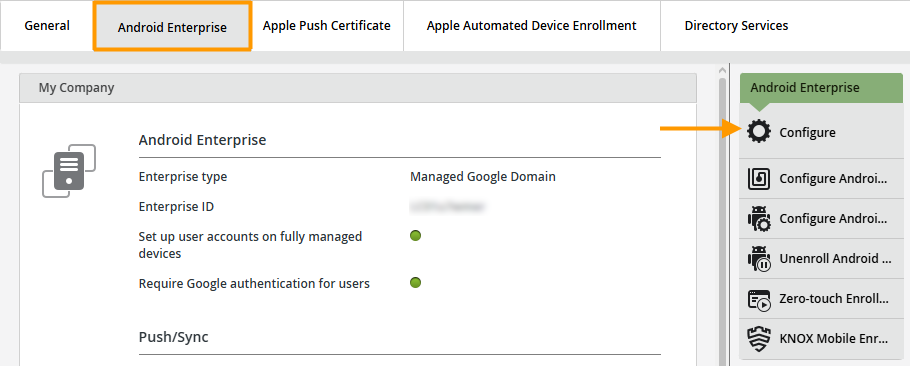
- Go to the Android Enterprise tab and click Configure (arrow in the image).
- Under SSID (WPA) and Password, enter the name and password of your Wi-Fi network.
- Check the Hidden checkbox if this is a hidden Wi-Fi network.
Note! If the device is not connected to the Wi-Fi network specified here during registration, the registration will fail. It is not possible to enter the login credentials manually. Therefore, only enter login credentials here if you are certain that the device registration will be performed while connected to the Wi-Fi network specified here.
If you also want to use the Wi-Fi credentials for registration in My Cortado, check the corresponding box. Please note that the Wi-Fi password is stored in plain text in the registration QR code. Therefore, only use this option if users already know the Wi-Fi password.

NEW ADMINISTRATION PORTAL: Set up the enrollment Wi-Fi
The new administration portal is currently in the beta phase. You are welcome to send us your feedback on the new portal using the corresponding button (at the bottom left of the new administration portal).
When enrolling company-owned Android devices (COBO or COPE), users usually have to enter the Wi-Fi credentials for the network they are currently connected to. If the devices are connected to the company Wi-Fi during setup, for example, you can instead store the credentials in the administration portal. This way, users no longer have to type in these login credentials, which simplifies the registration process. This guide explains how to do it.
- In the administration portal, open Settings and then switch to the Android Enterprise tab.
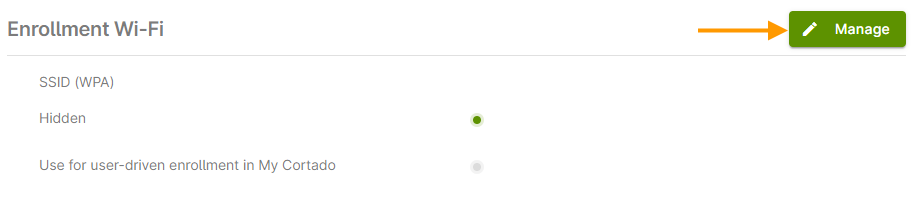
- Under Enrollment Wi-Fi, click Manage (arrow in the image).
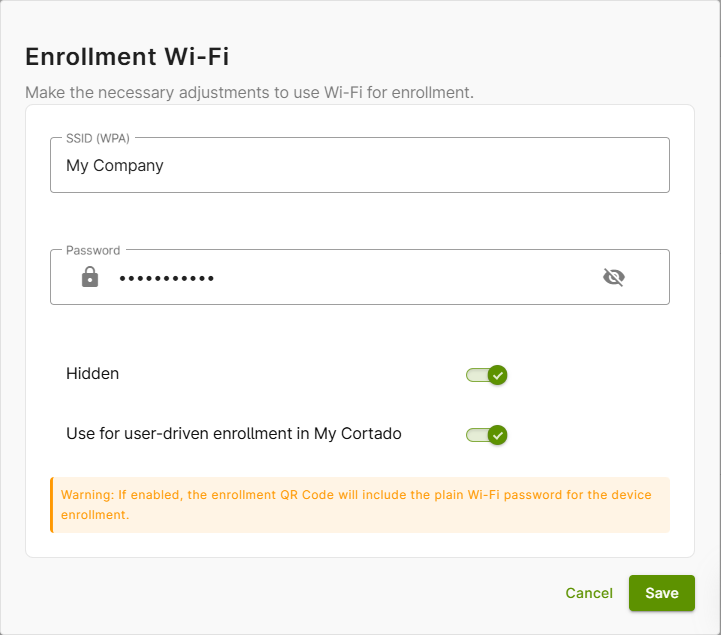
- Under SSID (WPA) and Password, enter the name and password of your Wi-Fi network.
- If your Wi-Fi network is hidden, turn on the Hidden toggle switch.
Here you can store the access data for the Wi-Fi network in which the devices are to be registered for fully managed devices (COBO) and company-owned devices that are used for both business and private purposes (COPE). This means that users no longer have to enter this access data during registration on the Android device. This simplifies the registration process.
Note! If the device is not connected to the Wi-Fi network stored here during registration, the registration will fail. It is not possible to enter the access data manually. Therefore, only store access data if you are sure that the device registration will be carried out in the Wi-Fi network stored here.
If you would like to use the access data for your Wi-Fi network for registration in My Cortado, activate the corresponding checkbox. Please note that the Wi-Fi password is stored in a readable form in the registration QR code. Therefore, only use this option if the users already know the Wi-Fi password.