You want to link your Google Workspace accounts to the Cortado administration portal. But have you already created local Cortado users with Cortado accounts?
Aim
In this guide, we'll show you how to replace your existing local users with Google Workspace users.
Implementation
Initial situation
A user is to be imported from Google Workspace into the Cortado administration portal. This will replace the existing local user.
The following example is used to illustrate this:
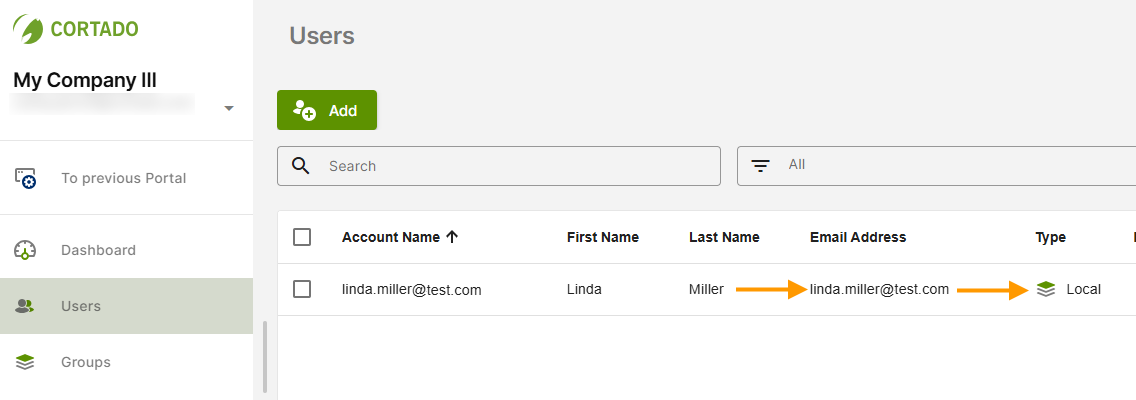
Linda Miller (email: linda.miller@test.com) is a local user in the Cortado administration portal (arrows in the image).
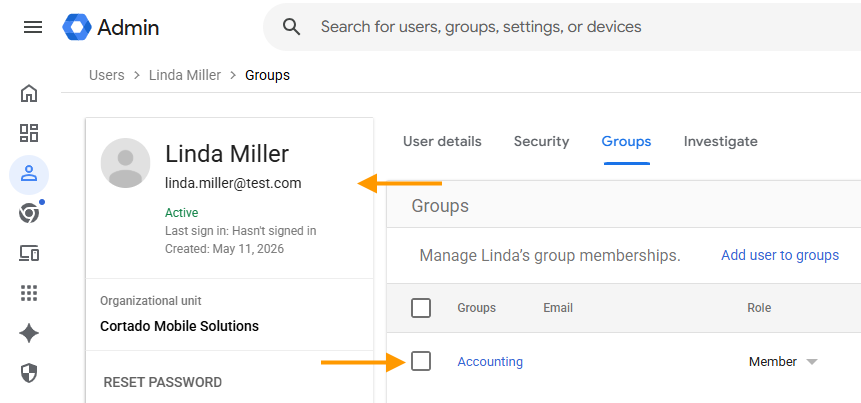
In addition, Linda Miller is a Google Workspace user and a member of the Accounting Workspace group (arrows in the image).
Note: To successfully replace local users with Workspace users, the email addresses stored in the Cortado administration portal must match (example shown in the image).
Implementation – Replacing Existing Accounts
First, connect Google Workspace to the Cortado admin portal. To do this, follow the steps described in our help article How do I connect Google Workspace for group import?.
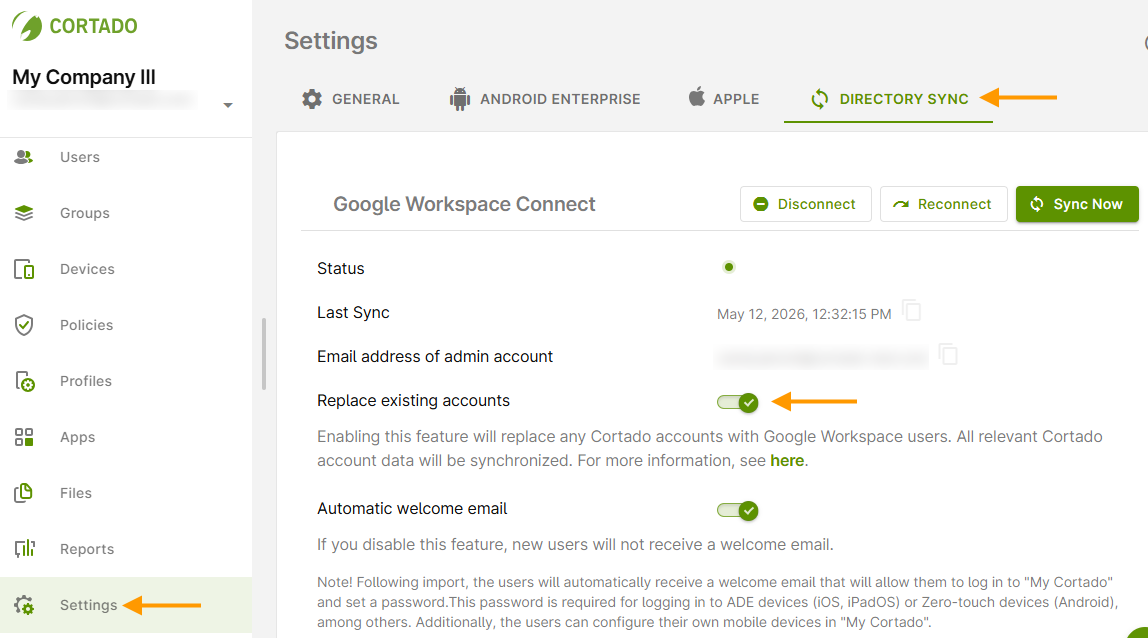
- Next, select Settings → Directory Sync (left and right arrows in the image).
- Check the Replace existing accounts checkbox (middle arrow in the image).
- Import your Google Workspace groups now. Follow the steps outlined in our help article, How do I import Google Workspace groups into the admin console?.
Note! If you have already imported your Workspace groups, simply click the Synchronize button under Settings → Directory Sync (see above).
Result
Linda Miller's existing local user account was converted to a Workspace account when the Google Workspace group was imported (arrow in the image).
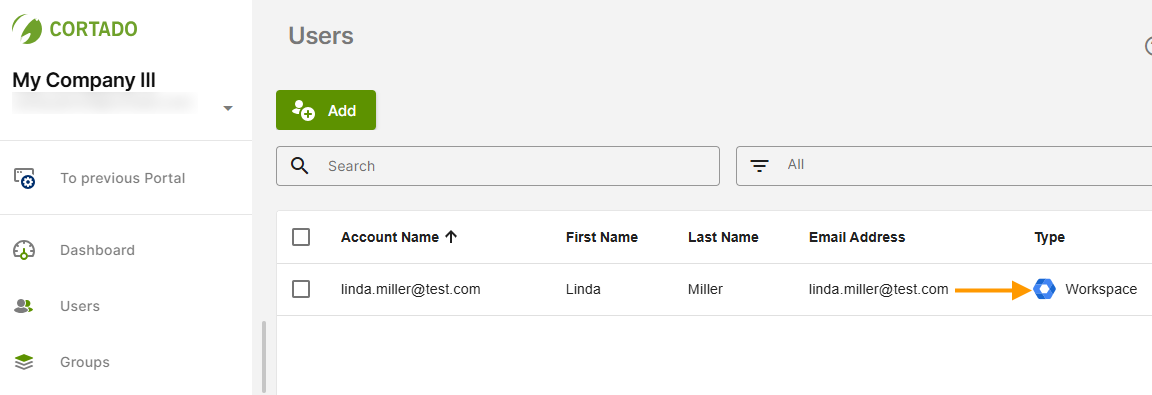
All apps, profiles, policies, managed configurations, etc., that were previously assigned directly to local users are automatically transferred to the Workspace account when the local account is replaced.
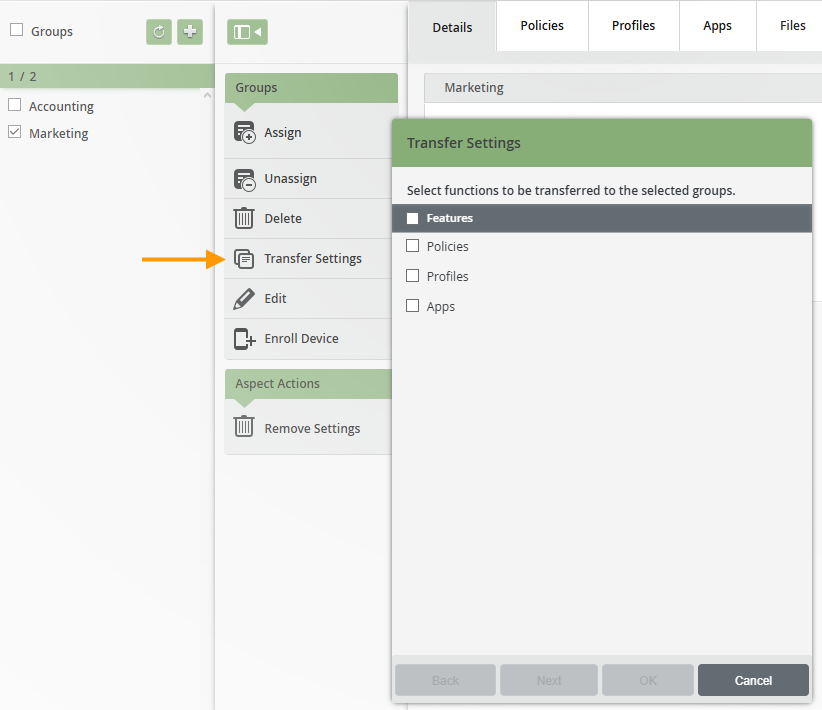
The situation is different for configurations that were assigned to local groups. These remain with the local groups and must be manually reassigned to the new Workspace groups afterward. To transfer these configurations, use the Transfer Settings option in the group management section of the old Cortado administration portal.