This feature is already available in our new administration portal. The new portal is currently in beta. Instructions for using the new portal can be found at the end of this article.
The Google integrity check (Play Integrity API) for Android devices is now available in the Cortado administration portal, where it replaces the Google SafetyNet verification. You can use the integrity check, for example, to detect rooted devices or to find devices on which bootloader has been unlocked. Both of these represent a security risk and increase the possibilities for attack from malicious programs. For Android devices that do not reach the desired security standards, specific measures can be defined in the administration portal, both under Settings (for all devices) as well as under Policies (for selected users/groups/devices). Thus, for example, the work profile on a BYOD device can be locked or deleted if required, should an unlocked bootloader be detected by the integrity check.
Setting the action for non-compliant devices
Checking the integrity level
- You can view the integrity level, as determined by Google, of any Android device included in the administration portal.
- To do this, select the desired device under Administration→ Devices.
- You can view the integrity level and the time of the last verification in the Details tab (arrow in illus.).
Note! A device's integrity level is determined by Google. It can sometimes take a while until the result of this check to be displayed. In the interval, the integrity level None may appear here temporarily. In this case, wait a while and check the result again later. As long as no integrity level can be determined, there will be no action for non-compliant devices.

The following integrity levels for a device can be determined by Google:
- High (hardware-backed) (arrow in upper illus.): The Cortado app is running on an Android device that is supported by Google Play services and has a high guarantee of system integrity, e.g. hardware-backed proof of boot integrity. Hardware-backed means that the encryption keys are stored in a separate memory to which the operating system has no access. Therefore, a malicious app cannot gain access to it. The device passes system integrity checks and meets Android compatibility requirements.
- Middle (device): The Cortado app is running on an Android device that is supported by Google Play services. The device passes system integrity checks and meets the Android compatibility requirements. The factory ROM is installed (e.g. by resetting the device) and the bootloader is locked.
- Low (basic): The Cortado app is running on a device that passes the basic system integrity checks. The device may not meet Android compatibility requirements and may be not approved to run Google Play services. The device could, for example, be running a non-approved version of Android, it may have an unlocked bootloader, or it may not be certified by the manufacturer.
- Compromised (arrow in lower illus.): The Cortado app is running on a device that fails basic system integrity checks. The device may not meet Android compatibility requirements and may not be approved to run Google Play services. A device is used that shows signs of an attack (e.g., API hooking) or system compromise (e.g., rooting), or the app is not running on a physical device (e.g., an emulator that does not pass Google Play's integrity checks).
- None: The integrity level of the device is unable to be determined.

Setting the action for non-compliant devices
Set the minimum integrity level required for Android devices. If devices with a lower level than the one you set are discovered, the action you predetermined will be carried out.
If you want to set an action for non-compliant devices globally, for all Android devices included in the management portal, proceed as follows:
- Select Administration→ Settings→ Android Enterprise→ Configure.
- Scroll down to the section Device integrity policy (arrow in illus.).

If you want instead to set the action for non-compliant devices only for certain users/groups/devices, create instead a corresponding Android device policy.
- Select what is the minimum integrity level your Android devices have to reach (example in illus., upper arrow).
- Also specify what should happen during and after the configuration of the Android devices if Google's integrity check detects a lower integrity level than you have set (lower arrow in illus.).

- Lock device or workspace: All managed apps will be locked.
- Reset device / remove workspace: Fully managed devices can be reset to factory default settings. For devices that have a work profile, the work profile is deleted from the device.
It is generally sufficient to select the Lock option and then check the user’s device to determine what the problem is.
Locked devices can be selected under Administration→ Devices and unlocked with Unlock Workspace. However, the lock is repeated after 10 minutes if the cause of the lock has not been removed.
You can also put these settings in place in the Android Enterprise policies and thus determine different settings for selected users, groups, or devices. Depending on the circumstances, it may take up to 10 minutes after configuring the devices for these policies to take effect. If a configuration of the integrity level is made in the policies, it has a higher priority than under Administration→ Settings. The latter then applies only to those users for whom no corresponding policy has been created and distributed.
NEW ADMINISTRATION PORTAL: Set a minimum integrity level for Android devices
The new administration portal is currently in the beta phase. You are welcome to send us your feedback on the new portal using the corresponding button (at the bottom left of the new administration portal).
The Google integrity check (Play Integrity API) for Android devices is now available in the Cortado administration portal, where it replaces the Google SafetyNet verification. You can use the integrity check, for example, to detect rooted devices or to find devices on which bootloader has been unlocked. Both of these represent a security risk and increase the possibilities for attack from malicious programs. For Android devices that do not reach the desired security standards, specific measures can be defined in the administration portal, both under Settings (for all devices) as well as under Policies (for selected users/groups/devices). Thus, for example, the work profile on a BYOD device can be locked or deleted if required, should an unlocked bootloader be detected by the integrity check.
Checking the integrity level
- For each Android device enrolled in the management portal, you can view the integrity level determined by Google.
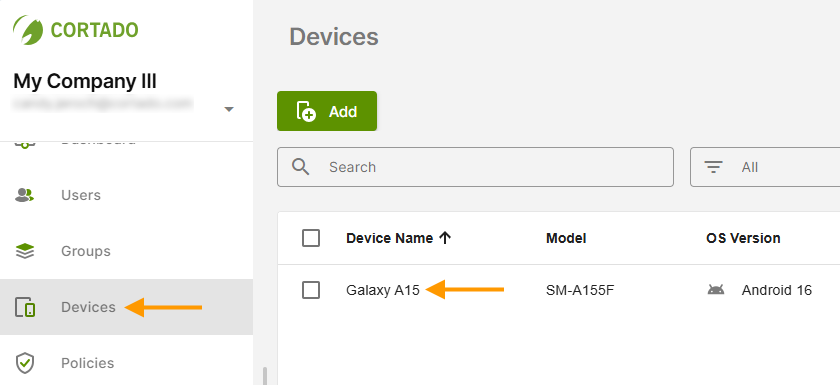
- To do this, select the desired device from the Devices menu (left arrow in the image) by clicking on the device name (right arrow in the image).
- You can find the integrity level and the date of the last test under “Compliance” (arrow in the image).
Note! A device's integrity level is determined by Google. It can sometimes take a while until the result of this check to be displayed. In the interval, the integrity level None may appear here temporarily. In this case, wait a while and check the result again later. As long as no integrity level can be determined, there will be no action for non-compliant devices.
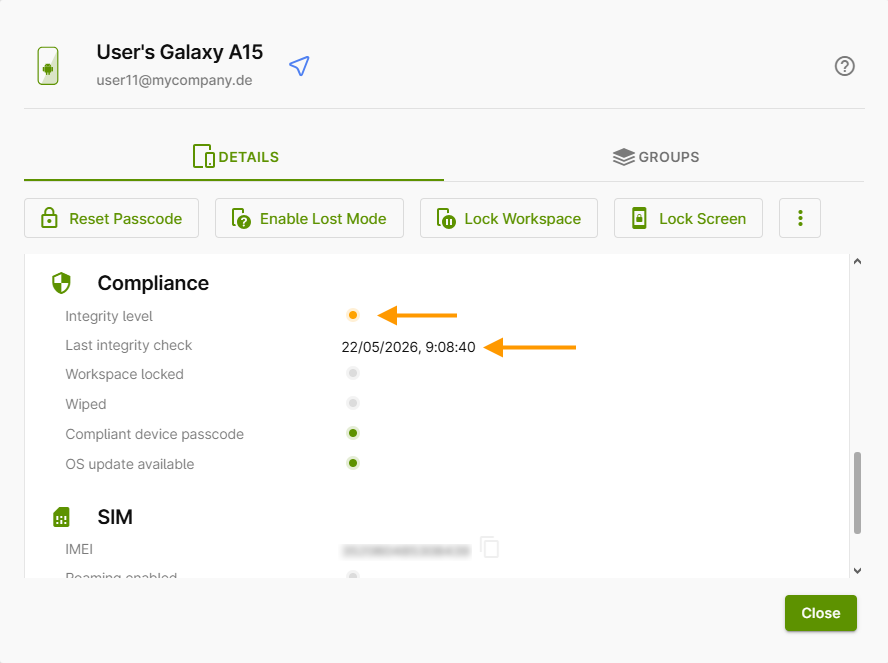
The following integrity levels for a device can be determined by Google:
- High (hardware-backed) (arrow in upper illus.): The Cortado app is running on an Android device that is supported by Google Play services and has a high guarantee of system integrity, e.g. hardware-backed proof of boot integrity. Hardware-backed means that the encryption keys are stored in a separate memory to which the operating system has no access. Therefore, a malicious app cannot gain access to it. The device passes system integrity checks and meets Android compatibility requirements.
- Middle (device): The Cortado app is running on an Android device that is supported by Google Play services. The device passes system integrity checks and meets the Android compatibility requirements. The factory ROM is installed (e.g. by resetting the device) and the bootloader is locked.
- Low (basic): The Cortado app is running on a device that passes the basic system integrity checks. The device may not meet Android compatibility requirements and may be not approved to run Google Play services. The device could, for example, be running a non-approved version of Android, it may have an unlocked bootloader, or it may not be certified by the manufacturer.
- Compromised: The Cortado app is running on a device that fails basic system integrity checks. The device may not meet Android compatibility requirements and may not be approved to run Google Play services. A device is used that shows signs of an attack (e.g., API hooking) or system compromise (e.g., rooting), or the app is not running on a physical device (e.g., an emulator that does not pass Google Play's integrity checks).
- None: The integrity level of the device is unable to be determined.
Setting the action for non-compliant devices
Set the minimum integrity level required for Android devices. If devices with a lower level than the one you set are discovered, the action you predetermined will be carried out.
If you want to set an action for non-compliant devices globally, for all Android devices included in the management portal, proceed as follows:
- Open the Settings in the administration portal and then switch to the Android Enterprise tab.
- Under Device Integrity Policy, click Manage (arrow in illus.).

Here you can set a minimum integrity level for device security. There are three levels (low, medium, and high).
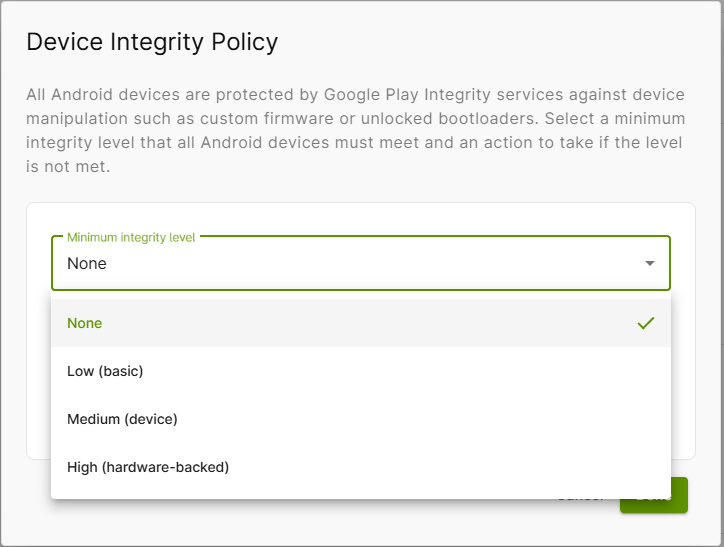
For each of the three levels, you can also specify which actions should be performed for non-compliant devices. For example, a device (or workspace) that does not meet the criteria can be locked or reset.
We recommend using the Lock device or workspace option, as experience has shown that it can quickly happen that a device no longer runs compliant, especially at a high integrity level.
If you want instead to set the action for non-compliant devices only for certain users/groups/devices, create instead a corresponding Android device policy.
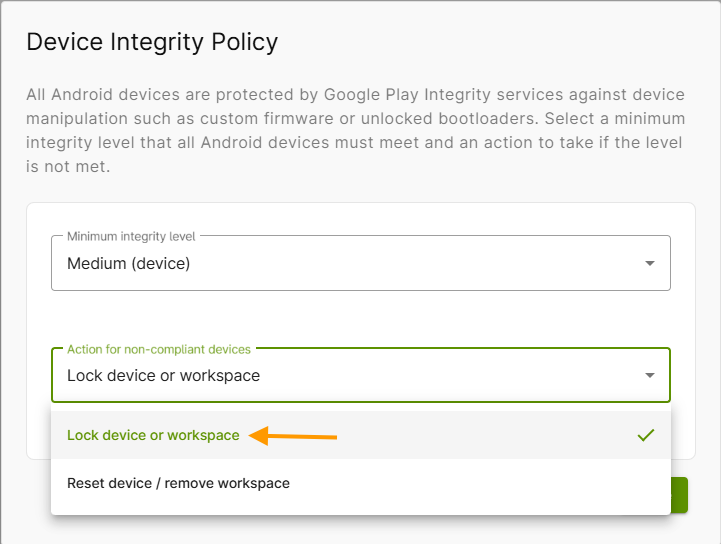
- Lock device or workspace: All managed apps will be locked.
- Reset device / remove workspace: Fully managed devices can be reset to factory default settings. For devices that have a work profile, the work profile is deleted from the device.
It is generally sufficient to select the Lock option and then check the user’s device to determine what the problem is.
Locked devices can be selected under Administration→ Devices and unlocked with Unlock Workspace. However, the lock is repeated after 10 minutes if the cause of the lock has not been removed.
You can also put these settings in place in the Android Enterprise policies and thus determine different settings for selected users, groups, or devices. Depending on the circumstances, it may take up to 10 minutes after configuring the devices for these policies to take effect. If a configuration of the integrity level is made in the policies, it has a higher priority than under Administration→ Settings. The latter then applies only to those users for whom no corresponding policy has been created and distributed.