Apple TVs are increasingly being used as digital teaching aids in educational institutions. Teachers use them, for example, to stream lesson content from iPhones, iPads, or Macs via AirPlay. Managing the devices with Cortado MDM offers numerous advantages: apps and Wi-Fi access data can be provided centrally, and OS updates can be controlled and enforced in a targeted manner. In addition, logging in to devices with private Apple accounts can be prevented. Apple TVs can also be reset to factory settings remotely at any time.
Aim
In this how-to guide, we show you how to initially configure Apple TVs for use with Cortado MDM.
Implementation
1. Add Apple TV to Apple Business Manager
To manage an Apple TV via the Cortado MDM administration portal, the device must be registered in Apple Business Manager (ABM). This is ideally done by purchasing the device from an authorized dealer or directly from Apple, whereby the serial numbers of the devices are assigned to the corresponding ABM organization. For more information, see the Apple user manual.
It is also possible to add devices to Apple Business Manager retrospectively using Apple Configurator. We show you how to do this in our help article How to register an Apple TV using a Mac in Apple Business Manager.
2. Connect Cortado to Apple Business Manager
Now you can link Cortado MDM to Apple Business Manager to set up Automated Device Enrollment (ADE). We show you how to do this step by step in our help article How do I enroll company-owned, supervised Apple devices via ADE.
3. Create and configure an ADE profile
Next, create a profile for the automated device enrollment of your Apple devices. To do this, follow the steps described in the article mentioned above. However, please note the following when configuring the profile:
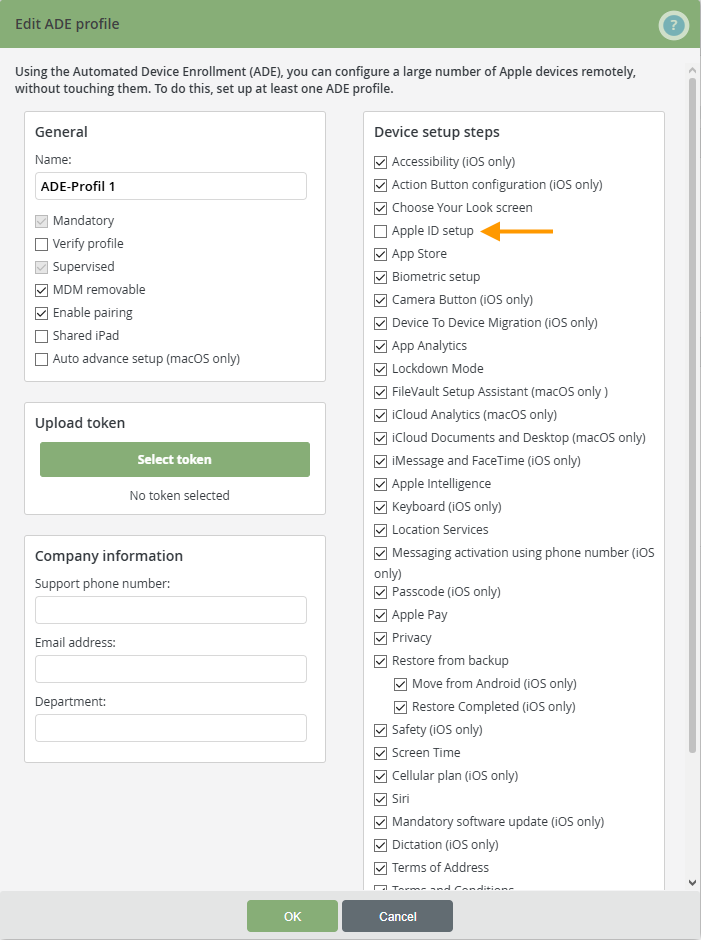
Uncheck the box for Apple ID setup (arrow in the image).
Adding an Apple account is not necessary and can lead to unwanted behavior when connecting other devices via AirPlay (iPhone, Mac). We therefore recommend managing Apple TVs completely and not allowing private use (COBO). Unfortunately, it is currently not possible on Apple's side to prevent subsequent changes to the Apple account via the Settings or App Store app. We show you how you can still restrict the use of your devices in our How-To guide on How to control the use of your Apple TV with policies.
4. Configure Apple TV
Connect your Apple TV to the monitor:
- Select your language and region, then agree to the privacy settings.
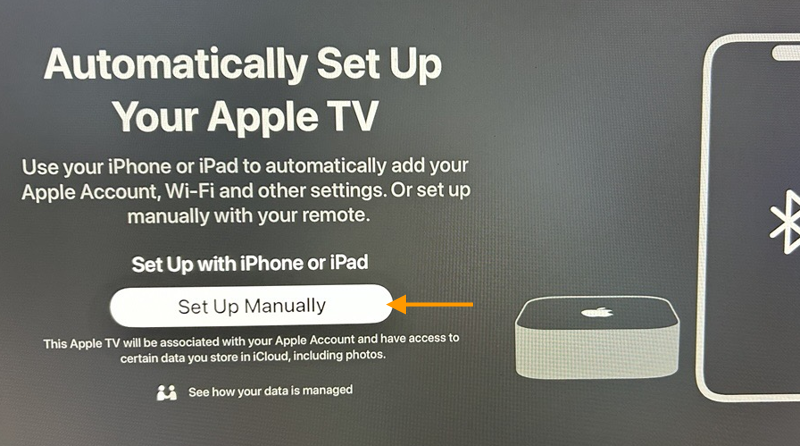
- In the Automatically Set Up Your Apple TV window, click Set Up Manually (arrow in image).
- Now perform the following setup steps. (The step for setting up an Apple account will not be displayed if you have unchecked the corresponding box.)
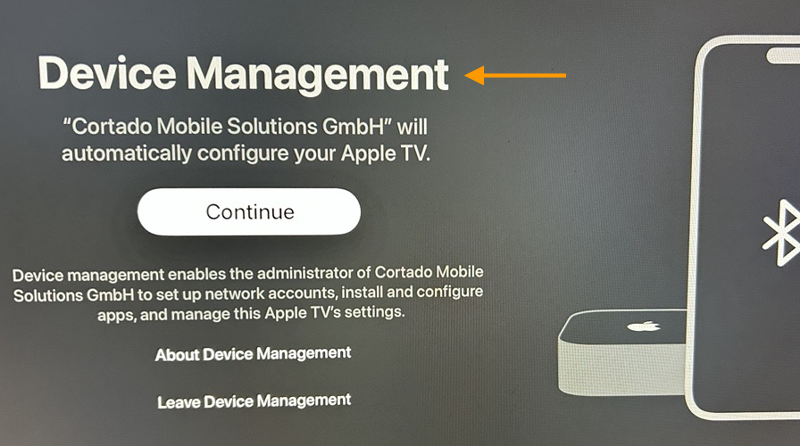
- Agree to the management of your device (arrow in the image) by Cortado MDM by clicking Next.
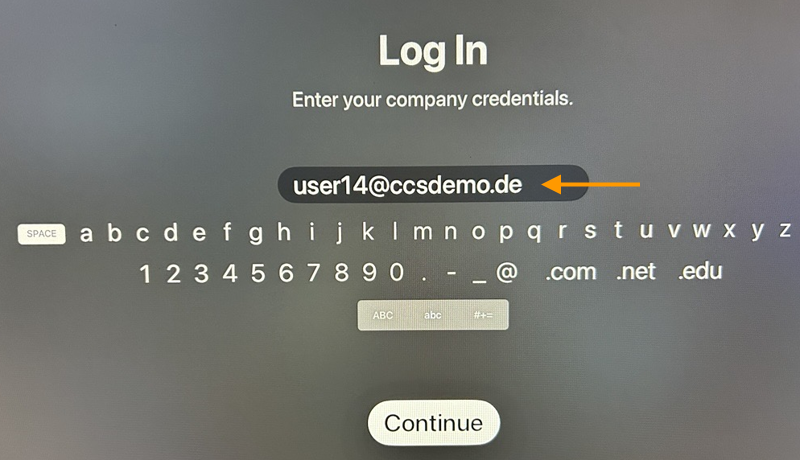
The next step is to log in with a user account. To do this, users must have been imported into the administration portal before configuration. (Please note the maximum number of three devices per user. For example, a user can log in with the same user account on a maximum of one iPhone, one Mac, and one Apple TV.)
- Cortado MDM with Microsoft Entra groups: Microsoft users use their Microsoft login (lower arrow in the left image and right image).
- Cortado MDM with local users: Local users must create a password for login (upper arrow in the left image) using the invitation email and their email address. Alternatively, you can assign a password for the user during user import.
After registration, the device can be controlled as usual using the remote control.