Forcing OS updates on your supervised iOS/iPadOS/macOS devices in a defined window of time.
Aim
The aim is to establish an homogenous OS version landscape, and to support users who may not always think about installing OS updates themselves. The Force Automatic OS Update policy allows you to roll out available OS updates in a coordinated manner, keeping your Apple device fleet always up-to-date.
Note! This feature is very powerful, so it should always be used with caution. Please observe the displayed warnings.
Implementation
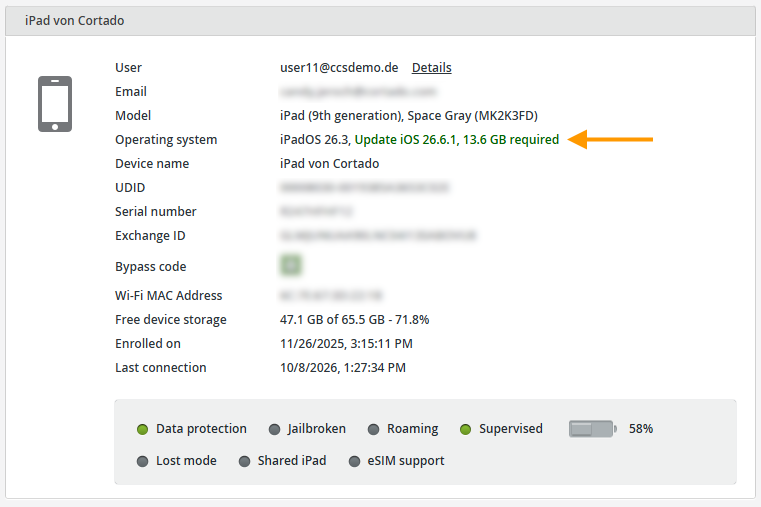
Under Administration→ Devices→ Details you will see a reminder whenever an update is available for a device:
Now, under Administration→ Policies, you can also force the available updates to be installed on the users’ devices.
- Click on the plus button to create a new Policy (arrow in illus.).

- Then select iOS/iPadOS, macOS or tvOS.
- Keep the supervised devices enrollment method (arrow in the illus.).
Note for shared iPads! When using shared iPads, no user (including guest users) may be logged in on the device during the update window. If necessary, ask your users to log out for this period.

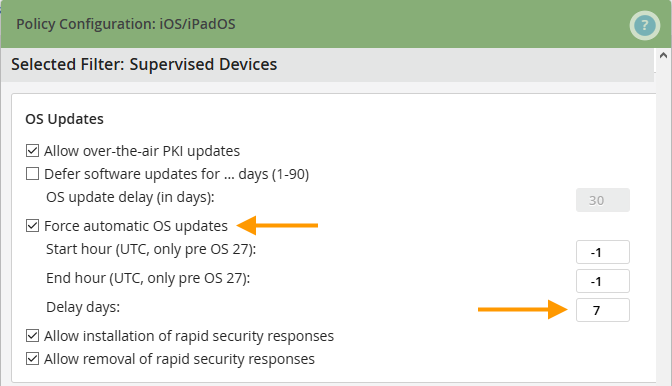
- You will find a policy there, called Force automatic OS updates (upper arrow in illus.).
- Check the box for this policy. This policy ensures that an OS update is automatically installed 60 minutes after it becomes available on a device.
OS version 27 and later
Delay (days): Specify the number of days to delay the installation of an update after its release (lower arrow in illus.). Example: If set to 7 days, users will see an installation schedule on their device set for 7 days from now (date/time). Until then, they can install the update themselves. Otherwise, it will be installed automatically 60 minutes after that scheduled time.
OS version 26.x and earlier
Note! Avoid settings such as Start hour: 22, End hour: 4, to keep the update window open from 22:00 to 04:00. There is a possibility that devices may not cope with these settings, as the value of the start hour is higher than the value of the end hour.
- Start hour (UTC): Enter the time here that you want the update window to open. If, for example, you select the number 17, the update window will start at 17:00 (UTC).
- End hour (UTC): Enter the time here that you want the update window to close. If, for example, you select the number 22, the update window will close at 22:00 (UTC). After that, the devices will no longer be prompted to install the update.
- Delay days: Now determine by how many days an update is to be postponed (lower arrow in illus). Example: If the value is set to 7 days, nothing happens on the device during this period. On the 8th day, the update is then installed automatically and without user control during the previously defined update time. The user cannot decide for themselves when the update is carried out.
We show you how to postpone a software update by a certain number of days in our How-To How to defer iOS/iPadOS/macOS system updates for supervised devices.
Note! Force automatic OS Updates forces an update when one is available for the corresponding device class. A confirmation from the end user is not requested. The update is downloaded and then installed.
- Now select the new policy (left arrow in illus.) click on Assign (right arrow in illus.) to assign it to the desired users/groups/devices.

Warning! Especially if you are using legacy apps, you should absolutely ensure beforehand that the apps are suited to new versions. You should also inform yourself of any known problems with the new version. It may make sense to increase the Delay days value mentioned above. We recommend that you familiarise yourself with this feature before you roll it out on a broad scale. Configure and roll out this policy for a test group first, to determine whether the recommended settings are suited to your requirements.