This feature is already available in our new administration portal. The new portal is currently in beta. Instructions for using the new portal can be found at the end of this article.
A variety of policies are available for managing Apple TVs. These can be used to centrally configure and secure the devices and adapt them to the requirements of educational institutions or companies.
- If you want to create a new policy for tvOS, first proceed as described here.
- Then select tvOS as the policy you want to add.
- You now have access to all policies available for supervised tvOS devices.
- Add a name and description for your policy (example shown in illus.).
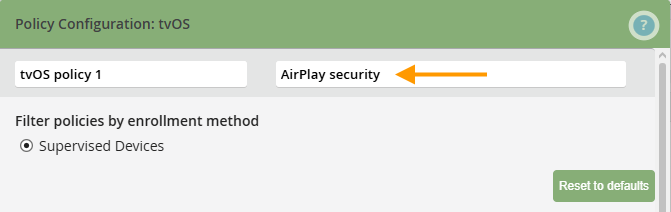
You can now configure new policies on the following topics:
AirPlay Security
Using AirPlay with an Apple TV is a common scenario, especially for educational institutions. You can use this policy to control access to AirPlay.
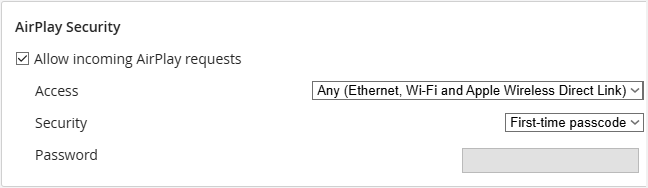
Keep the Allow incoming AirPlay requests checkbox selected by default if you want to use AirPlay.
Under Access, you can specify who is allowed to stream content to your Apple TV. You can either allow access for all devices (selection: Any...) or limit access to devices on the same network (selection: Same network...). This means that only devices on the same Ethernet or Wi-Fi network as the Apple TV can connect.
You can also specify here whether a passcode should be used only the first time (option: First-time passcode), always (option: Passcode), or a password that you specify (option: Password). If necessary, enter the password in the field provided.
Apps
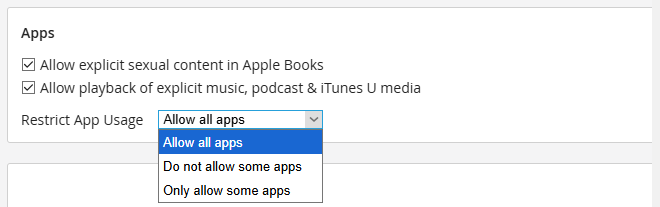
In addition to some policies on app usage, which are briefly explained in our policies overview, the Restrict App Usage policy is also available. This allows you to place certain apps on either a block list or an allow list. You can find out how to do this in our How-To article: How to place default iOS/iPadOS/tvOS apps on the deny list or allow list.
Conference Room Display
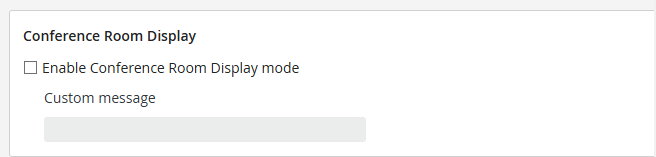
If you are using your Apple TV as a conference room display so that all participants can share the screen display from a Mac/iPhone/iPad, you have the option here to leave a message with instructions on how to establish the AirPlay connection (as well as details about the wireless network). To do this, activate the checkbox and enter the corresponding message.
Device
Here you will find the following policies, briefly explained in our policy overview:
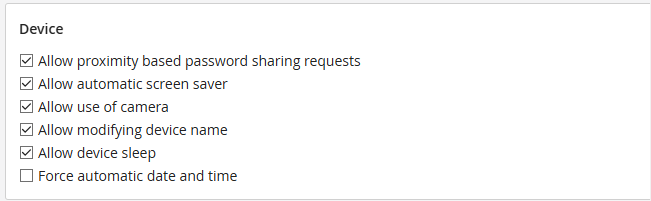
Allow proximity based password sharing requests: As long as the checkbox is enabled, devices may request passwords or access data or share them with devices in close proximity (e.g., iPhone → Apple TV). Users may, for example, receive a notification on an iPhone to “Share password for nearby Apple TV.” For more information on this topic, please refer to the Apple user manual.
Kiosk Mode
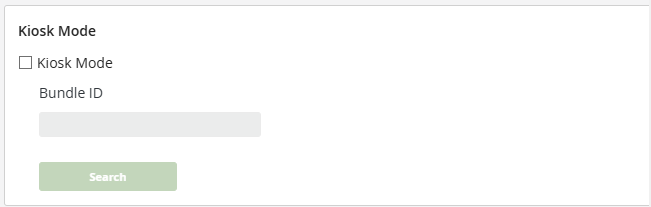
Kiosk mode allows you to use Cortado MDM to restrict an Apple TV to a specific purpose and manage it centrally. The Apple TV can be configured to run only a single app and block access to other functions and settings. Find out how to do this in our How-To article How to set up Kiosk mode for fully managed iOS/iPadOS/tvOS devices.
TV Remote
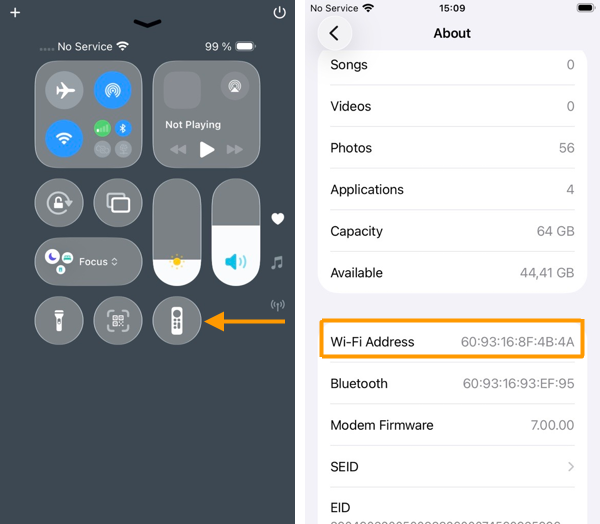
As soon as an iPhone/iPad (with Bluetooth enabled) is connected to the same Wi-Fi network as the Apple TV, the Apple TV can be operated via the Remote app on the iPhone/iPad (arrow in the left image) or via Siri. However, using the Wi-Fi address of an iPhone/iPad, this access can be restricted to specific devices. (Recommended for educational institutions!)
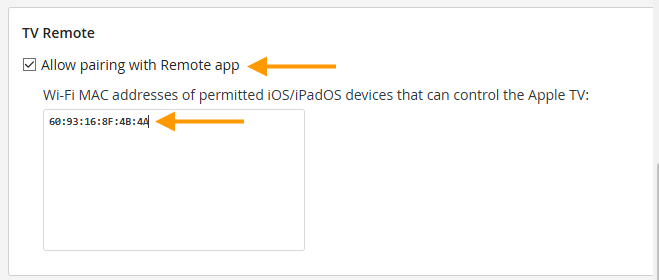
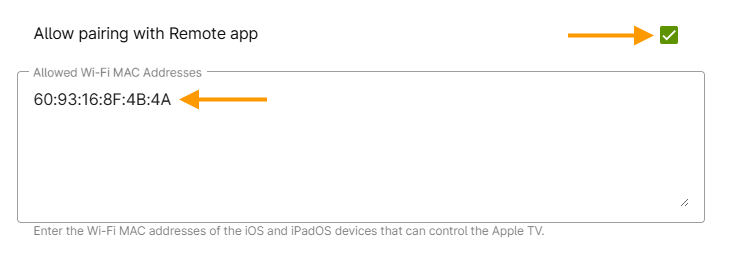
To do this, you can use the Allow pairing with Remote app policy (upper arrow in the image).
- Uncheck the box if you only want to use the device's physical remote control and generally want to prevent access via an iPhone/iPad.
- Or specify exactly which iOS/iPadOS devices are allowed to access your Apple TV. To do this, enter the Wi-Fi MAC addresses of the corresponding devices (lower arrow in the image).
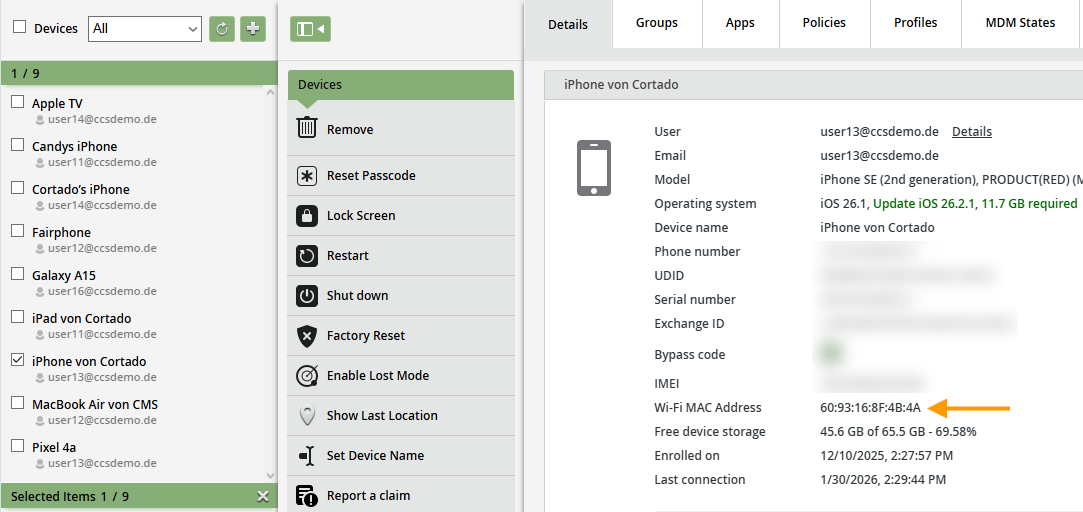
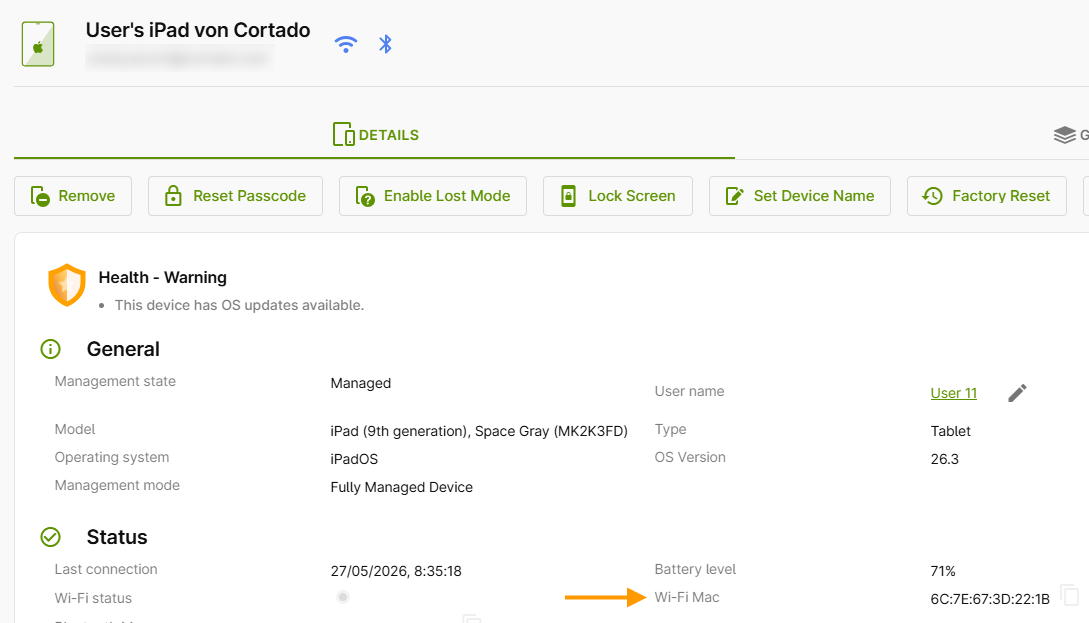
You can find the Wi-Fi MAC addresses either directly in the device settings of your iPhone/iPad under General→ Info (see above) or in the device management section of the administration portal (arrow in the image).
OS Updates
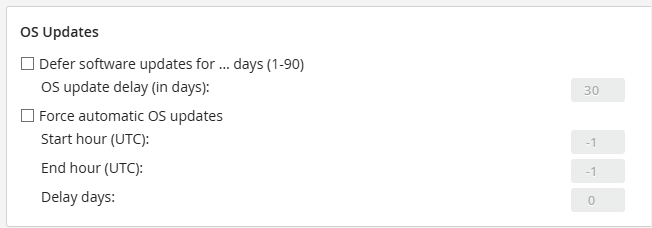
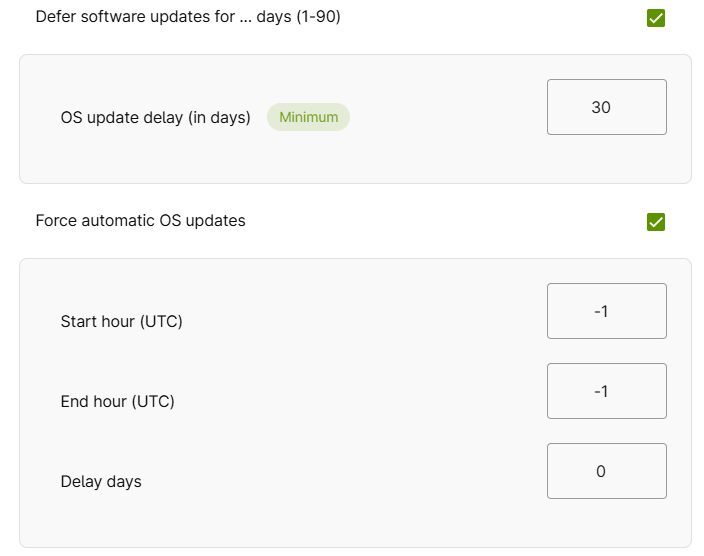
The following policies will help you postpone an OS update for a specific period of time. We show you how to do this in our How-To guide How to defer Apple system updates for supervised devices.
It is also possible to force OS updates. We show you how to do this in our How-To guide How to force OS updates for supervised Apple devices.
NEW ADMINISTRATION PORTAL: Creating policies for tvOS devices
The new administration portal is currently in the beta phase. Please feel free to send us your feedback on the new portal by clicking the corresponding button (located at the bottom left of the new administration portal).
A variety of policies are available for managing Apple TVs. These can be used to centrally configure and secure the devices and adapt them to the requirements of educational institutions or companies.
- If you want to create a new policy for tvOS, first proceed as described here.
- Then select tvOS as the policy you want to add.
- You now have access to all policies available for supervised tvOS devices.
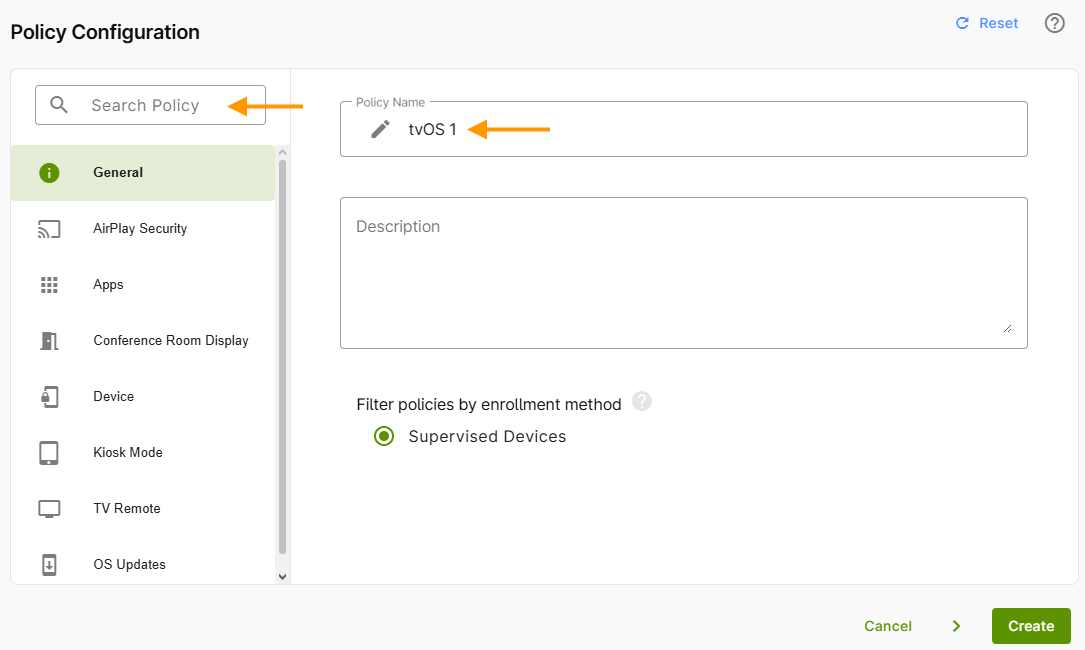
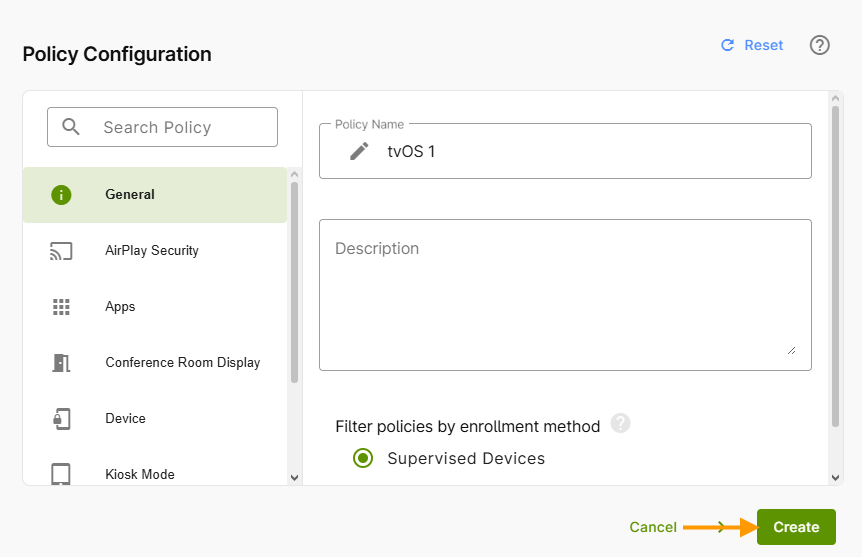
- Add a name and description for your policy (example shown in illus.).
- You can find all the policies in the menu on the left side of the page. In the top-left corner, you can search for policy details (left arrow in the image).
- Use the Reset button (top right) to restore all previously made changes to their default settings.
You can now configure new policies on the following topics:
AirPlay Security
Using AirPlay with an Apple TV is a common scenario, especially for educational institutions. You can use this policy to control access to AirPlay.
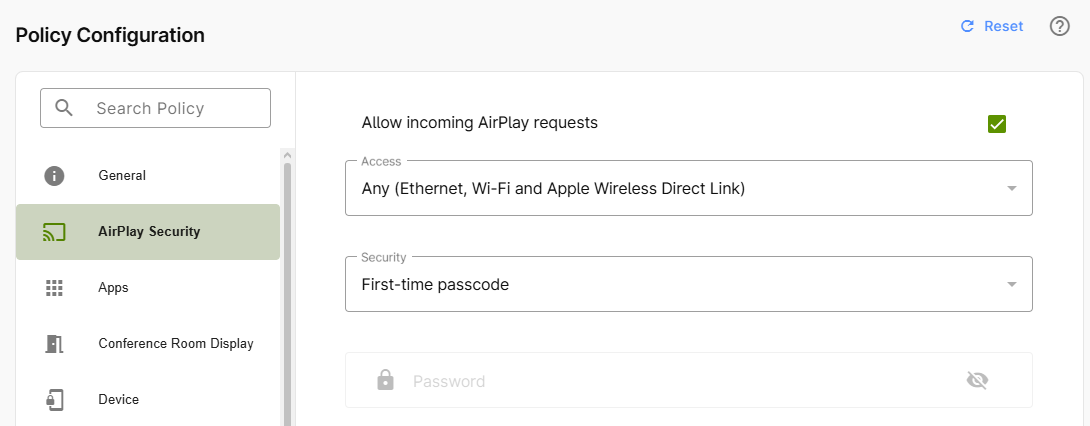
Keep the Allow incoming AirPlay requests checkbox selected by default if you want to use AirPlay.
Under Access, you can specify who is allowed to stream content to your Apple TV. You can either allow access for all devices (selection: Any...) or limit access to devices on the same network (selection: Same network...). This means that only devices on the same Ethernet or Wi-Fi network as the Apple TV can connect.
You can also specify here whether a passcode should be used only the first time (option: First-time passcode), always (option: Passcode), or a password that you specify (option: Password). If necessary, enter the password in the field provided.
Apps
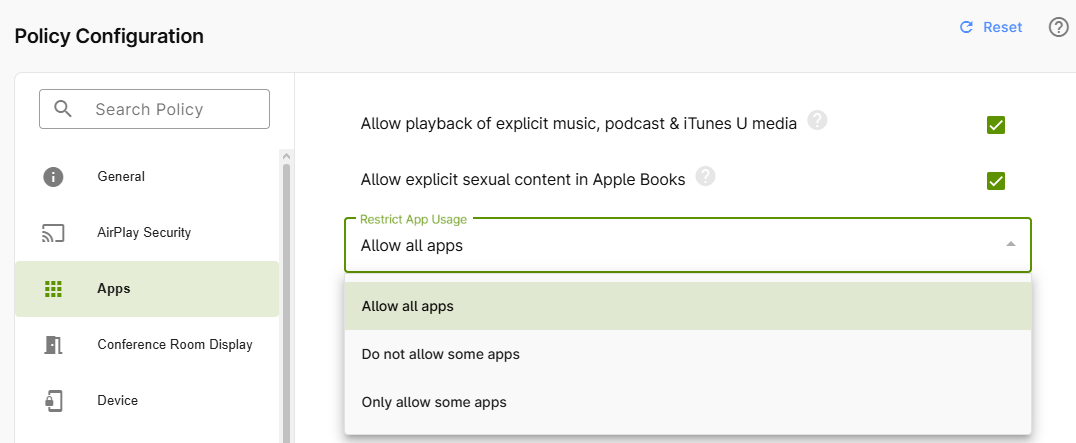
In addition to some policies on app usage, which are briefly explained in our policies overview, the Restrict App Usage policy is also available. This allows you to place certain apps on either a block list or an allow list. You can find out how to do this in our How-To article: How to place default iOS/iPadOS/tvOS apps on the deny list or allow list.
Conference Room Display
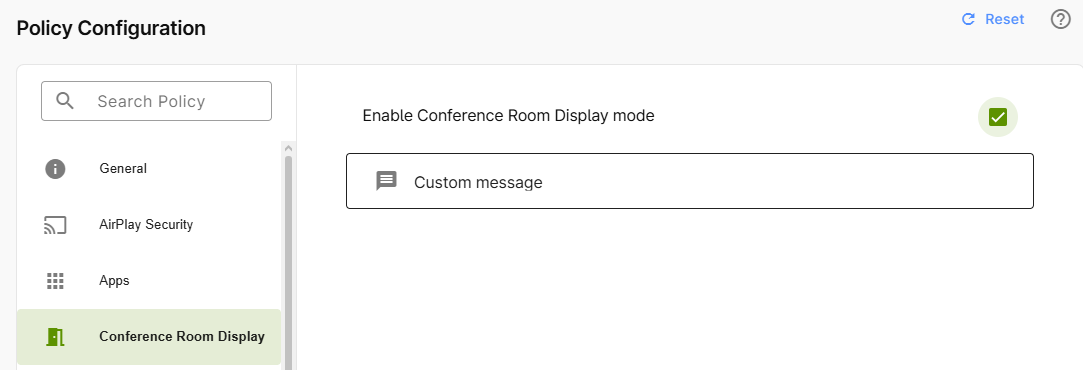
If you are using your Apple TV as a conference room display so that all participants can share the screen display from a Mac/iPhone/iPad, you have the option here to leave a message with instructions on how to establish the AirPlay connection (as well as details about the wireless network). To do this, activate the checkbox and enter the corresponding message.
Device
Here you will find the following policies, briefly explained in our policy overview:
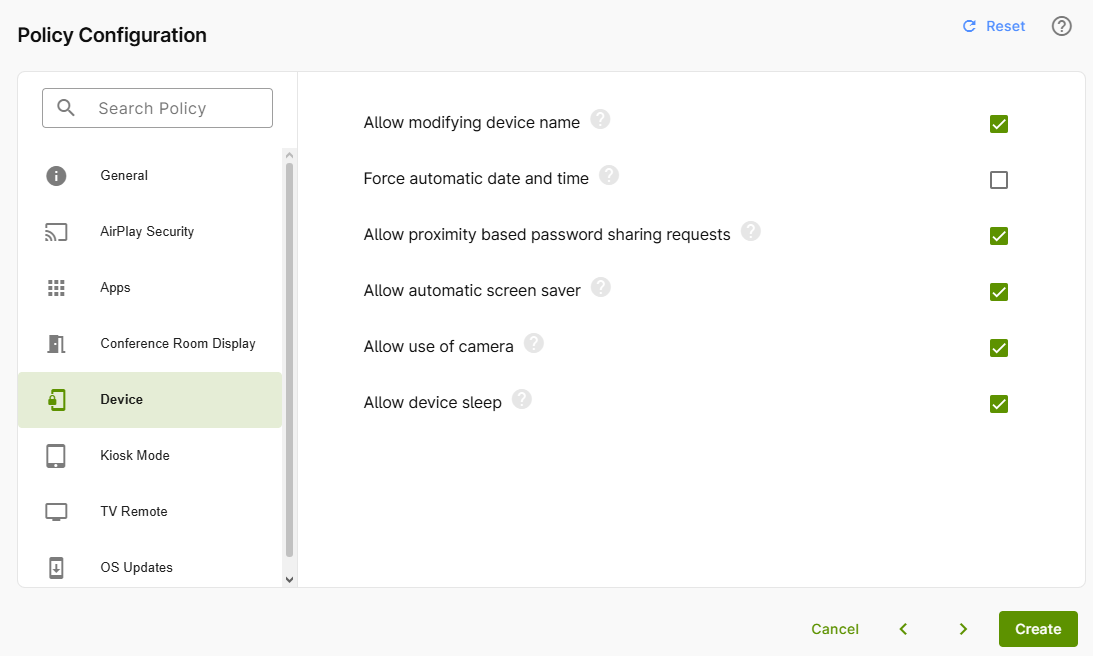
Allow proximity based password sharing requests: As long as the checkbox is enabled, devices may request passwords or access data or share them with devices in close proximity (e.g., iPhone → Apple TV). Users may, for example, receive a notification on an iPhone to “Share password for nearby Apple TV.” For more information on this topic, please refer to the Apple user manual.
Kiosk Mode
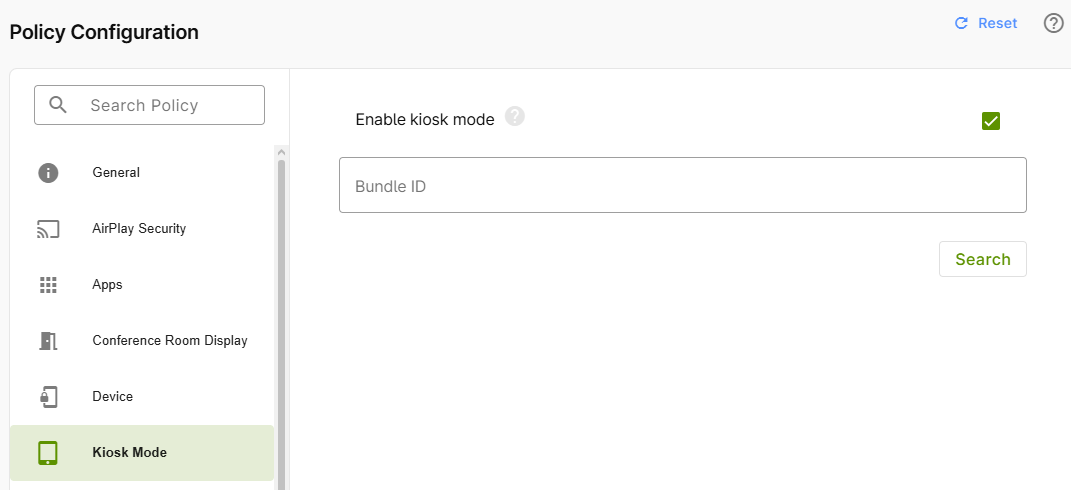
Kiosk mode allows you to use Cortado MDM to restrict an Apple TV to a specific purpose and manage it centrally. The Apple TV can be configured to run only a single app and block access to other functions and settings. Find out how to do this in our How-To article How to set up Kiosk mode for fully managed iOS/iPadOS/tvOS devices.
TV Remote
As soon as an iPhone/iPad (with Bluetooth enabled) is connected to the same Wi-Fi network as the Apple TV, the Apple TV can be operated via the Remote app on the iPhone/iPad (arrow in the left image) or via Siri. However, using the Wi-Fi address of an iPhone/iPad, this access can be restricted to specific devices. (Recommended for educational institutions!)
To do this, you can use the Allow pairing with Remote app policy (upper arrow in the image).
- Uncheck the box if you only want to use the device's physical remote control and generally want to prevent access via an iPhone/iPad.
- Or specify exactly which iOS/iPadOS devices are allowed to access your Apple TV. To do this, enter the Wi-Fi MAC addresses of the corresponding devices (lower arrow in the image).
You can find the Wi-Fi MAC addresses either directly in the device settings of your iPhone/iPad under General→ Info (see above) or in the device management section of the administration portal (arrow in the image).
OS Updates
The following policies will help you postpone an OS update for a specific period of time. We show you how to do this in our How-To guide How to defer Apple system updates for supervised devices.
It is also possible to force OS updates. We show you how to do this in our How-To guide How to force OS updates for supervised Apple devices.
- Once you've finished configuring the policy, you can save it by clicking Create (arrow in the image).
The next step is to assign the policy. We'll show you how to do that in our help article, How can I assign/unassign, edit, duplicate and remove policies?
Note! When assigning directives, be sure to follow the instructions in our Help article Special conditions when assigning multiple policies.