This feature is already available in our new administration portal. The new portal is currently in beta. Instructions for using the new portal can be found at the end of this article.
In the Cortado MDM administration portal, you can access your subscription administration. You can view the status of your licences and also change the number of your licences or cancel your subscription.
Aim
In this How-To we will show you how to manage your own subscription.
Implementation
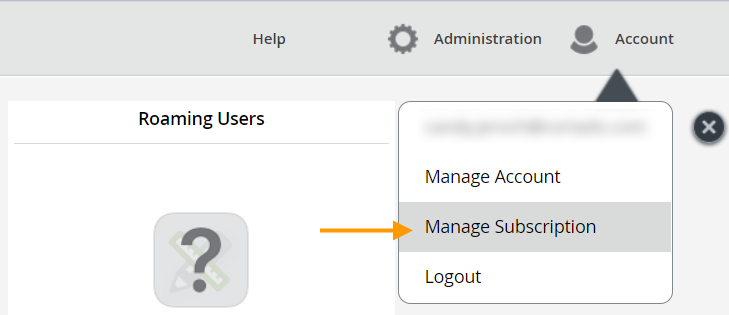
- Open the Cortado MDM administration portal and click on Manage Subscription under Account (arrow in illus.).
You will find all information about your subscription here:

Note! If you rent mobile devices from Cortado, they will also be displayed here. However, the number of rented devices cannot be changed here. It is also not possible to cancel the subscription here. Please contact our sales team instead.
Change plan
If you would like to change your existing plan, please contact our sales team.
Change the number of licenses
- With a click on the Change button (middle arrow in illus.) you can buy new licenses or reduce the number of your licenses.
- Newly added licences are charged to your account immediately and can then be used straight away.
- If you want to reduce your number of licences (Downgrade), they will only be adjusted on your account on the date of expiry.
- Downgrades are only possible for licences that are no longer in use.

Canceling a Cortado subscription
- You can cancel your subscription at any time before the current expiry date.
- To do so, click on Terminate in the overview (upper arrow in illus.).

- After cancelling a licence, you can still access it via the Cortado administration portal until the current expiry date.
By clicking on Renew at any time you can withdraw your cancellation and reactivate your subscription.

Invoices and payment methods
Note! This button is not visible for additionally created administrators.
- Click on the Invoices and payment methods link (lower arrow in illus.) to be directed to the billing portal. Here you can update your account details, view your invoices and change your payment method if required.

Note! Access to the billing portal is only possible for the administrator who originally set up the subscription. This will be determined by the originally used email address. For any questions regarding this, please contact our Support-Team.
NEW ADMINISTRATION PORTAL: Managing plans/licenses
The new administration portal is currently in the beta phase. You are welcome to send us your feedback on the new portal using the corresponding button (at the bottom left of the new administration portal).
In the Cortado MDM administration portal, you have access to the subscription management. Here you can view the status of your licenses, change the number of licenses or cancel your subscription.
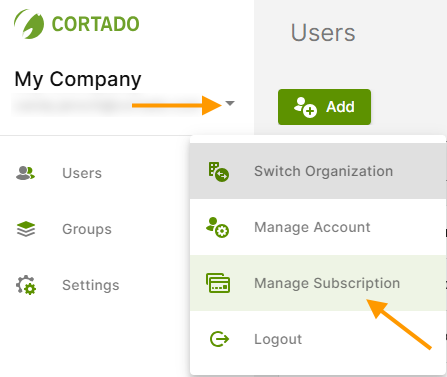
- Click on the small arrow behind your user name (upper arrow in illus.).
- Then select Manage subscription (lower arrow in illus.).
You can find all the information about your subscription here:
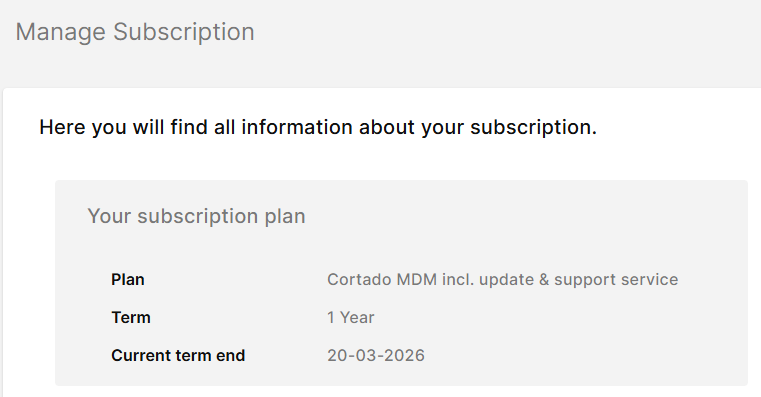
Note! If you have rented mobile devices from Cortado, these will also be displayed here. However, the number of rented devices cannot be changed here. It is also not possible to cancel the subscription here. Please contact our sales team instead.
Changing plan
If you would like to change your existing plan, please contact our Sales Team.
Changing the number of licenses
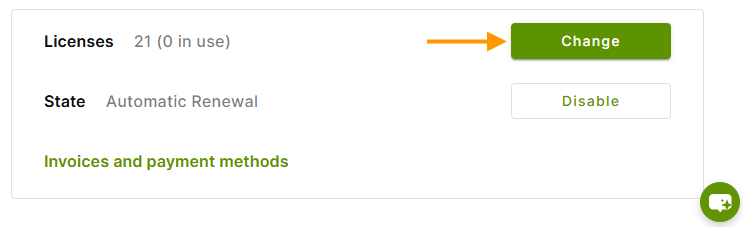
- By clicking on the Change button (arrow in illus.) you can buy new licenses or reduce the number of licenses.
- You can adjust the number of licenses by clicking on the plus and minus buttons.
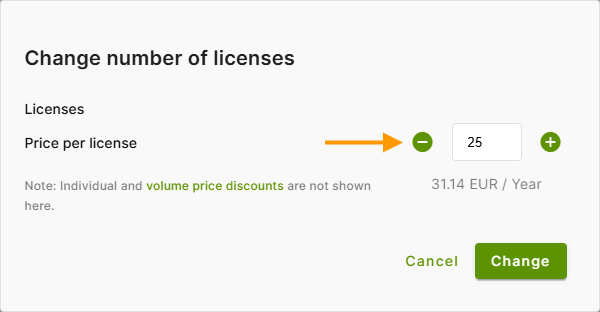
- Newly added licenses are charged immediately and can be used straight away.
- If you wish to reduce the number of your licenses (downgrade), you will only be charged at the end of the term.
- Downgrades are only possible for licenses that are no longer in use.
Canceling Cortado subscription
- You can cancel your subscription at any time at the end of the current term.
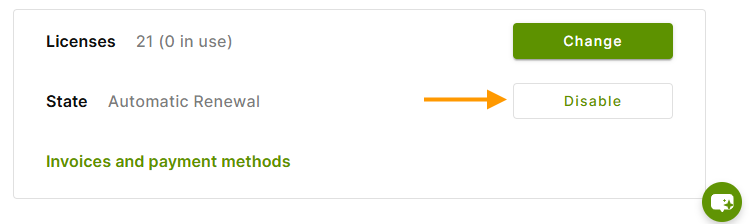
- To do this, click on Disable (arrow in illus.) behind Status: Automatic renewal.
- Your subscription will then automatically expire at the end of the term and will no longer be renewed.
- After canceling your subscription, you have access to the Cortado administration portal until the end of the current term.
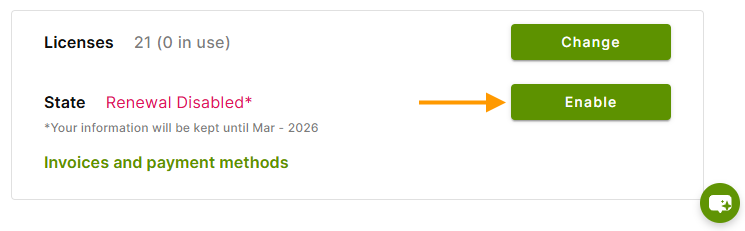
- Before the end of the term, you can cancel the termination by clicking on Enable (arrow in illus.) and reactivate your subscription.
Invoices and payment methods
Note! This button is not visible for additionally added administrators.
By clicking on the link Invoices and payment methods (arrow in illus.) you will be redirected to our billing portal.
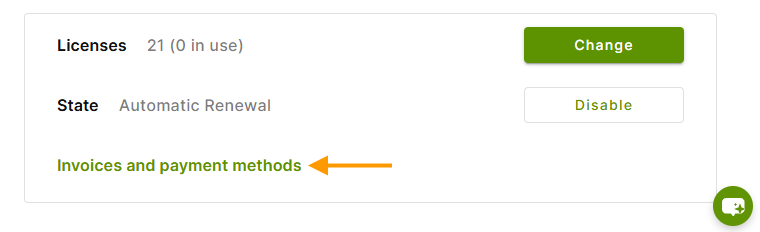
Here you can update your account details, view your invoices and change your payment methods if necessary.
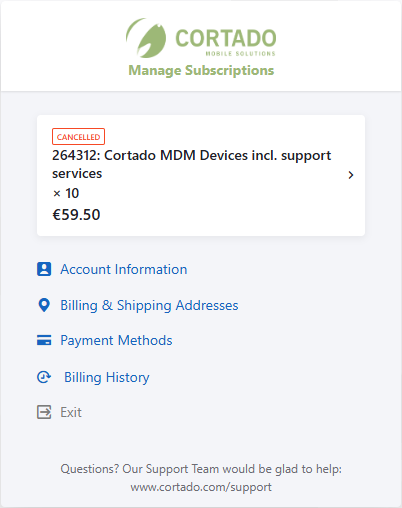
Note! Access to the billing portal is only possible for the administrator who originally set up the subscription. This will be determined by the originally used email address. For any questions regarding this, please contact our Support-Team.