You can add additional administrators to your organisation. The new administrators can be assigned a range of different roles. In addition to the administrator role, which has all existing rights, there are options to assign support staff, content manager, user manager or device manager roles. It is also possible to assign several roles at once. Additionally, you can also assign a role that has read access only.
Note! This feature is only available for customers with a Pro or Enterprise subscription. Customers without Pro or Enterprise subscription cannot add more administrators.
Aim
In this How-To article we’ll show you how you can create additional administrators for your organisation.
Implementation
Creating new administrators
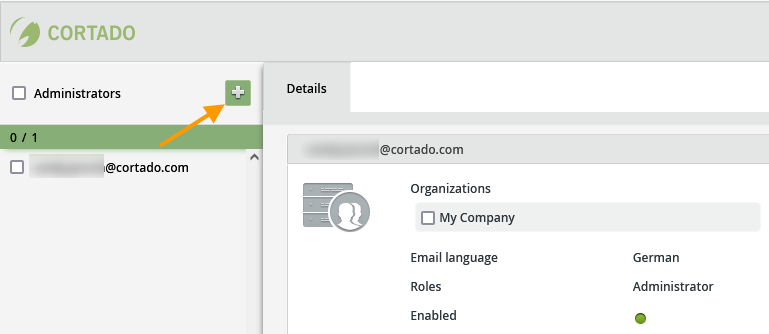
- In the Cortado MDM administration portal, open Administration→ Administrators.
- Then click on the Plus button above left (arrow in illus.).
- Enter the email address of the new administrator (example in illus.).
- Select the language in which the new admin should receive the welcome email (German or English).
- If you are dealing with multiple organisations, select the desired organisation here.
- You can also generate an API key for accessing the Cortado MDM API here. You can find more information about this in our article How to access the Cortado MDM API.
- Specify which role(s) the new administrator should receive (example in illus.).
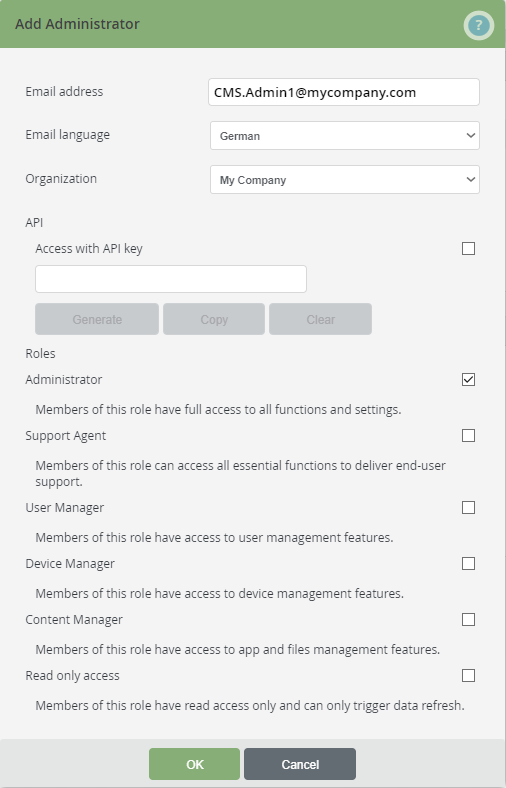
Note! You can also select several roles. You could, for example, assign the roles Content Manager and User Manager to a new admin. This would allow the new admin to make changes in both of these areas and to have read access in the other areas. You will find an overview of all permissions at the end of this article.
- Click on OK to confirm your entries.
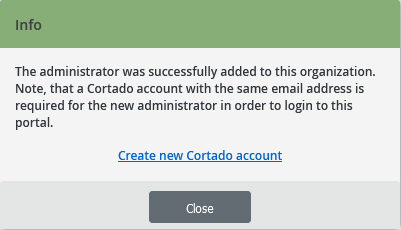
- Next, a Cortado account must be set up for the newly created administrator. For the registration, either use the link in the next window or,
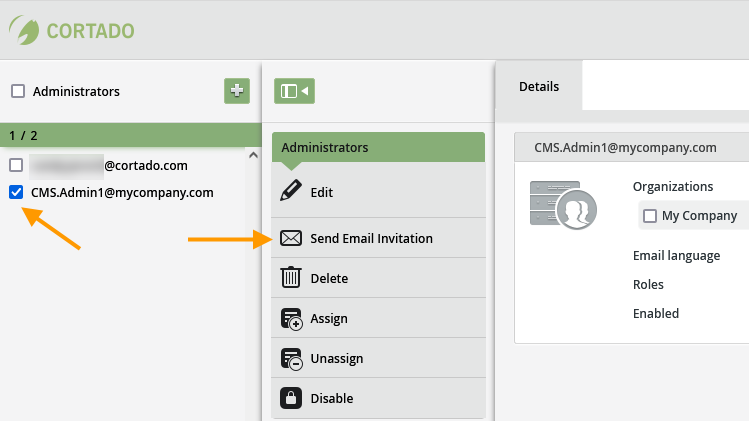
- Send the new administrator a welcome email with the registration link.
- To do so, select the administrator in the left column (left arrow in illus.) and then click on Send email invitation (right arrow in illus.).
- The new administrator must then register with Cortado MDM.
Privileges of the individual roles
This feature is already available in our new administration portal. The new portal is currently in beta. Instructions for using the new portal can be found at the end of this article.
The administrator has full access to all areas (read and write rights). The read-only admin has read rights in all areas. The following provides an overview of all privileges of the individual roles:
Groups
| Administrator | Support Agent | Content Manager | Device Manager | User Manager | Read only access | |
Actions
| • | |||||
| • | |||||
| • | |||||
| • | |||||
| • | |||||
| • | |||||
| • | |||||
| • | |||||
| • | |||||
| • | |||||
| • | |||||
Settings
| • | • | ||||
Policies
| • | • | ||||
| • | • | ||||
Profiles
| • | • | ||||
| • | • | ||||
Apps
| • | • | ||||
| • | • | ||||
Files
| • | • | ||||
| • | • |
Users
| Administrator | Support Agent | Content Manager | Device Manager | User Manager | Read only access | |
Actions
| • | • | ||||
| • | • | ||||
| • | • | • | |||
| • | • | ||||
| • | • | ||||
| • | • | ||||
| • | • | ||||
Settings
| • | • | ||||
Devices
| • | • | ||||
| • | • | • | |||
| • | • | • | |||
| • | • | • | |||
| • | • | • | |||
| • | • | • | |||
| • | • | • | |||
| • | • | • | |||
| • | • | • | |||
| • | • | • | |||
| • | • | • | |||
| • | • | • | |||
| • | • | • | |||
Policies
| • | • | • | |||
| • | • | • | |||
Profiles
| • | • | • | |||
| • | • | • | |||
Apps
| • | • | • | |||
| • | • | • | |||
| • | • | • | |||
| • | • | • | |||
| • | • | • | |||
| • | • | • | |||
| • | • | • | |||
Files
| • | • | ||||
| • | • |
Devices
| Administrator | Support Agent | Content Manager | Device Manager | User Manager | Read only access | |
Actions
| • | • | ||||
| • | • | ||||
| • | • | • | |||
| • | • | • | |||
| • | • | • | |||
| • | • | • | |||
| • | • | • | |||
| • | • | • | |||
| • | • | • | |||
| • | • | • | |||
| • | • | • | |||
| • | • | • | |||
| • | • | • | |||
| • | • | • | |||
Details
| • | • | • | • | • | • |
| • | • | ||||
| • | • | ||||
Apps
| • | • | • | • | • | • |
Policies
| • | • | • | |||
| • | • | • | |||
Profiles
| • | • | • | |||
| • | • | • | |||
MDM States
| • | • | • | • | • | • |
| • | • | • |
Policies
| Administrator | Support Agent | Content Manager | Device Manager | User Manager | Read only access | |
Actions
| • | • | ||||
| • | • | • | |||
| • | • | • | |||
| • | • | ||||
| • | • | ||||
| • | • |
Profiles
| Administrator | Support Agent | Content Manager | Device Manager | User Manager | Read only access | |
Actions
| • | • | ||||
| • | • | • | |||
| • | • | • | |||
| • | • | ||||
| • | • |
Apps
| Administrator | Support Agent | Content Manager | Device Manager | User Manager | Read only access | |
Actions
| • | • | ||||
| • | • | • | |||
| • | • | • | |||
| • | • | ||||
| • | • | ||||
| • | • | • | |||
| • | • | • | |||
Details
| • | |||||
App Store Accounts
| • | • | ||||
| • | • | ||||
| • | • | ||||
| • | • | ||||
| • | • | ||||
| • | • | • | |||
| • | • | • | |||
Managed Configurations
| • | • | ||||
| • | • | ||||
| • | • | ||||
| • | • | • | |||
| • | • | • |
Files
| Administrator | Support Agent | Content Manager | Device Manager | User Manager | Read only access | |
Actions
| • | • | ||||
| • | • | • | |||
| • | • | • | |||
| • | • | ||||
| • | • |
Reports
| Administrator | Support Agent | Content Manager | Device Manager | User Manager | Read only access | |
| Filter data | • | • | • | • | • | • |
Settings
| Administrator | Support Agent | Content Manager | Device Manager | User Manager | Read only access | |
General
| • | |||||
Android Enterprise
| • | |||||
| • | |||||
| • | |||||
| • | |||||
| • | |||||
| • | |||||
Apple Push Certificate
| • | |||||
| • | |||||
| • | |||||
| • | |||||
| • | |||||
| • | |||||
Apple automated device enrollment
| • | |||||
| • | |||||
| • | |||||
| • | |||||
| • | |||||
| • |
Administrators
| Administrator | Support Agent | Content Manager | Device Manager | User Manager | Read only access | |
Actions
| • | |||||
| • | |||||
| • | |||||
| • | |||||
| • | |||||
| • | |||||
| • | |||||
Details
| • |
NEW ADMINISTRATION PORTAL: Rights of the various administrator roles
The new administration portal is currently in the beta phase. You are welcome to send us your feedback on the new portal using the corresponding button (at the bottom left of the new administration portal).
Note! These options are only available for customers who have an Enterprise plan. Customers without a Pro or Enterprise plan cannot add additional administrators.
Additional administrators are added in the current administration portal. This article provides you with an overview of the rights that the individual administrator roles have.
Users
| Action/Role | Administrator | Support Agent | Content Manager | Device Manager | User Manager | Read only access |
| View details | • | • | • | • | ||
| Search | • | • | • | • | ||
| Filter | • | • | • | • | ||
| Export | • | • | • | • | ||
| Enable/Disable | • | • | • | |||
| Invite | • | • | • | |||
| Add | • | • | ||||
| Delete | • | • | ||||
| Edit | • | • | ||||
| Add group | • | • | ||||
| Delete group | • | • |
Groups
| Action/Role | Administrator | Support Agent | Content Manager | Device Manager | User Manager | Read only access |
| View details | • | • | • | • | ||
| Search | • | • | • | • | ||
| Filter | • | • | • | • | ||
| Export | • | • | • | • | ||
| Enable/Disable | • | • | ||||
| Add | • | • | ||||
| Delete | • | • | ||||
| Edit | • | • | ||||
| Add user | • | • | ||||
| Delete user | • | • |
Policies
| Action/Role | Administrator | Support Agent | Content Manager | Device Manager | User Manager | Read only access |
| Add | • | • | ||||
| Assign | • | • | • | |||
Unassign | • | • | • | |||
Edit | • | • | ||||
| Duplicate | • | • | ||||
| Delete | • | • |
Activity
| Action/Role | Administrator | Support Agent | Content Manager | Device Manager | User Manager | Read only access |
| View details | • | |||||
| Configure | • | |||||
| CSV/JSON export | • |
Settings – General
| Action/Role | Administrator | Support Agent | Content Manager | Device Manager | User Manager | Read only access |
| View details | • | • | • | • | • | • |
| Configure | • | |||||
| Manage license | • |
Settings – Android Enterprise
| Action/Role | Administrator | Support Agent | Content Manager | Device Manager | User Manager | Read only access |
| View details | • | • | • | • | • | • |
| Create | • | |||||
| Manage | • |
Settings – Apple
| Action/Role | Administrator | Support Agent | Content Manager | Device Manager | User Manager | Read only access |
| View details | • | • | • | • | • | • |
| Manage Apple Push Certificate | • | |||||
| Manage Apple ADE | • | |||||
| Manage App Store Account | • |
Settings – Directory services
| Action/Role | Administrator | Support Agent | Content Manager | Device Manager | User Manager | Read only access |
| View details | • | • | • | • | • | • |
| MS Entra ID: - Connect | • | • | ||||
- Disconnect | • | • | ||||
- Reconnect | • | • | ||||
| - Sync now | • | • | ||||
| - Replace existing accounts | • | • | ||||
| - Disable welcome email | • | • | ||||
| Google Workspace: - Connect | • | • | ||||
- Disconnect | • | • | ||||
- Reconnect | • | • | ||||
| - Sync now | • | • | ||||
| - Replace existing accounts | • | • | ||||
| - Disable welcome email | • | • |
Manage plan
| Action/Role | Administrator | Support Agent | Content Manager | Device Manager | User Manager | Read only access |
| View details | • | |||||
| Change licenses | • | |||||
enable automatic renewal | • | |||||
disable automatic renewal | • | |||||
| Invoices and payment methods | • |