An Apple TV will automatically appear in Apple Business Manager if it was purchased directly from Apple or an authorized reseller and is linked to the customer number. However, Apple TV devices can also be added to Apple Business Manager at a later date. We'll show you how to do this in this help article.
Note! The subsequent addition of Apple TV Wi-Fi models to Apple Business Manager, as described in the first part of this guide, is not officially supported by Apple. However, it is possible in principle. In practice, problems may occasionally arise, so several attempts may be necessary.
The procedure differs depending on whether your Apple TV is a Wi-Fi-only model or a Wi-Fi/Ethernet model. If you are using a Wi-Fi/Ethernet model (or an older model with a USB port but the latest OS), you can skip the first part of the instructions.
Connect Wi-Fi models to your Mac
Connect your Apple TV (HD or 4K, Wi-Fi model) to a monitor and start it up using the remote control that came with it.
Note! The device should have the latest OS and be reset to factory settings. If necessary, first perform an update and then reset the device.
- Select your language and region, then agree to the privacy settings.
- In the Automatically Set Up Your Apple TV window, click Set Up Manually (arrow in image).
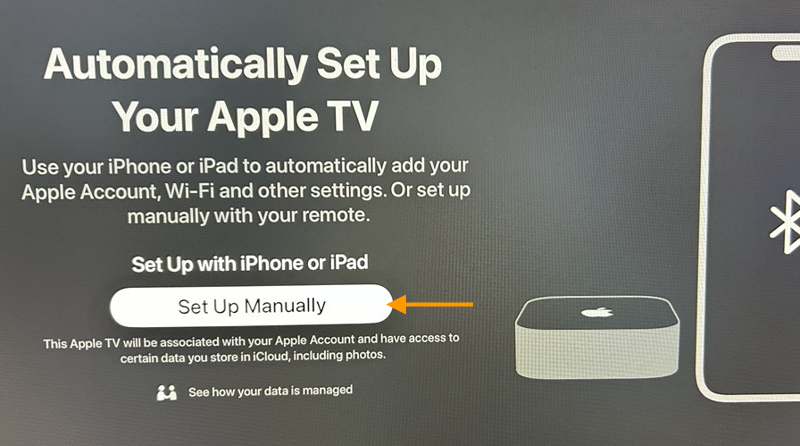
- Now follow the setup steps below.
- Then configure the Wi-Fi settings. You must select the same Wi-Fi network that your Mac is connected to.
- Have your Mac turned on and ready with the Apple Configurator app open.
Important! You will also need a Faraday bag or box. You will need to place your Apple TV remote control in this bag later. The bag is needed to prevent a new Bluetooth connection between Apple TV and the remote control once the device has been reset.
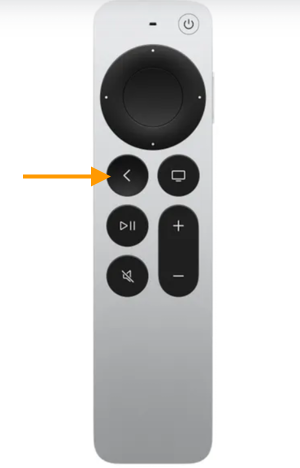
- Use the back button on the remote control (arrow in the image) to navigate back to the Apple TV language settings.
- Now press the Back and TV buttons on your remote control simultaneously (arrows in the image). This will reset the device to its factory settings.
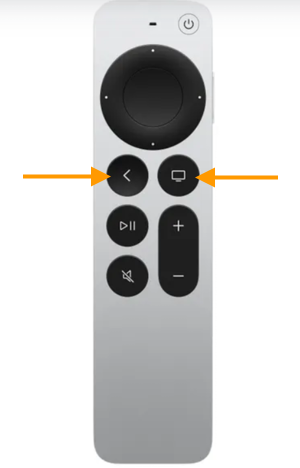
- As soon as the process starts (the view on the monitor changes), you must place the remote control in the Faraday bag or box. This prevents the Apple TV from reconnecting to the remote control. You only have a short time to do this!
Add Apple TV Wi-Fi or Wi-Fi/Ethernet in Apple Business Manager
Note! Wi-Fi-only models must be connected to the same Wi-Fi network as the Mac. Wi-Fi/Ethernet models must be connected to the same Ethernet network as the Mac.
- Users of Wi-Fi/Ethernet models should connect their Apple TV, which has been reset to factory settings, to a monitor and to the network via a LAN cable. The remote control must not be used at this point!
- Launch the Apple Configurator app on your Mac.
- In Apple Configurator, click Paired Devices (arrow in the image).
Note! Older models with a USB port (but with a current OS!) can be easily connected to your Mac via cable. Once the device has been granted access to your Mac, it will appear directly in Apple Configurator.
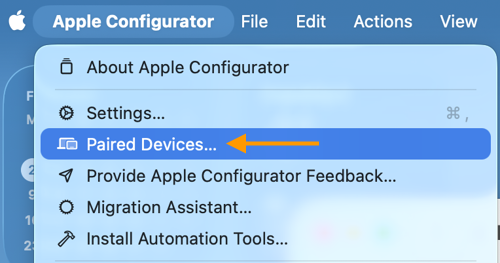
- Your Apple TV should now appear under Paired Devices after a short time.
- Select your Apple TV here and click Pair.
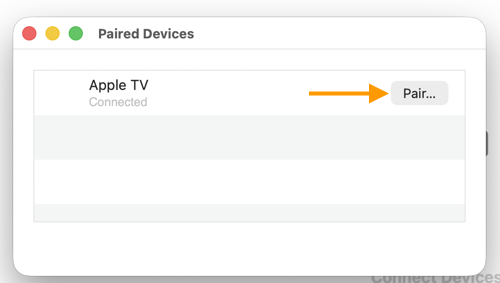
- A six-digit authentication code will then appear on your Apple TV, which you must now enter on your Mac.
- Apple TV is now connected to your Mac.
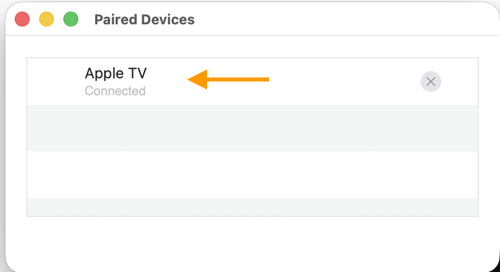
- Apple TV will also appear in Apple Configurator under All Devices. Click on the Apple TV image and then click Prepare (arrow in image).
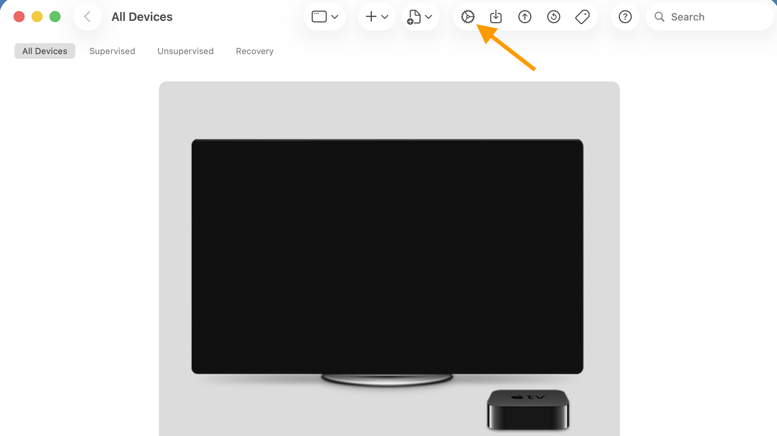
- Check the checkboxes Add to Apple School Manager or Apple Business Manager and Allow devices to pair with other computers.
- Click on Next to proceed.

- In the next window, select New Server and confirm with Next.

- In the next window, enter the server name (your choice) and the host name or the URL. Complete the URL as follows:
- Use the following URL: https://go.mycortado.com/fw/AppleDep/GetAppleDepMdmProfile
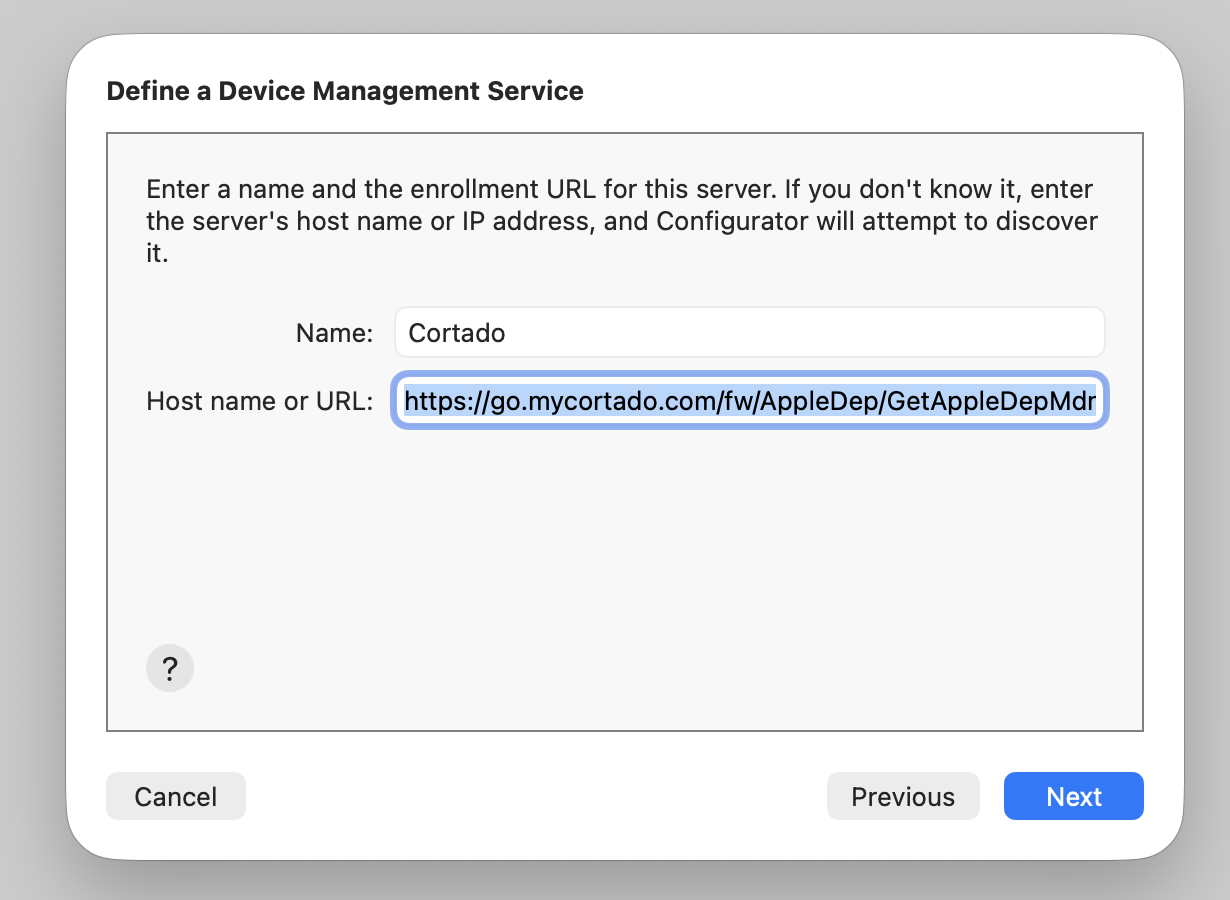
- If you receive an error notification (see illus.), ignore and click on Next.

- In the next step, select the SSL certificate.
- Click on Next to continue.
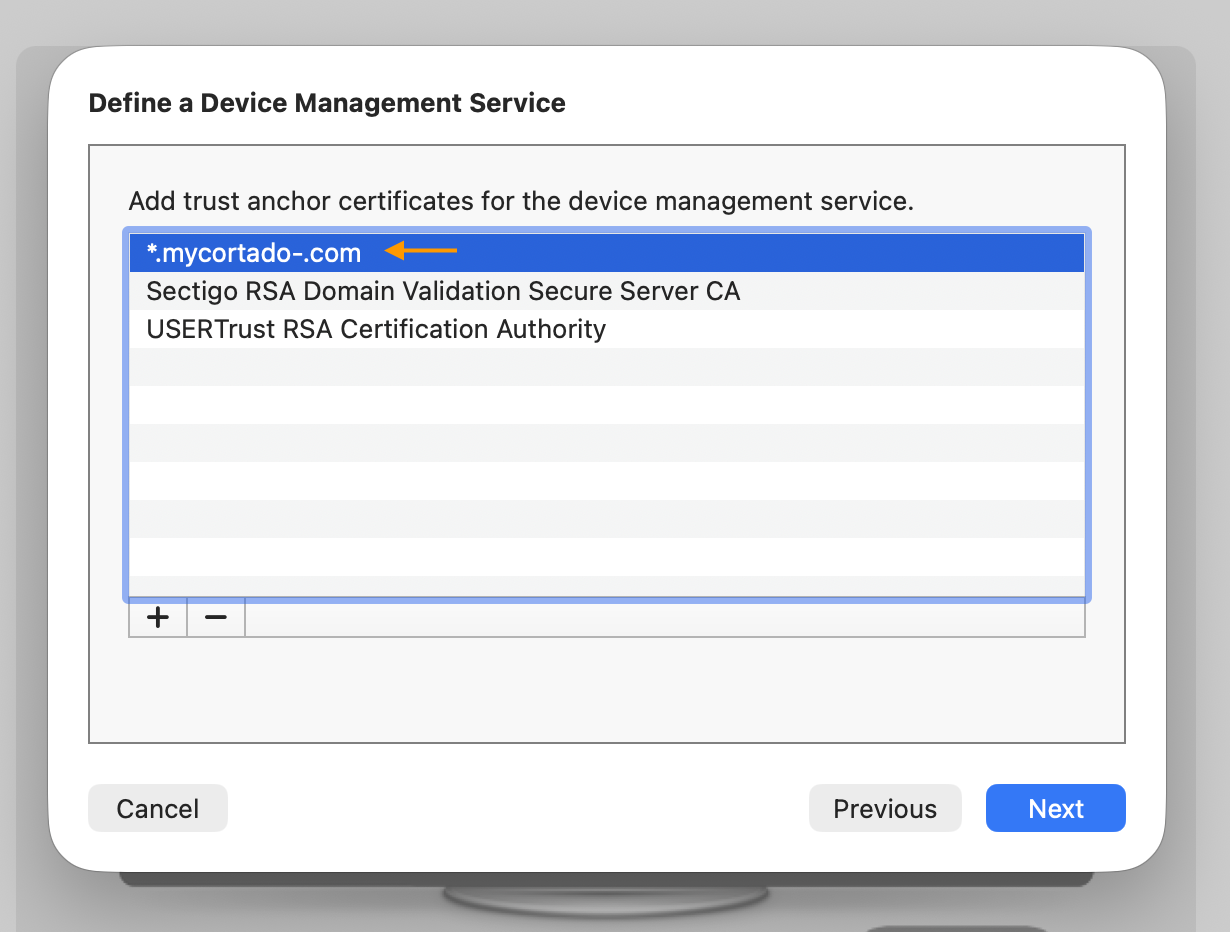
- Create a new organisation or select an existing one.

- In the next step, enter your Apple ID for Apple Business Manager.

- Select Generate a new supervision identity, if you are creating a new organisation.

- Then specify which setup steps should be carried out on the device by the user and click on Next.
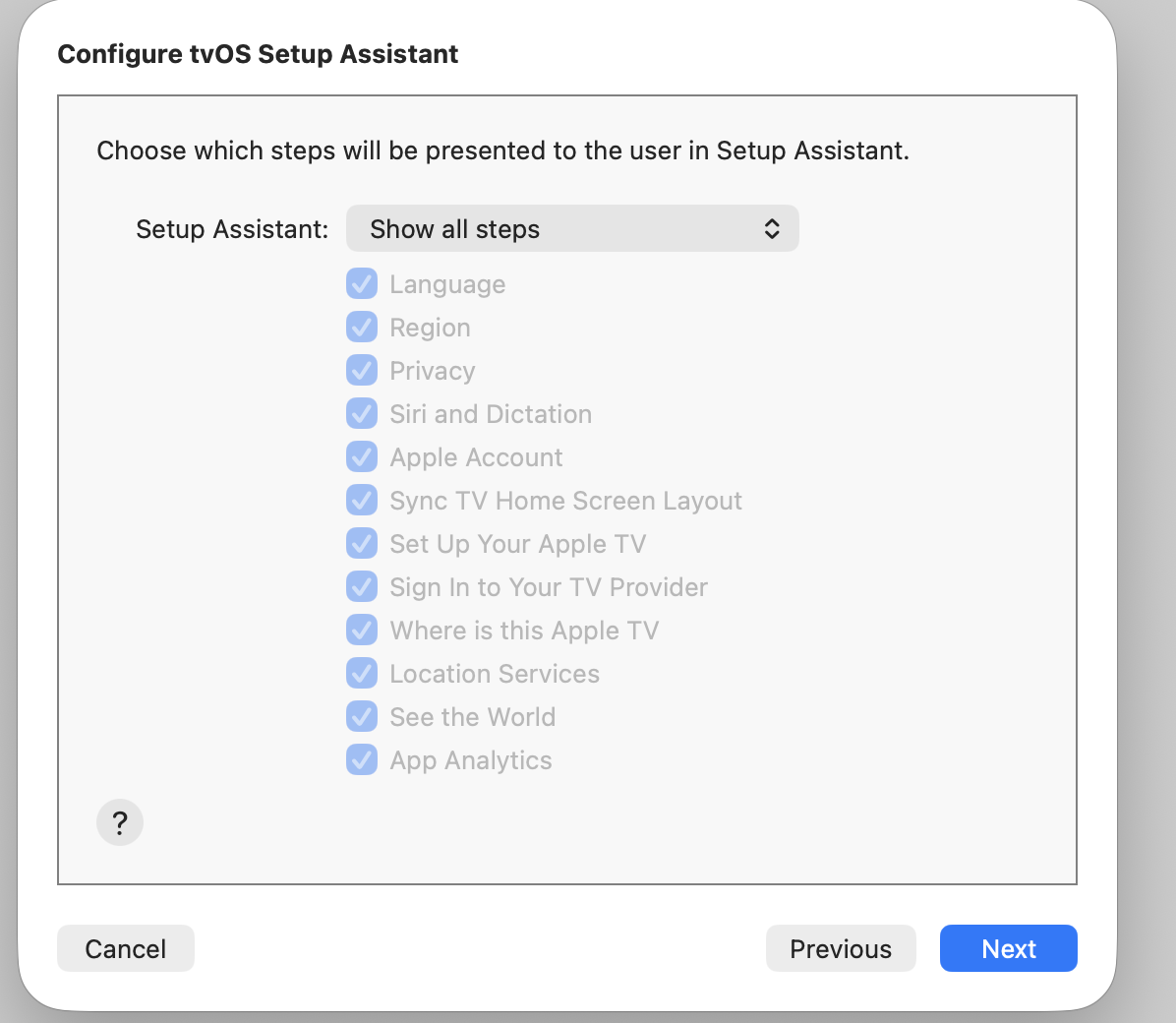
- Then click Prepare.
- Wait until Apple TV has been configured.
Once setup is complete in Apple Configurator, you will find the device in Apple Business Manager under Devices.
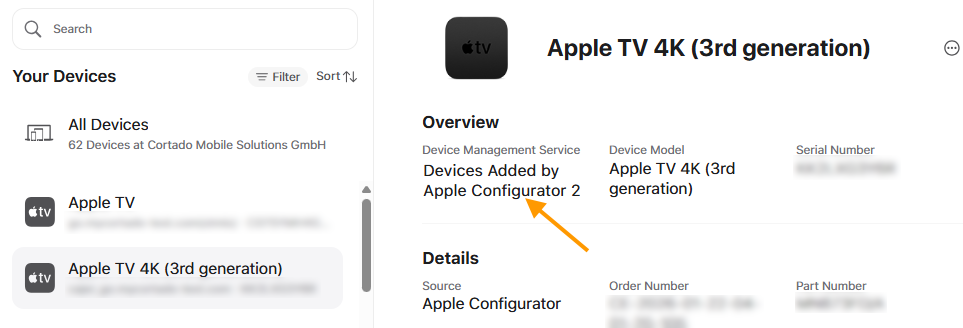
- Depending on whether you have configured automatic assignment of new devices to an MDM server in Apple Business Manager, you may still need to manually assign the device to your MDM server.
Note! Registering the device with Apple may take some time. We therefore recommend that you wait at least 60 minutes from the moment the device is registered in Apple Business Manager.