This feature is already available in our new administration portal. The new portal is currently in beta. Instructions for using the new portal can be found at the end of this article.
In this help article, we will show you how to set up a work profile on a fully managed Android device. Using this setup method, company-owned Android devices can be configured for both business as well as private use (COPE – Company Owned/Personally Enabled).
Note! Users can quite easily put this method in place in the user portal. To do this, the user must have previously been added to the management console and have received an invitation email.
Prerequisite: This setup method is only available for Android devices from version 11. The device that is to be configured must have been reset to factory default settings.
Note! Create up to four additional administrator accounts to configure Cortado MDM.
- Open the administration portal and select Administration→ Users. Then select one or more users (left arrow in illus.) and click on Enroll Device (middle arrow in illus.). Then click on Android (right arrow in illus.).
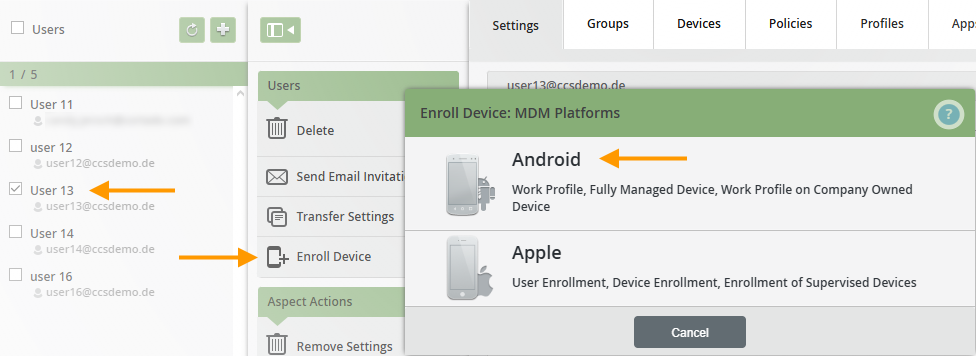
- Then click on Work Profile on Company Owned Device (arrow in illus.).

This will open a window with a QR code:

- Now take the previously reset or new Android device in hand. Tap six times on the same spot in the welcome screen.
- The device will now be in a mode in which a QR code can be scanned.
- Scan the QR code from the management console with the device.
- Then select the desired WiFi and enter the login credentials.
- Tap Next to start setting up the device (arrow in the left illus.).
- Set up your company by tapping Accept & continue (arrow in the right illus.).

- Follow the individual setup steps by tapping Next (arrow in the left illus.).
- Verify your company by tapping Accept & continue (arrow in the right illus.).
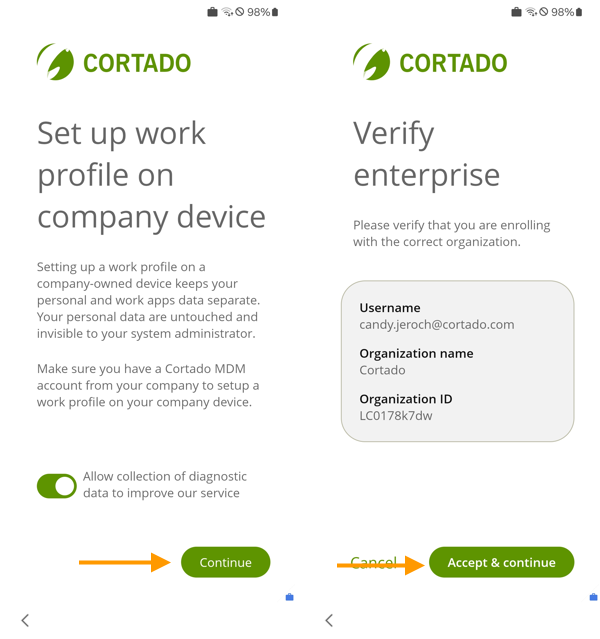
- Skip setting up a personal Google account for the user. The user can make this setting himself/herself later.

- Continue following the setup steps. You can also skip setting up the screen lock. Instead, use a policy to ensure that the users set a sufficiently strong password later.
After the configuration the device will have a business and a private area. The users’ private apps and data can’t be viewed via the management console. The work apps are identified by a briefcase icon and are thus clearly differentiated from the private apps. The work profile, as well as the localisation function can be disabled by the users at any time.

In the Cortado app users can get an overview of all the work profile’s apps and policies. You can find more information here.

NEW ADMINISTRATION PORTAL: Enrollment of company-owned Android devices used for both business and private purposes (COPE)
The new administration portal is currently in the beta phase. You are welcome to send us your feedback on the new portal using the corresponding button (at the bottom left of the new administration portal).
Prerequisite: This setup method is only available for Android devices running version 11 or higher. The device to be configured must have been reset to factory settings.
Note! Users can easily perform this method themselves in My Cortado. To do so, users must first have been added to the administration portal (as local users or Microsoft users) and have received an invitation email.
- In Device Management (left arrow in illus.), click Add (right arrow in illus.).
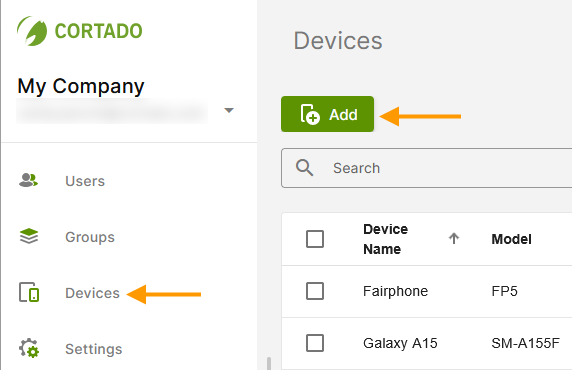
- Select a user (left arrow in illus.) and then click Select (right arrow in illus.).
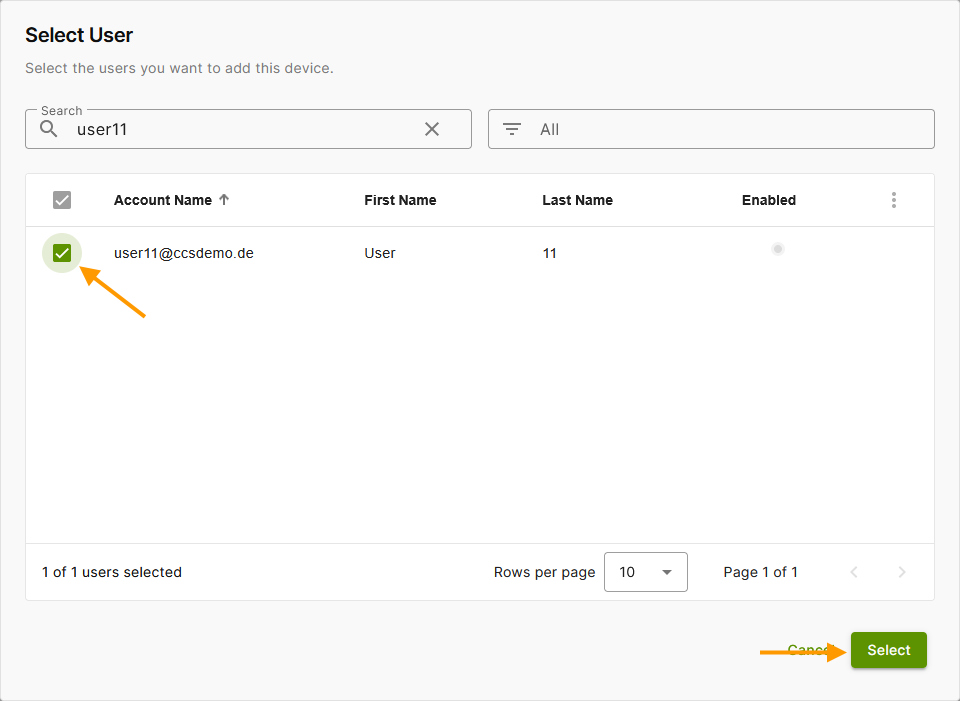
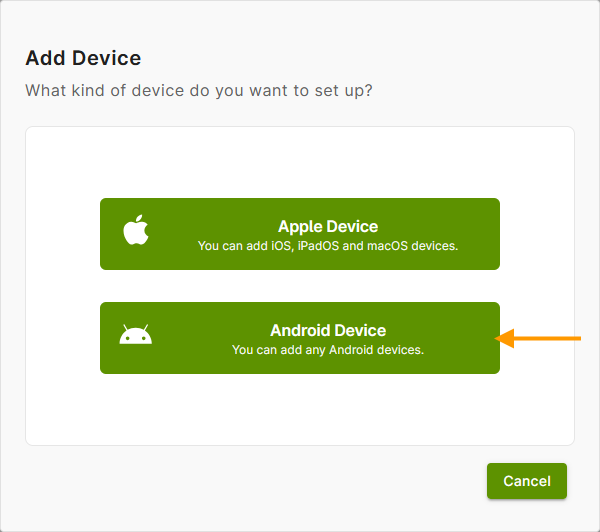
- Then select Android Device as the type of device to be added (arrow in illus.).
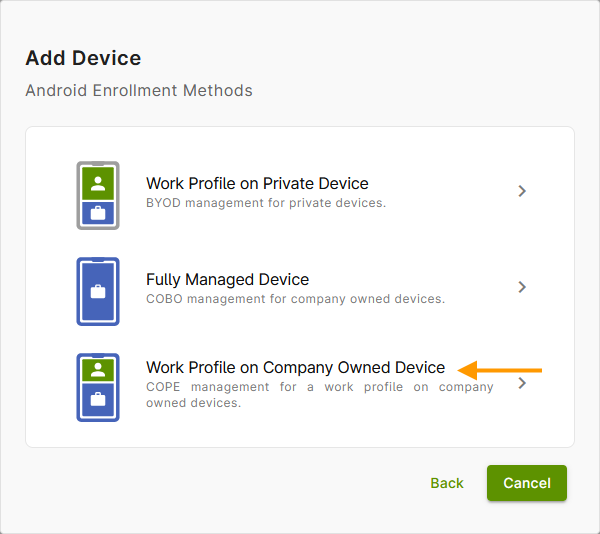
- Now tap on Work Profile on Company Owned Device (arrow in illus.).
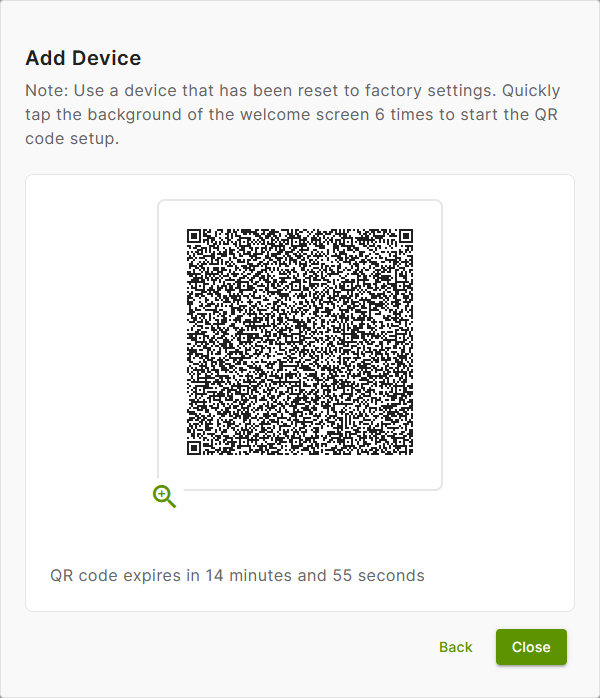
You will see a QR code that you must scan with your Android device in the next step. This contains all the (user-specific) data required to fully configure the device. The QR code is valid for 15 minutes.
- Now pick up the Android device that has been reset to factory settings and needs to be set up.
- Tap the same spot on the welcome screen six times.

- The configuration starts automatically.
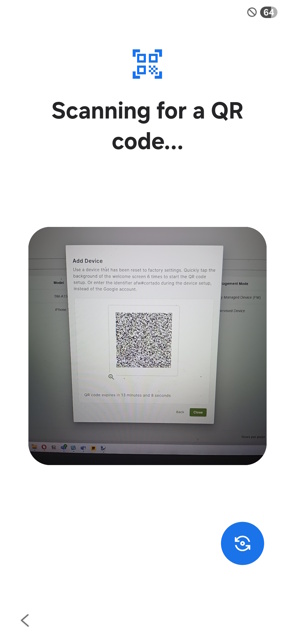
- The device is now in a mode where a QR code can be scanned.
- Scan the QR code with the device.
- Set up a Wi-Fi connection on the Android device. (Alternatively, you can save an Enrollment Wi-Fi in the settings.)
- Tap Next to start setting up the device (arrow in the left illus.).
- Set up your company by tapping Accept & continue (arrow in the right illus.).
- Follow the individual setup steps by tapping Next (arrow in the left illus.).
- Verify your company by tapping Accept & continue (arrow in the right illus.).
- Skip setting up a personal Google account for the user. The user can make this setting himself/herself later.
- Continue following the setup steps. You can also skip setting up the screen lock. Instead, use a policy to ensure that the users set a sufficiently strong password later.
After the configuration the device will have a business and a private area. The users’ private apps and data can’t be viewed via the management console. The work apps are identified by a briefcase icon and are thus clearly differentiated from the private apps. The work profile, as well as the localisation function can be disabled by the users at any time.
In the Cortado app users can get an overview of all the work profile’s apps and policies. You can find more information here.