This feature is already available in our new administration portal. The new portal is currently in beta. Instructions for using the new portal can be found at the end of this article.
Configuration without user interaction
Configuration with user interaction
Prepare user device
The QR code method is the easiest way to set up a company-owned Android device (COBO).
Note! Users can easily perform this method themselves in My Cortado. To do this, the users must have been added in the Administration Portal beforehand and have received an invitation email.
Prerequisite: The user device to be configured must have been reset to factory default settings and have at least Android version 8.0.
Note! Create up to four additional administrator accounts to configure Cortado MDM.
- Tap six times on the same spot on the welcome screen.

- The configuration begins automatically.
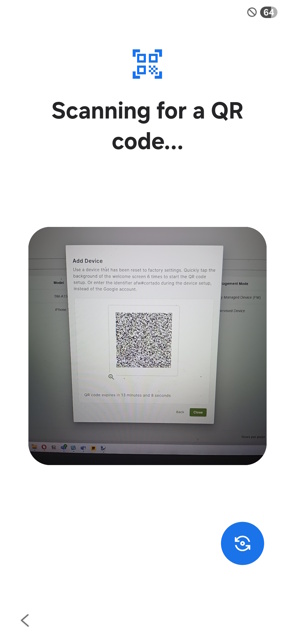
- The device is now in a mode where a QR code can be scanned.
- Depending on whether you now want to configure the device completely for the user or whether the user is to configure his/her device further at this point, there are now two options for proceeding. The configuration without user interaction (see below) and the configuration with user interaction.
Configuration without user interaction
Select this type of configuration if you want to completely configure a device for a particular user yourself.
- In the Administration Portal, under Administration→ Users select a user for whom you want to configure a device (left arrow in illus.). You can also select multiple users at the same time, whereby the QR codes for each device will be displayed one after another.
- Then click on Enroll Device (middle arrow in illus.).
- Then click on Android (right arrow in illus.)
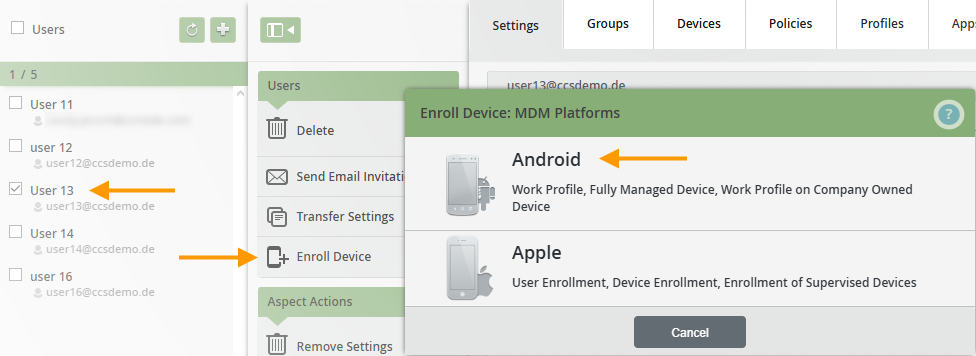
Then select Fully Managed Device (arrow in illus.).

Notes! Alternatively, you can also integrate the devices via Administration→ Devices, by clicking on the plus button. There you also first select the desired user(s) and then Enroll Device. Then you can select the platform and the method as above.
- A QR code will be generated for the selected user (upper arrow in illus.) This contains all the (user-specific) data required for the complete configuration of the device (lower arrow in illus.). The QR code remains valid for 15 minutes.

- Scan the QR code with the preconfigured user device and agree to the management of the device.
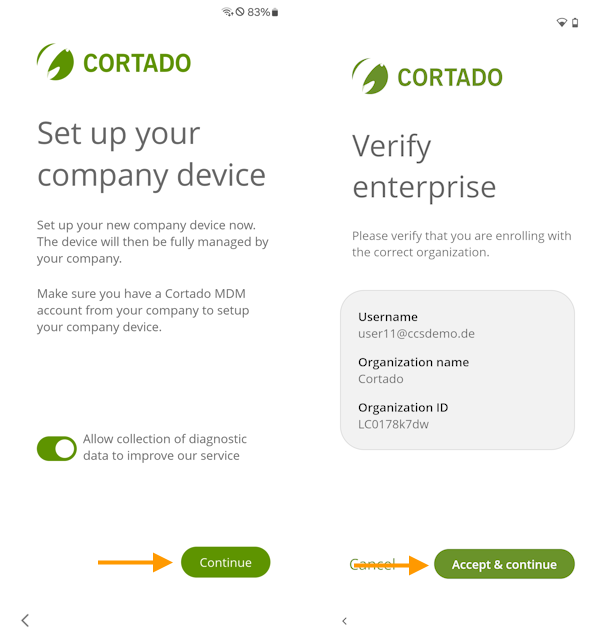
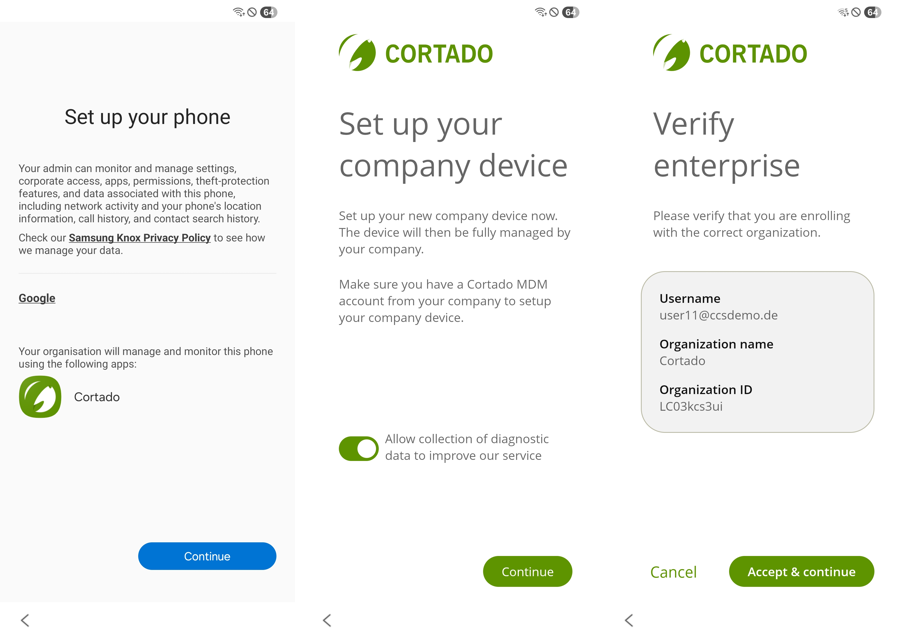
- Then connect to the Wi-Fi or mobile network and start the setup (left illus.).
- Follow the setup steps on the device. Verify your enterprise and agree to manage the device (right illus.).
- The user-specific configuration is now concluded.
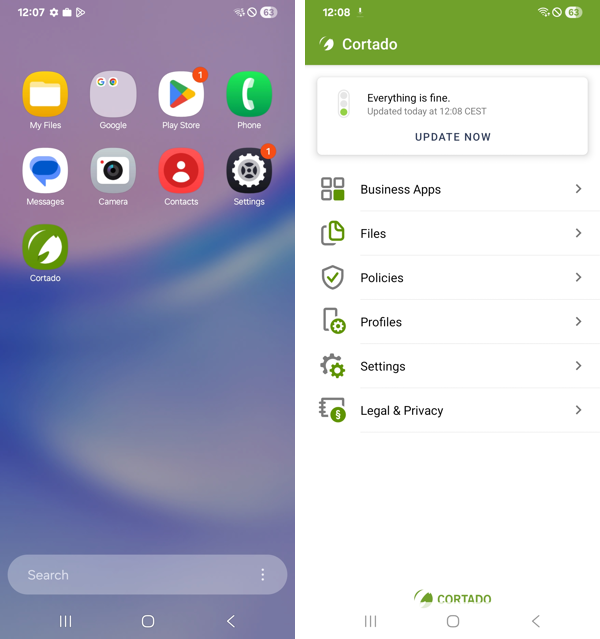
- The Cortado app provides users with an overview about all apps and policies. You can find more information about the Cortado app here.

- If you previously selected multiple users, click on Next to reveal the next QR code (arrow in illus.).

Configuration with user interaction
With this type of configuration the user device receives only the server information. It can then be given to any user for further configuration. The only prerequisite is that the user has already been imported into the Administration Portal and activated for Android Enterprise.
Note! Logging in with a Microsoft account is not possible with this type of configuration.
However, if you want to take on the complete device configuration on behalf of the user, proceed instead as described here.
- In the Administration Portal select Administration→ Settings→ Android Enterprise.

- Then select Configure Android Managed Device (arrow in illus.).

- A QR code is displayed.

- Scan the QR code with the user device that you want to configure.
- Then give the device to a user of your choice. The user can then enter his login details and complete the configuration (left illus.). Cortado MDM users must first create a password for this using the invitation email and their email address. Alternatively, you can assign a password for the user when importing users.
- Subsequently, the company with which the user registers must be confirmed (right image).
Note! Logging in with a Microsoft account is not possible with this type of configuration.

- The user-specific configuration is now concluded.
- The Cortado app provides users with an overview about all apps and policies. Users can find more information about the Cortado app here.

NEW ADMINISTRATION PORTAL: Enrollment of company-owned Android devices using the QR code method (COBO)
The new administration portal is currently in the beta phase. You are welcome to send us your feedback on the new portal using the corresponding button (at the bottom left of the new administration portal).
The QR code method is the easiest way to set up a company-owned Android device (COBO). In this article, we will show you how to set up the devices for your users.
Note! Users can easily perform this method themselves in My Cortado. To do so, users must first have been added to the administration portal (as local users or Microsoft users) and have received an invitation email.
- In Device Management (left arrow in illus.), click Add (right arrow in illus.).
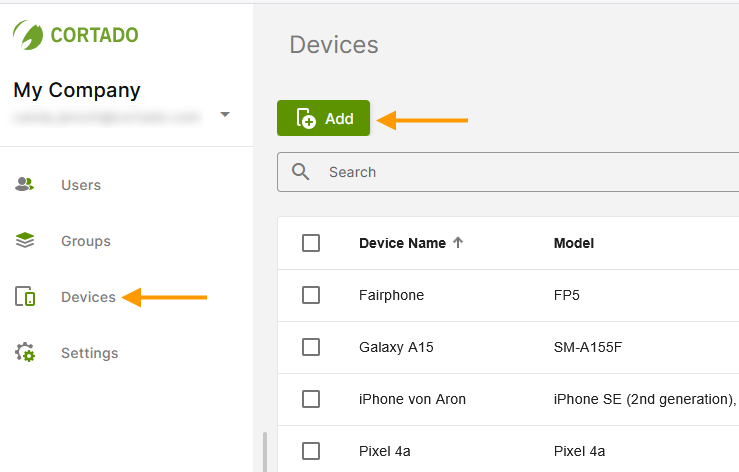
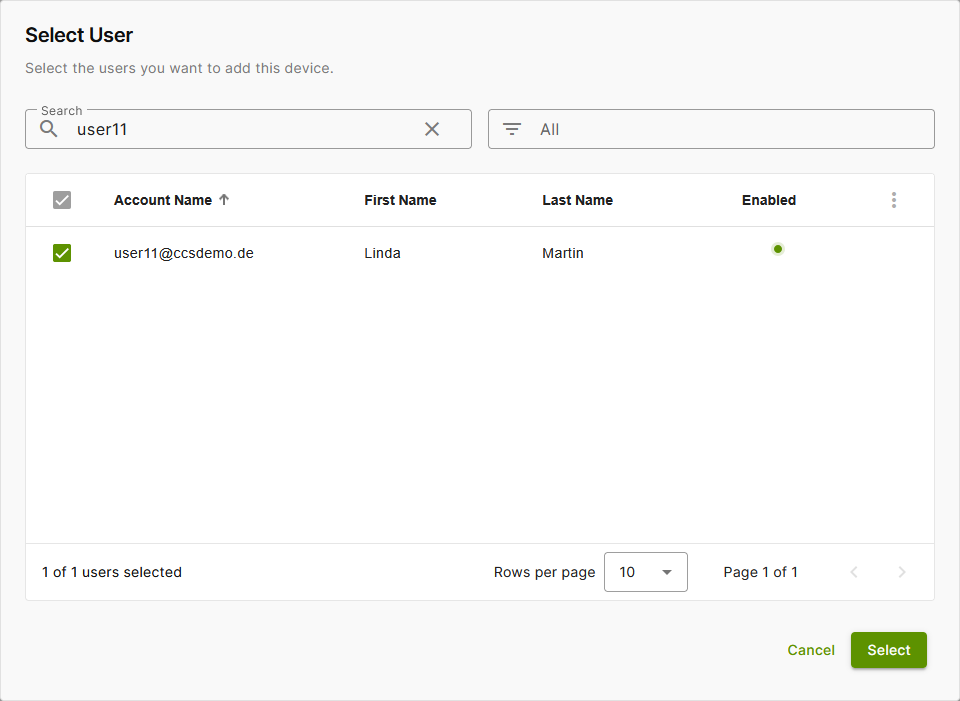
- Select a user (left arrow in illus.) and then click Select (right arrow in illus.).
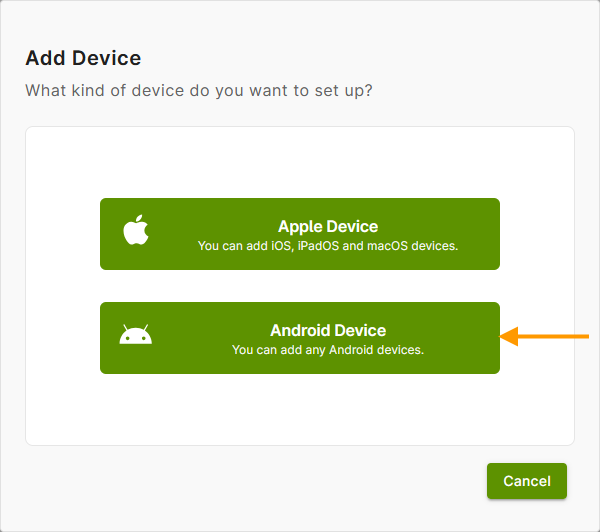
- Then select Android Device as the type of device to be added (arrow in illus.).
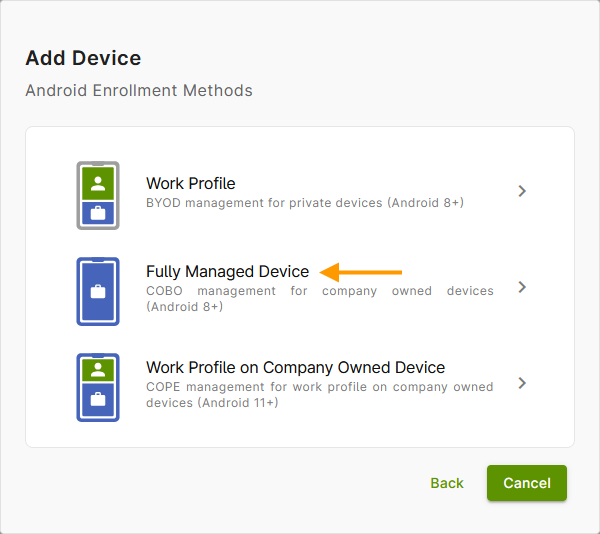
- Now tap Fully Managed Device (arrow in illus.).
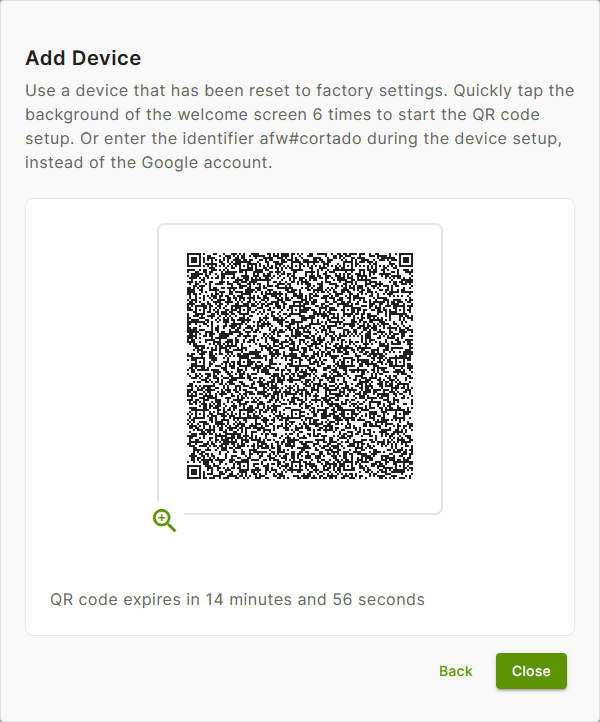
You will see a QR code that you must scan with your Android device in the next step. This contains all the (user-specific) data required to fully configure the device. The QR code is valid for 15 minutes.
- Now pick up the Android device that has been reset to factory settings and needs to be set up.
- Tap the same spot on the welcome screen six times.

- The configuration starts automatically.
- The device is now in a mode where a QR code can be scanned.
- Scan the QR code with the device.
- Set up a Wi-Fi connection on the Android device. (Alternatively, you can save a enrollment Wi-Fi network in the settings.)
- Follow the setup steps for configuration. Accept your company and agree to the management of the device.
- The configuration of the device is now complete.
- In the Cortado app, users can see an overview of all apps and policies. Users can find more information about the Cortado app here.