You can make a work profile available to your Android users on their Android devices. This embedding method is primarily intended for devices that are privately owned by the users. A clear separation exists here between the work profile and the privately used area on the device. As administrator, you only have access to the work profile, but not to the private part of the device.
Note! Create up to four additional administrator accounts to configure Cortado MDM.
The work profile is visually well differentiated from the user´s private area. All work apps are identifiable by a briefcase icon (left illus.). The work profile can be disabled at any time by the users themselves (middle illus.). Additionally, the user can personally decide whether the location of the device may be determined, or not (right illus.).

This feature is already available in our new administration portal. The new portal is currently in beta. Instructions for using the new portal can be found at the end of this article.
Generating a user password (only for local Cortado MDM users)
Generating a user password (only for local Cortado MDM users)
Note! Users imported from Microsoft Entra ID use the credentials of their Microsoft account. Users imported from Google Workspace use the credentials of their Google account.
To enroll the devices with Cortado MDM, local users need their email address and a password. Users must generate the password themselves with the help of the invitation email. You can find more information about the invitation mail here.
Registering mobile devices
The user can configure the device themselves. They can find out how this works in our help article Set up a work profile on a private Android device.
Alternatively, you can configure the work profile together with the user, in the administration portal.
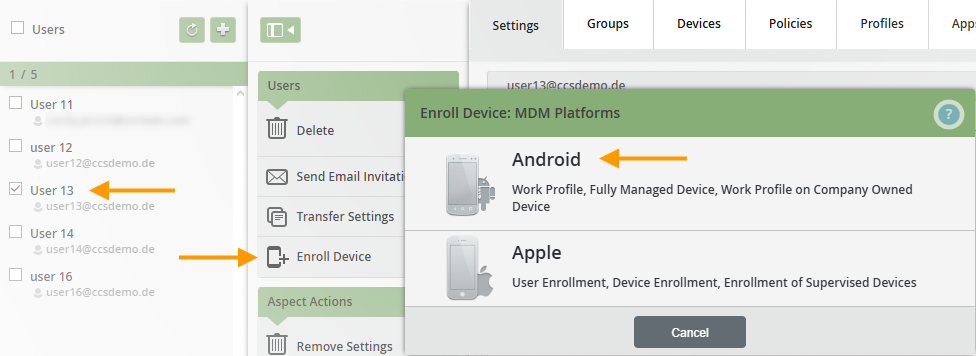
- Select the user in the administration portal under Administration→ Users (left arrow in illus.) and then click on Enroll Device (middle arrow in illus.). Then click on Android (right arrow in illus.).
- Then select Work Profile (arrow in illus.).

You will then be redirected to the My Cortado login page. The user can log in here with the login data. Now proceed as described here.
Note for Cortado MDM users! Alternatively, you can also integrate the devices via Administration→ Devices, by clicking on the plus button (left arrow in illus.). There you also first select the desired user(s) (right arrow in illus.) and then Enroll Device (lower arrow in illus.). Then you can select the platform and the method as above.

NEW ADMINISTRATION PORTAL: Create work profile for private Android devices
The new administration portal is currently in the beta phase. You are welcome to send us your feedback on the new portal using the corresponding button (at the bottom left of the new administration portal).
INHALTSVERZEICHNIS
Generating a user password (only for local Cortado MDM users)
Note! Users imported from Microsoft Entra ID use the credentials of their Microsoft account.
To enroll the devices with Cortado MDM, local users need their email address and a password. Users must generate the password themselves with the help of the invitation email. You can find more information about the invitation mail here.
Registering mobile devices
The user can configure the device themselves. They can find out how this works in our help article Set up a work profile on a private Android device.
Alternatively, you can configure the work profile together with the user, in the administration portal.
In Device Management
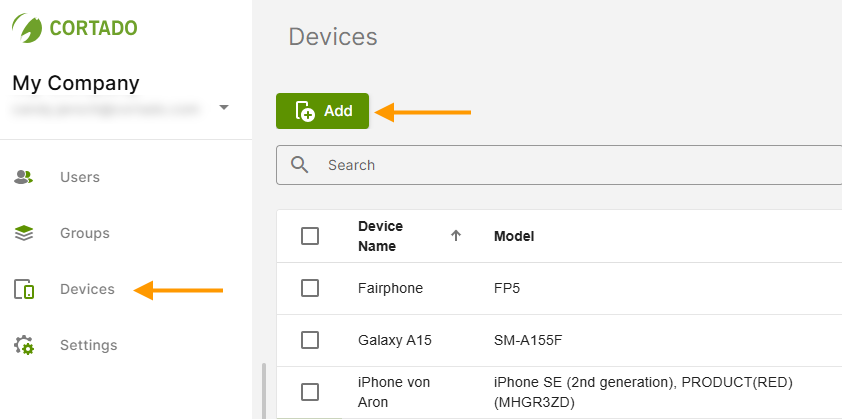
- In Device Management (left arrow in illus.), click Add (right arrow in illus.).
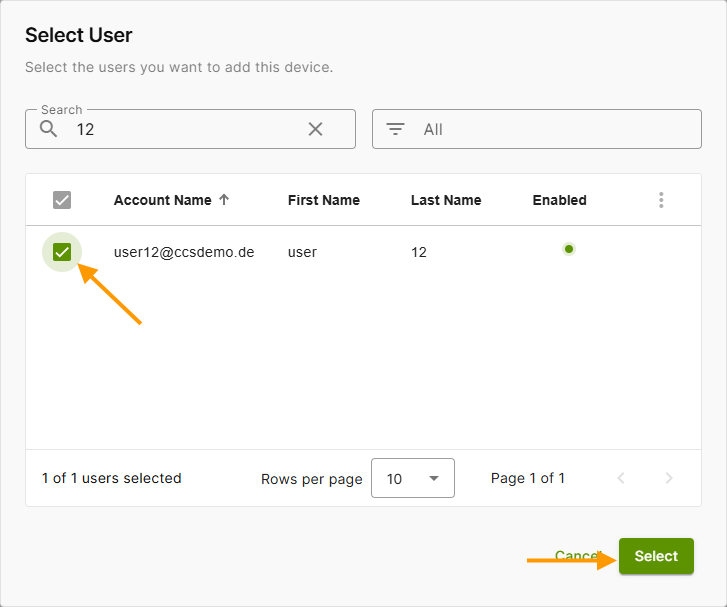
- Select a user (left arrow in illus.) and then click Select (right arrow in illus.).
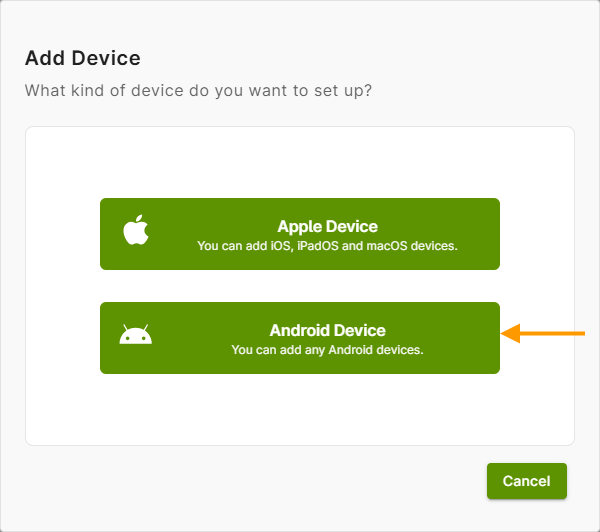
- Then select Android Device as the type of device to be added (arrow in the illus.).
- Now tap on Work Profile (arrow in illus.).
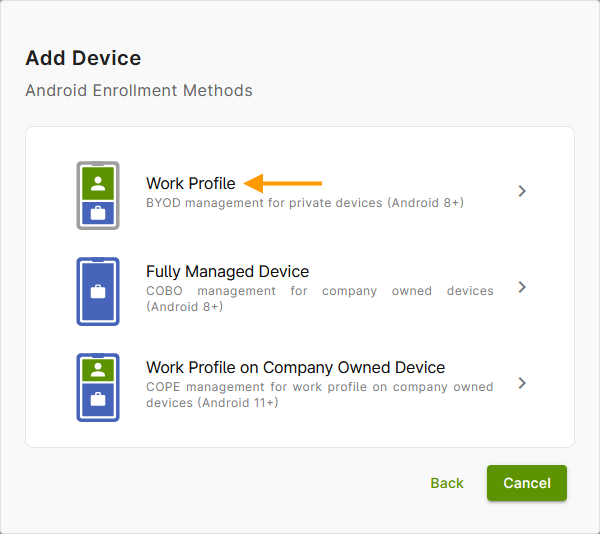
You will then be redirected to the My Cortado login page. The user can log in here with their login details. Then proceed as described here.
In user management
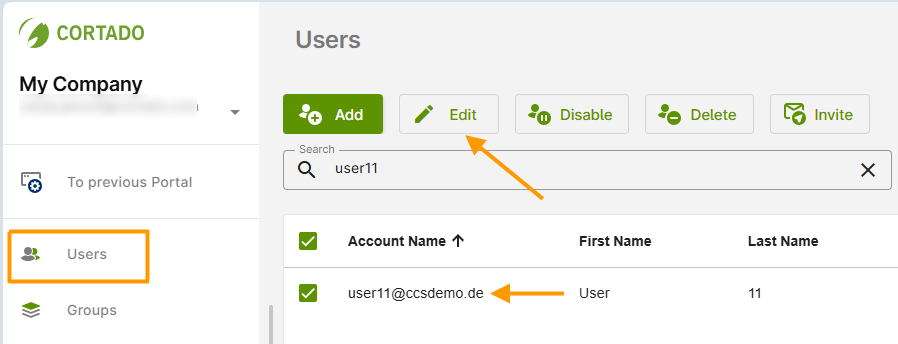
Alternatively, you can also add the devices in user management. To do this, proceed as follows:
When you enable this feature, a welcome email is automatically sent to new users who have been imported from Microsoft Entra ID. This email contains instructions on how to log in to My Cortado and how to set up and manage mobile devices.
- Select the desired user(s) (left arrow in the image) and then click Edit.
- Then switch to the Devices tab (upper arrow in the image) and click on Add (lower arrow in the image).
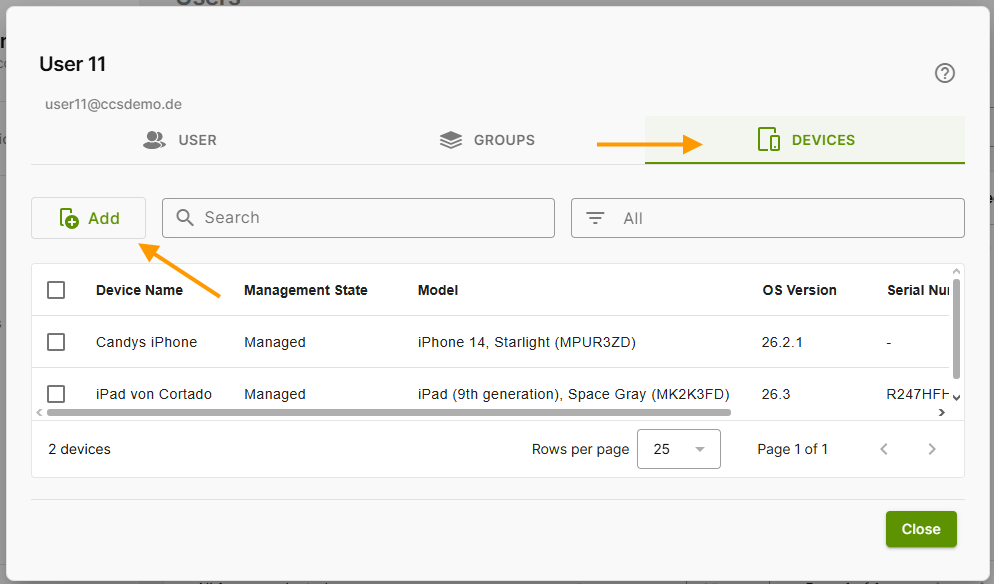
- Then proceed as described above.