This setup method is only relevant for organizations that use Google accounts (Android Enterprise with a managed Google domain). Organizations that use Managed Google Play accounts should instead use the setup methods for fully managed devices (QR code method or identifier method) for kiosk mode.
In this article, we’ll show you how to register a company-owned Android device in Cortado MDM and then put it into kiosk mode. To ensure that users don’t have to sign in with a Google account later, the registration is performed using a setup method specifically designed for this purpose. (Google refers to this setup method as Dedicated device management.)
For devices in kiosk mode, you can set up a separate account in user management. This account can be used for all userless devices that are to be operated in kiosk mode (a shared user account for all kiosk devices). Alternatively, you can also assign devices to individual real users. If you use the enrollment method for fully managed, userless devices, logging in to the device is not required in either case.
Below, we’ll show you how to use the same user account for multiple devices.
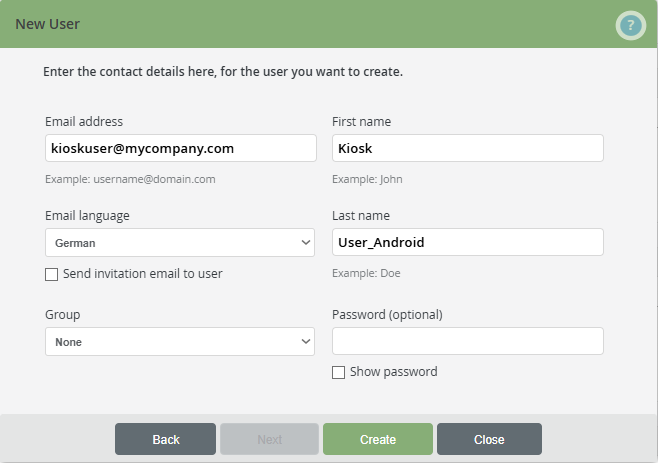
- First, create a new user account specifically for devices in kiosk mode (example shown in the image). We explain how to create a new user account in our help article How do I add users in the administration portal?
- Fill in the required fields (email address, first name, last name) and uncheck the box labeled Send invitation email to user.
Note! The email address does not need to be valid, as no emails will be sent to it.
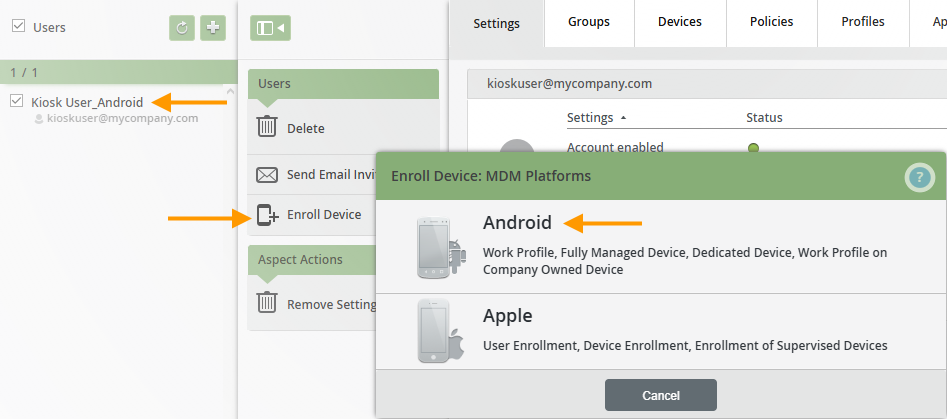
- Open the user management section by clicking on Administration → Users.
- Select a user (top arrow in the image) and then click on Set up device (bottom left arrow in the image).
Note! Alternatively, you can click the plus button in the device management section (Administration → Devices) and then select a user.
- Then select the Android platform (right arrow in the image).
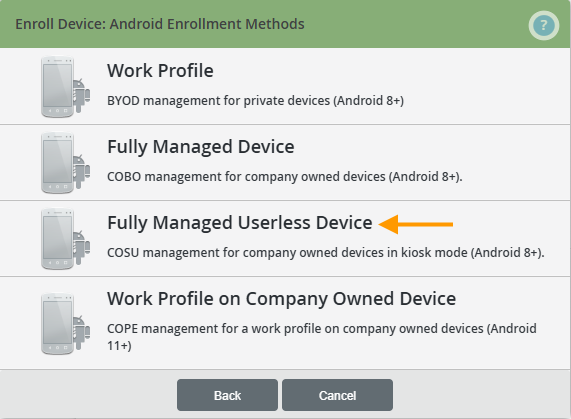
- Then select the Fully Managed Userless Device setup method (arrow in the image).
A QR code will then be generated. It contains all the data needed to fully configure the device.
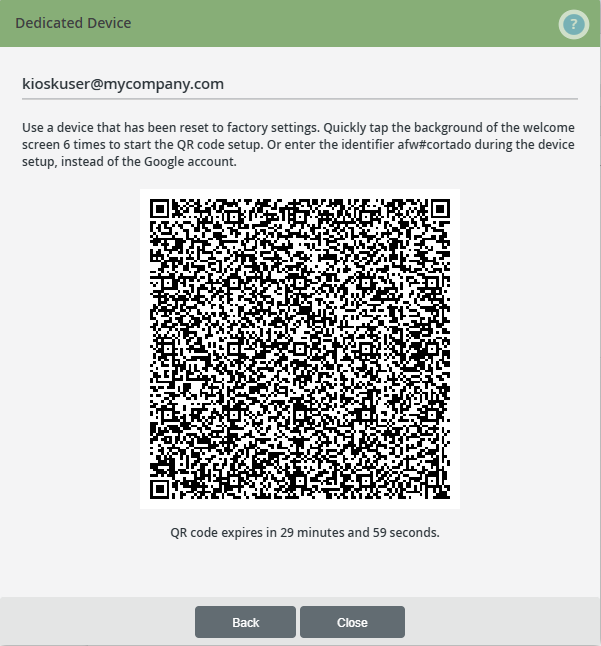
- Now pick up the Android device you want to set up.
Prerequisite: The device to be configured must have been reset to factory settings and must be running Android version 8.0 or higher.
- Tap the same spot on the welcome screen six times.

- Setup will start automatically.
- The device is now in a mode where a QR code can be scanned.
- Scan the QR code with the device.
- Then connect to the Wi-Fi or cellular network and start the setup process.
- Follow the setup steps on the device (arrows in the image).
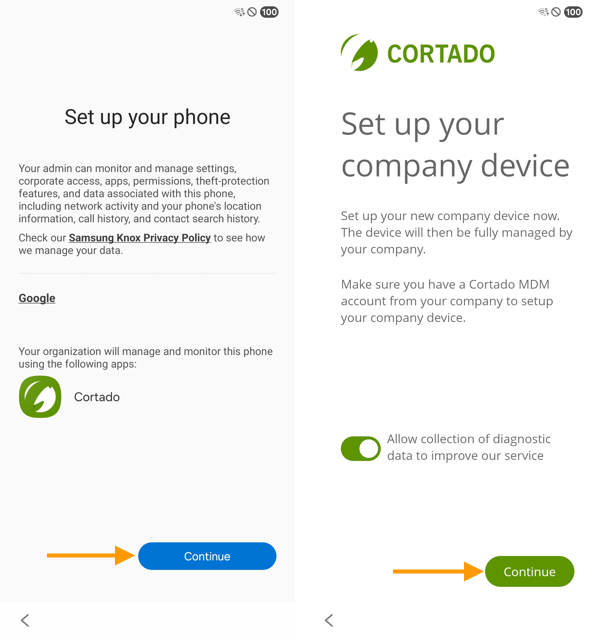
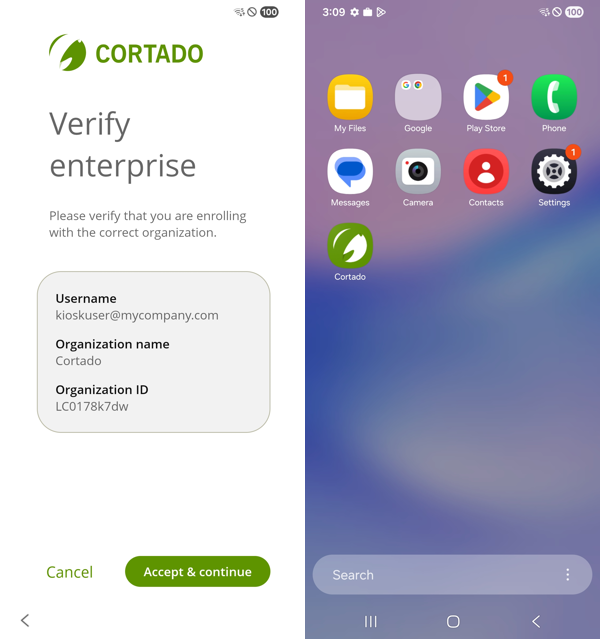
- Verify your business and agree to manage the device (arrow in the left image).
- The device is now ready to be put into kiosk mode (right image).
- To do this, follow the steps in our help article How to set up Kiosk mode for fully managed Android devices.