This feature is already available in our new administration portal. The new portal is currently in beta. Instructions for using the new portal can be found at the end of this article.
INHALTSVERZEICHNIS
- Connect Cortado with Apple Business
- Create configuration profile in the administration portal
- Configure devices
- Assigning the Cortado app
Connect Cortado with Apple Business
The fastest way to enroll company-owned iOS/iPadOS/macOS devices is with Automated Device Enrollment (ADE). Using ADE, you can configure a large number of devices remotely without picking them up. These devices are called supervised devices at Apple.
Prerequisite: You have registered your company and all iOS/iPad/macOS devices with Apple Business. You can find further instructions here.
Once all the serial numbers of the iOS/iPadOS/macOS devices have been registered with Apple Business, you can begin the configuration. To do this, you must first link the Cortado management portal to Apple Business.
Configuring Device Management Service
- In the administration portal open Administration→ Settings.
- In the Apple Automated Device Enrollment tab under ADE Certificate,you have the following options (right column):
- Download: Download the ADE certificate here. This is a Cortado generated certificate.
- Renew: You can generate a new ADE certificate here, if necessary (for example, if the old one expires).
Note! When you renew an expired ADE certificate, the token of the certificate must also be renewed. To do this, proceed as described in our help article How to renew the token of an ADE profile for Apple devices.
- Import: If required, you can import a previously generated certificate here.

- The ADE certificate downloaded in the last step (arrow in upper picture), has to be uploaded to Apple in the next step.
- To do this, open Apple Business at https://business.apple.com/ and sign in with your Apple ID.
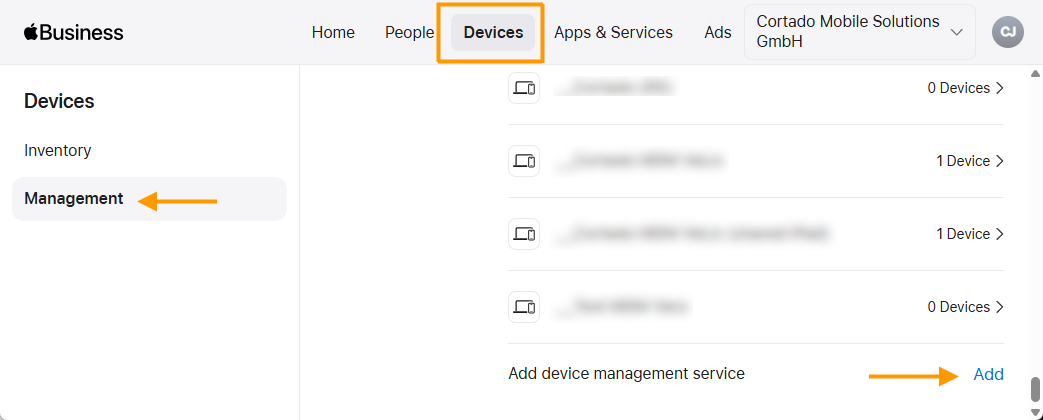
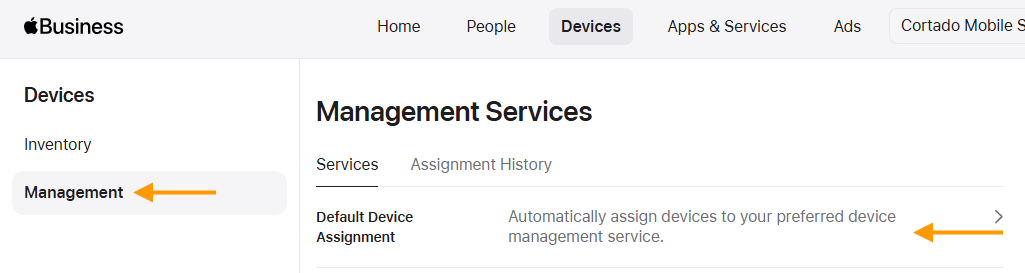
- Switch to the Devices tab (highlighted in illus.).
- Then click Management (left arrow in illus.).
- Next, under device management services, click Add (right arrow in illus.).
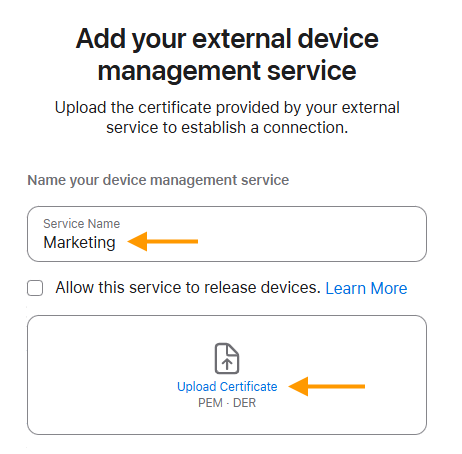
- Under Service Name enter a name of your choice (e.g.: department, location, user group) (upper arrow in illus.).
Note! At this point, you need to add a separate MDM server for each ADE profile you want to add, since a separate server token is needed for each profile.
- Under Upload Certificate (lower arrow in illus.) select the ADE certificate, that you downloaded in the administration portal under Settings→ Apple Automated Device Enrollment→ Download.
- Then save the settings by clicking Next.
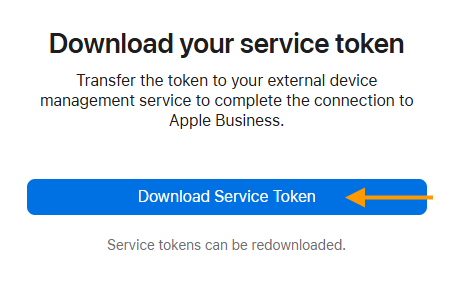
- Download your Service Token now (arrow in illus.). You must load this token into the ADE profile later in the administration portal.
Assigning Device Management
- Then, under Inventory (left arrow in illus.) select the devices, you want to assign (middle arrow in illus.).
- After this, click on Assign Device Management in the menu (right arrow in illus.).
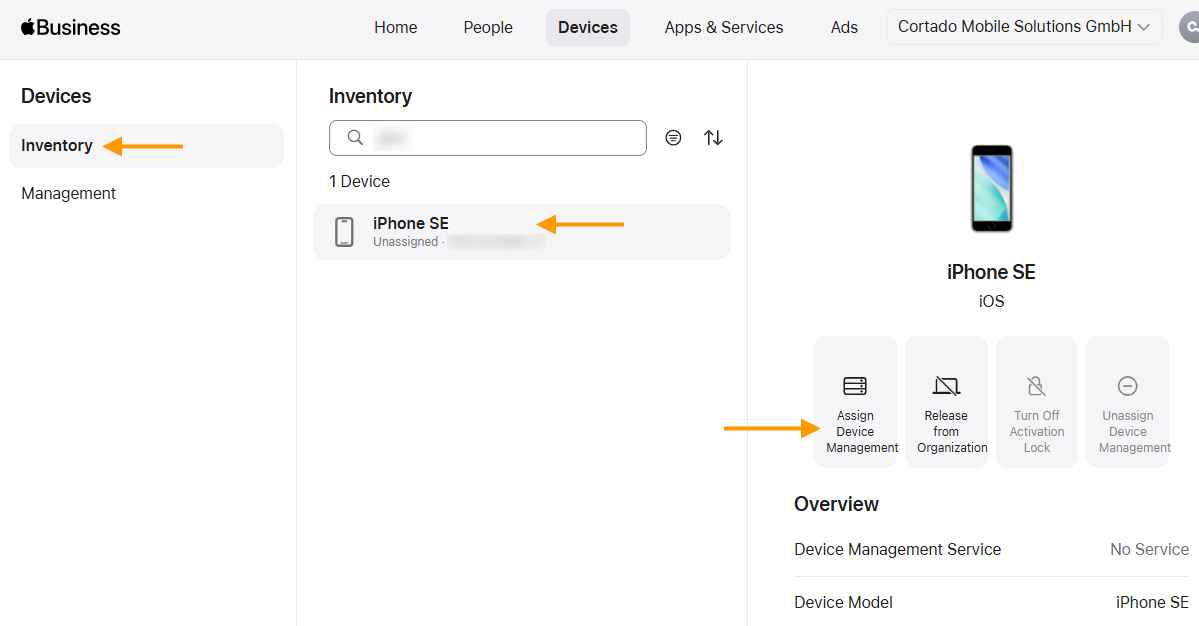
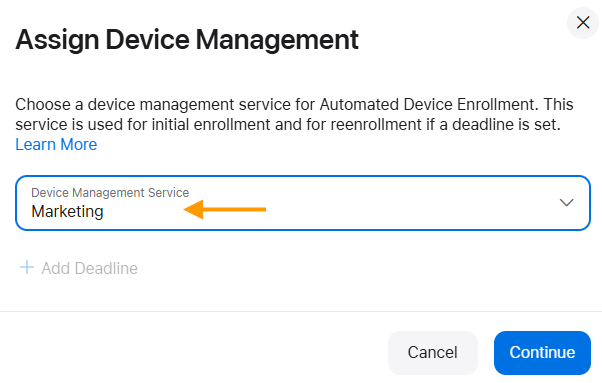
- Under Device Management Service (arrow in illus.) select your service (or your ADE profile).
- Confirm by clicking on Continue.
Note! The registration of the device with Apple may take some time. We recommend that you now wait some time (at least 60 minutes), before starting the device enrollment process.
Note! Under Devices→ Management→ Default Device Assignment, you can also specify an service (or ADE profile) to be used for automatic assignment.
Create configuration profile in the administration portal
- In the Cortado administration portal select Settings→ ADE→ Add (arrow in illus.).

Configure the ADE profile as follows:
Note! When configuring an ADE profile for an Apple TV, please also refer to the information in our help article: How to set up your Apple TV for the first time.
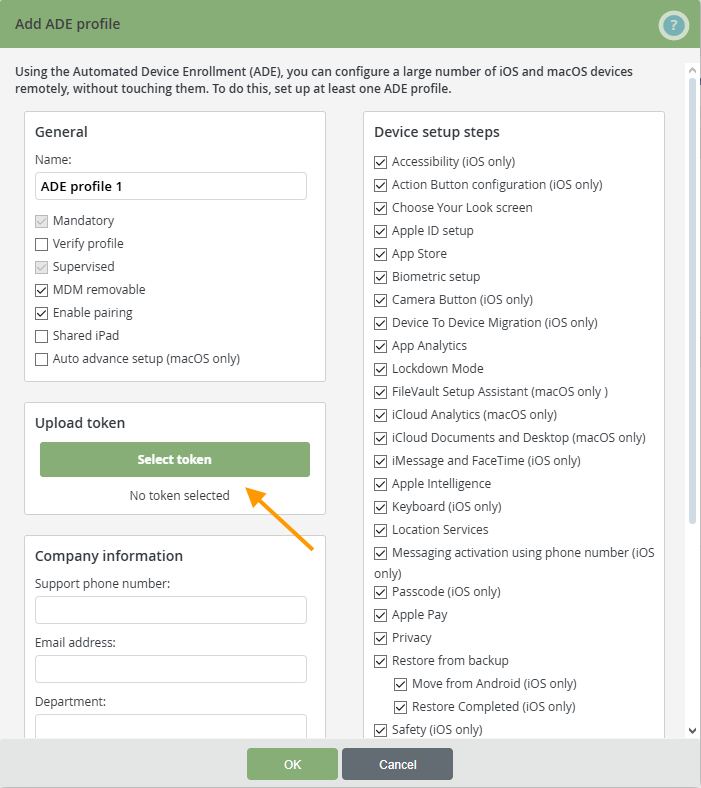
- Mandatory: Specify here whether the use of the profile should be mandatory for the users. If the checkbox is left empty, the users can choose whether to install the ADE profile or to create a profile of their own.
- Verify profile: If this checkbox is enabled, the device configuration can only be completed if all steps required in the Cortado administration portal have been carried out.
- Supervised: Currently, all devices that receive this profile are placed into supervised mode. This is regardless whether this checkbox is crossed or not.
- Enable pairing: If this checkbox is enabled, the user may connect his device to a Mac or a PC and connect to iTunes.
- Shared iPad: Activate this checkbox if an iPad should be used by multiple users. This allows different user profiles to be set up on one iPad. You can find more information on the Apple page.
- Upload token: Select the Select token button and upload the Token from Apple Business (arrow in illus.).
- Device setup steps: You can specify what steps the user is allowed to make during setup of the device itself.
Click on OK to finish configuration.
Note! Apple devices that are registered with Apple Business do not automatically appear in the device area of the Cortado management portal. They are only displayed there when a user with a valid Cortado account logs in during the initial setup of the device - after the “Remote management” notice (see the Configure devices section).
Note! To learn how to set up a company-owned iOS/iPadOS device as either a COBO or COPE device, please refer to our How-To article.
Configure devices
Users now only have to switch on the devices. The newly created ADE profile will now be automatically used for the device configuration (left illus.). Provided that the devices are new and unused or have been reset to factory settings.

The user has to enter his/her username and password during the configuration, therefore users must have been imported into the administration portal before configuration.
- Cortado MDM with Microsoft Entra ID groups:Microsoft users use their Microsoft login (lower arrow in left illus. and right illus.).
- Cortado MDM with local users: Local users must create a password for login (upper arrow in left illus.) using the invitation email and their email address. Alternatively, you can assign a password for the user during user import.

That means that, during the configuration, the user only needs to carry out the setup steps that you selected under Device setup steps.
Assigning the Cortado app
If you want to make the Cortado app available to your users, you now need to distribute it to the devices. To do this, proceed as described in our help article How do I assign Apple apps to users and groups?.
Note! The Cortado app is listed as an iOS app in the Apple Business App Store. However, it can also be assigned to iPadOS and macOS devices.
With the help of the Cortado app, users can manage their business apps and files. The app also gives them an overview of all iOS and iPadOS devices registered with Cortado MDM.
You can find more information on this in our help article How to make the Cortado app available to your Apple users for managing non-mandatory apps and files.
Note! If you no longer wish to manage a supervised Apple device with Cortado MDM, we recommend that you delete the device as described in our help article How to remove a supervised Apple device from management.
NEW ADMINISTRATION PORTAL: Enrollment of company-owned iOS/iPadOS device (COBO/COPE)
The new administration portal is currently in the beta phase. You are welcome to send us your feedback on the new portal using the corresponding button (at the bottom left of the new administration portal).
- Connect Cortado with Apple Business
- Create configuration profile in the administration portal
- Configure devices
- Assigning the Cortado app
Connect Cortado with Apple Business
The fastest way to integrate company-owned iOS/iPadOS devices is with Automated Device Enrollment (ADE). With ADE, you can remotely configure a large number of iOS devices without having to physically touch them. These devices are called supervised devices by Apple.
In this article, we will show you how to set your device to Company Owned, Business Only (COBO) mode. If you want to set your device to Corporate Owned, Personally Enabled (COPE) mode, you must first enroll it as a COBO device and then set it to COPE mode using a few policies. We show you how to do this in our help article Set up fully managed Apple devices for personal and business use (COPE).
Prerequisite: You have registered your company and all your iOS/iPadOS devices with Apple Business. You can find more information on this here.
Once all the serial numbers of the iOS/iPadOS/macOS devices have been registered with Apple Business, you can begin the configuration. To do this, you must first link the Cortado management portal to Apple Business.
- Open the Settings (left arrow in illus.) in the Cortado administration portal and switch to the Apple tab (middle arrow in illus.).
- Then click on Configure now (right arrow in illus.).
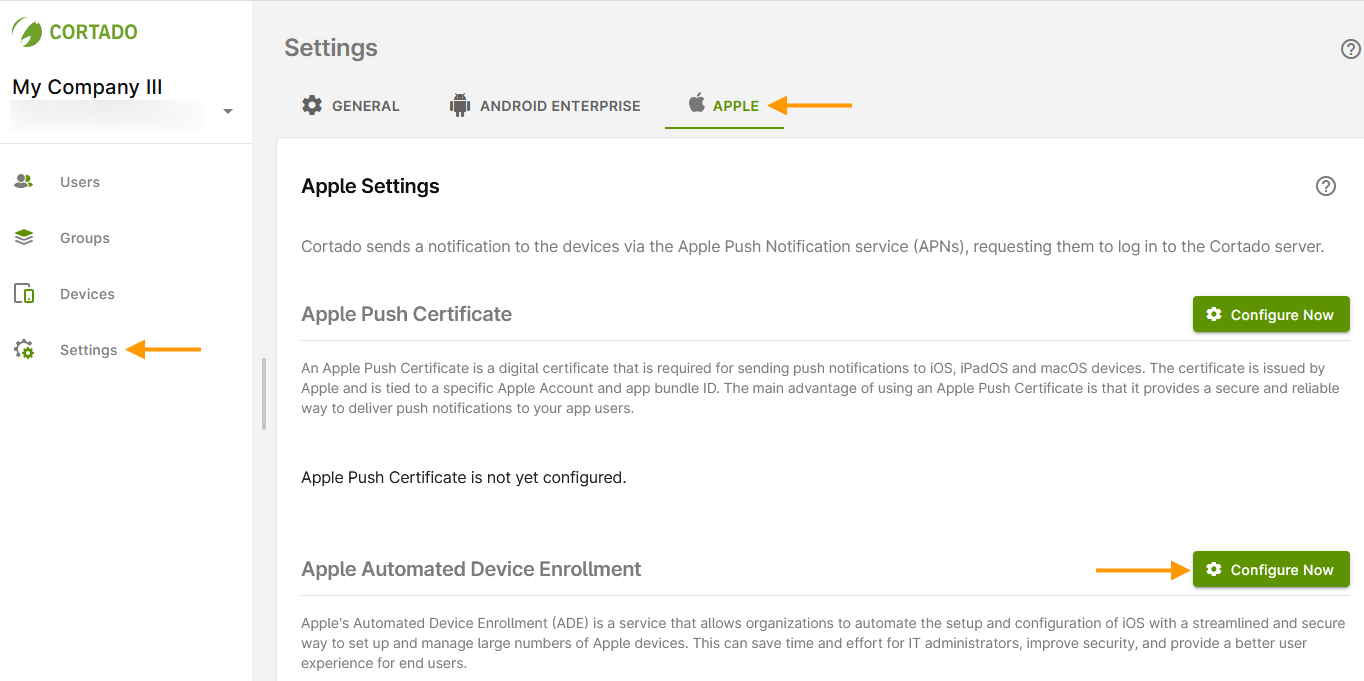
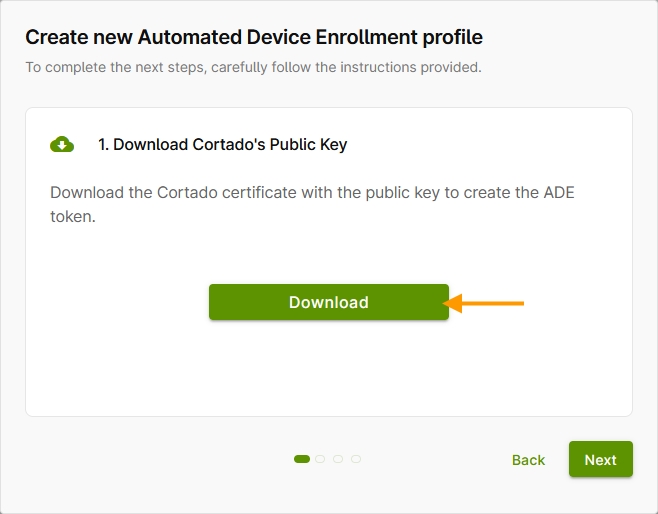
- Click on Download (arrow in illus.) and, as a first step, download the Cortado certificate with the public key.
Note: If you renew an expired ADE certificate, the certificate token must also be renewed. To do this, follow the steps described in our help article How to renew the token of a ADE profile for iOS devices.
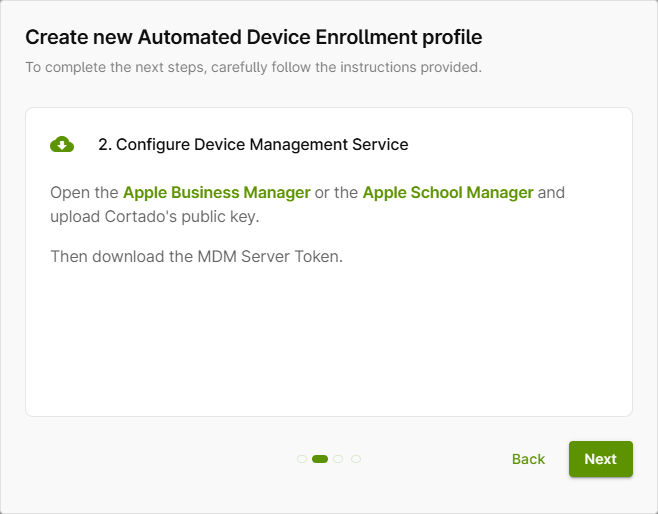
- The ADE certificate downloaded in the last step (arrow in illus. above) must be uploaded to Apple in the next step.
- To do this, open Apple Business at https://business.apple.com/ and log in with your Apple account.
- In Apple Business, switch to the Devices tab (highlighted in illus.).
- Then click Management (left arrow in illus.).
- Next, under device management services, click Add (right arrow in illus.).
- Under Service Name enter a name of your choice (e.g.: department, location, user group) (upper arrow in illus.).
Note! At this point, you need to add a separate MDM server for each ADE profile you want to add, since a separate server token is needed for each profile.
- Under Upload Certificate (lower arrow in illus.) select the ADE certificate, that you downloaded in the administration portal under Settings→ Apple Automated Device Enrollment→ Download.
- Then save the settings by clicking Next.
- Download your Service Token now (arrow in illus.). You must load this token into the ADE profile later in the administration portal.
Assigning Device Management
- Then, under Inventory (left arrow in illus.) select the devices, you want to assign (middle arrow in illus.).
- After this, click on Assign Device Management in the menu (right arrow in illus.).
- Under Device Management Service (arrow in illus.) select your service (or your ADE profile).
- Confirm by clicking on Continue.
Note! The registration of the device with Apple may take some time. We recommend that you now wait some time (at least 60 minutes), before starting the device enrollment process.
Note! Under Devices→ Management→ Default Device Assignment, you can also specify an service (or ADE profile) to be used for automatic assignment.
Create configuration profile in the administration portal
- Now open the Cortado administration portal again and go back to the Apple tab in the Settings (see above).
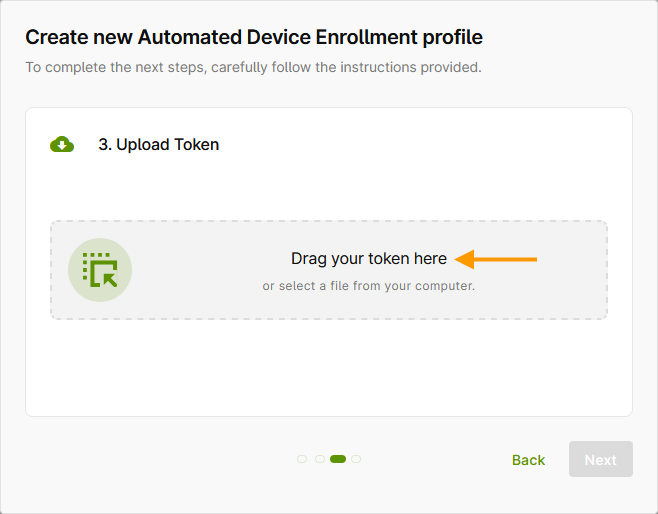
- Drag the token you downloaded in the last step in Apple Business into the field provided (arrow in illus.). Then click Next.
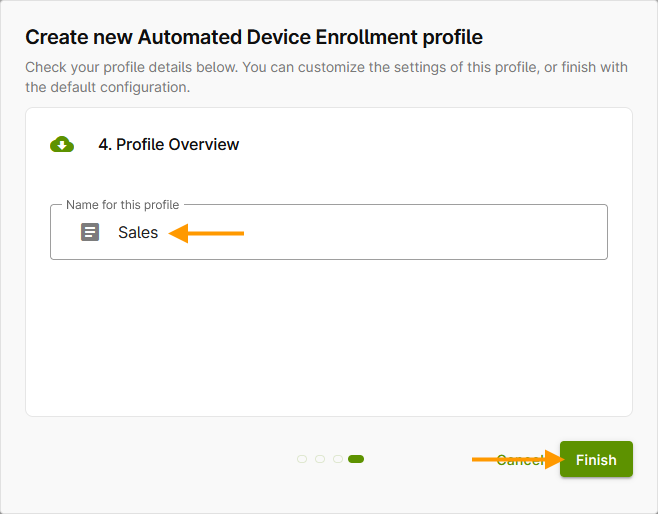
- Now choose a name for your new profile (example in illus.).
- Then click Done (lower arrow in illus.).
Configure the ADE profile as follows:
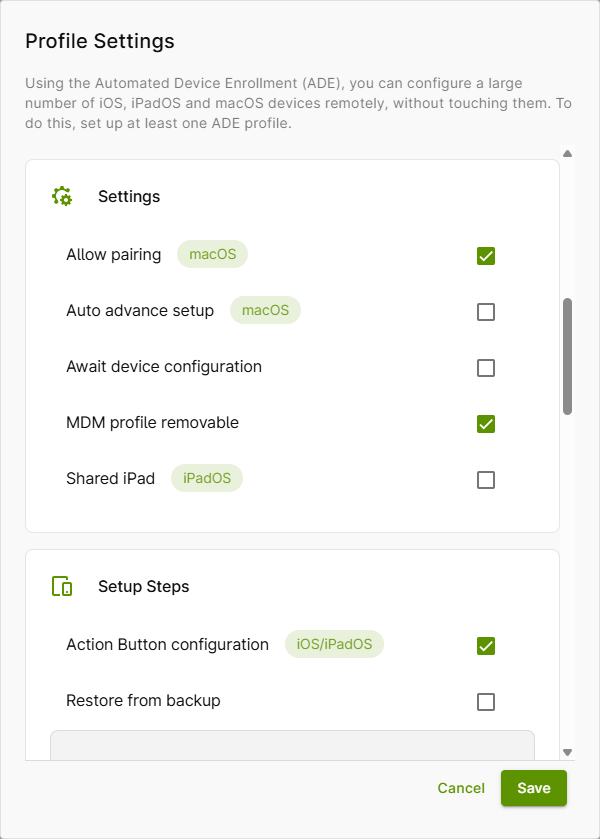
- Await device configuration: If this checkbox is enabled, the device configuration can only be completed if all steps required in the Cortado administration portal have been carried out.
- MDM profile removable: If this checkbox is selected, users can delete the MDM profile from a device. During the first 30 days, a profile can always be removed from the device. This is specified by Apple and cannot be changed by the MDM.
- Shared iPad: Select this checkbox if an iPad is to be used by multiple users. This allows you to set up different profiles on one iPad. For more information, see here and on the Apple website.
- Setup Steps: Here you can specify which steps the user is allowed to perform during the setup of the device.
- Finish the configuration by clicking Save.
Note! iOS and iPadOS devices registered in Apple Business do not automatically appear in the device section of the Cortado management portal. They will only be displayed there once a user with a valid Cortado account logs in during the initial setup of the device – after the “Remote Management” prompt (see the Configure devices section).
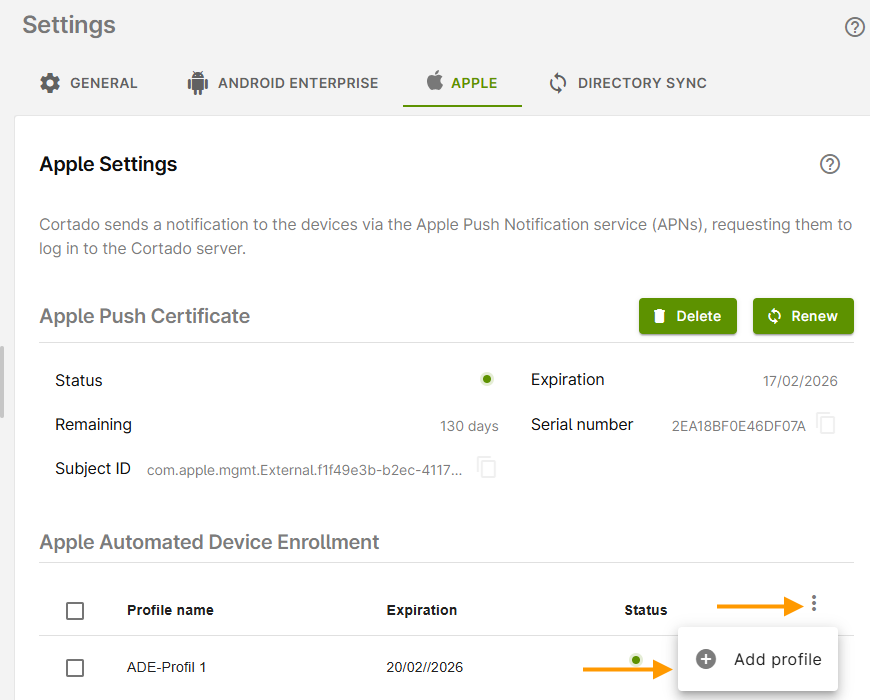
You can create multiple profiles for automatic device registration, e.g., because you want to configure them differently for different departments (profile settings, setup steps, etc.).
- If you want to add another profile, click on the burger menu (upper arrow in illus.) under Apple Automatic Device Enrollment in the Apple tab in the Settings.
- Then click on Add profile (lower arrow in illus.).
- Repeat all the previous steps.
Configure devices
Note! The registration of the device with Apple may take some time. We recommend that you now wait some time (at least 60 minutes), before starting the device enrollment process.
Users now only need to switch on the devices. The newly created ADE profile is automatically used for configuration. (Provided that the devices are new and unused or have been reset to factory settings.)
The user has to enter his/her username and password during the configuration, therefore users must have been imported into the administration portal before configuration.
- Cortado MDM with Microsoft Entra ID groups: Microsoft users use their Microsoft login (lower arrow in left illus. and right illus.).
- Cortado MDM with local users: Local users must create a password for login (upper arrow in left illus.) using the invitation email and their email address. Alternatively, you can assign a password for the user during user import.
That means that, during the configuration, the user only needs to carry out the setup steps that you selected under Device setup steps.
Note! Your device is now in Company Owned, Business Only (COBO) mode. To learn how to switch your device to Corporate Owned, Personally Enabled (COPE) mode, see our help article Set up fully managed Apple devices for personal and business use (COPE).
Assigning the Cortado app
If you want to make the Cortado app available to your users, you now need to distribute it to the devices. To do this, proceed as described in our help article Assign iOS apps to the users or groups.
With the help of the Cortado app, users can manage their business apps and files. The app also gives them an overview of all iOS and iPadOS devices registered with Cortado MDM.
You can find more information on this in our help article How to provide your iOS users with the Cortado app for managing apps and files.
Note! If you no longer wish to manage a supervised iOS/iPadOS device with Cortado MDM, we recommend that you delete the device as described in our help article How to remove a supervised iOS/iPadOS device from management.