Instructions for the current portal are provided below. Instructions for the new portal can be found at the end of this article.
Does your company already have a managed Google domain for using Google Workspace? In this article, we’ll show you how to register your managed Google domain with Cortado MDM so you can manage your users’ Android devices using Android Enterprise.
Note! You can also set up Android Enterprise without a managed Google domain. To learn how, see our help article How do I set up Android Enterprise with Managed Google Play accounts?.
Prerequisites
- You have an administrator account to sign in to the Google Admin console.
- You have set up domain-wide delegation for Google Workspace in the Google Admin console.
Setup
- In the Cortado Administration Portal, select Administration → Settings.
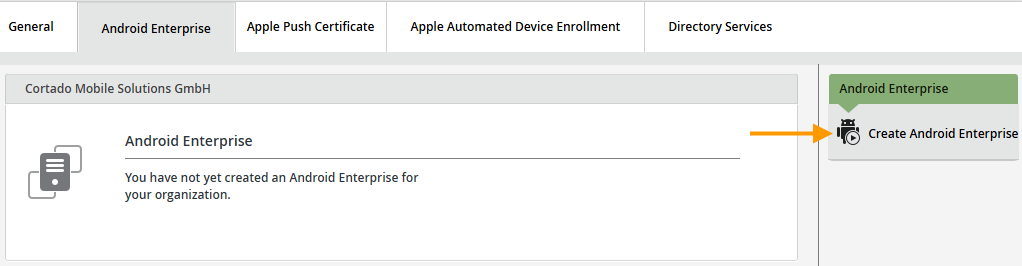
- Then, on the Android Enterprise tab, click Create Android Enterprise (arrow in the image).
- Then click on Start sign up.

- Sign in to the Google Admin Console now using your administrator account.

Your managed Google domain has been successfully linked to Cortado MDM. You can now configure your Android Enterprise settings.
- To do so, click Configure under Administration → Settings → Android Enterprise (arrow in the image).
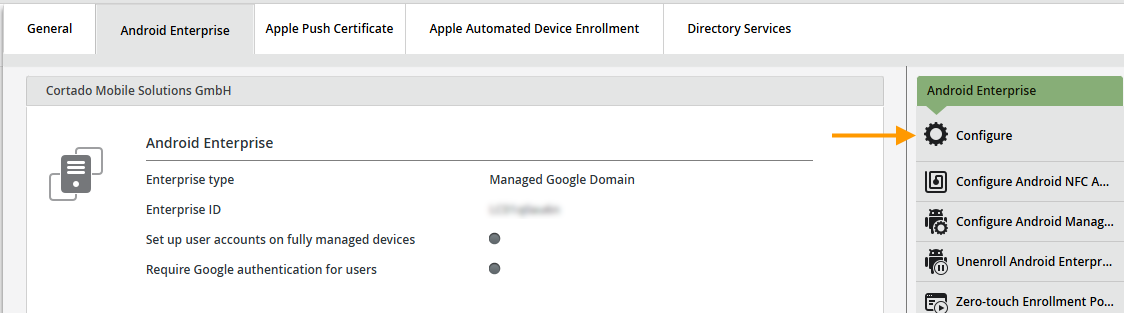
Here you will find your enterprise ID for Android Enterprise.
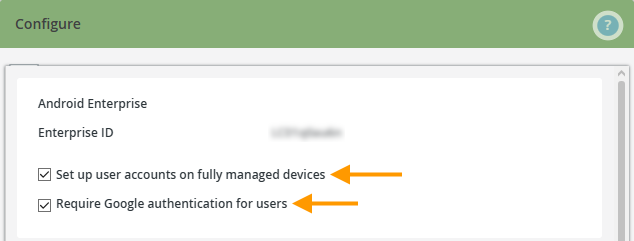
The Set up user accounts on fully managed devices checkbox is selected by default (top arrow in the image). Keep this setting enabled when using Google accounts.
Also, check the box labeled Require Google authentication for users (bottom arrow in the image). This requires users to sign in with a Google account (belonging to the domain registered in the first step) during device registration. If the checkbox is unchecked, users can sign in with their Google account, but are not required to do so. If they do not, a Managed Google Play account is automatically created on the Android device. Unless the managed Google account has been previously added in user management (either as an entry for local users or as an import from Google Workspace groups). In that case, registration with the Google account is also required.
We'll explain how to configure the remaining settings here:
NEW ADMINISTRATION PORTAL: Set up Android Enterprise with a managed Google domain
The new administration portal is currently in the beta phase. You are welcome to send us your feedback on the new portal using the corresponding button (at the bottom left of the new administration portal).
Prerequisites
- You have an administrator account to sign in to the Google Admin console.
- You have set up domain-wide delegation for Google Workspace in the Google Admin console.
Setup
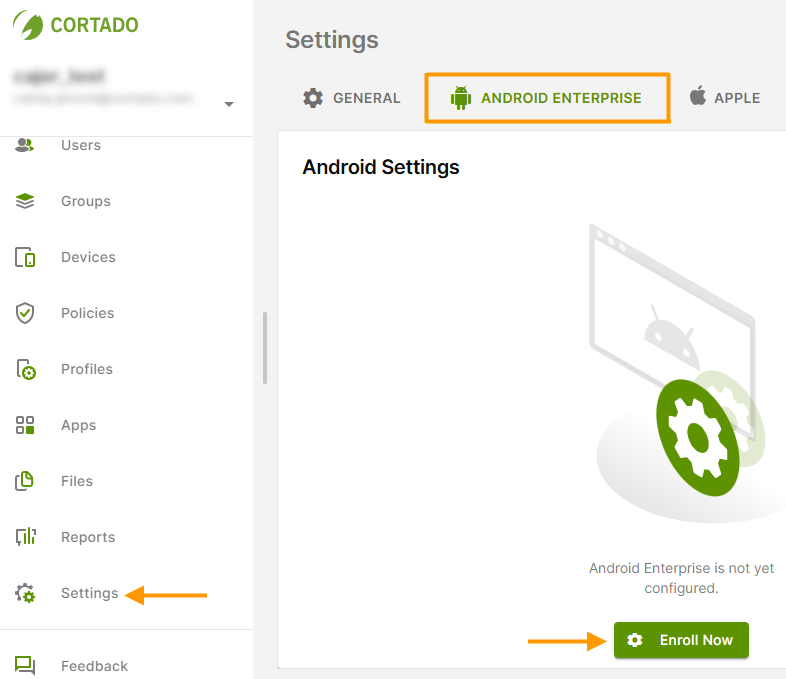
- Open the Settings menu (left arrow in the image).
- In the Android Enterprise tab, click Enroll now (right arrow in the image).
- Then click on Start sign up.
- Sign in to the Google Admin Console now using your administrator account.
Your managed Google domain has been successfully linked to Cortado MDM. You can now configure your Android Enterprise settings.
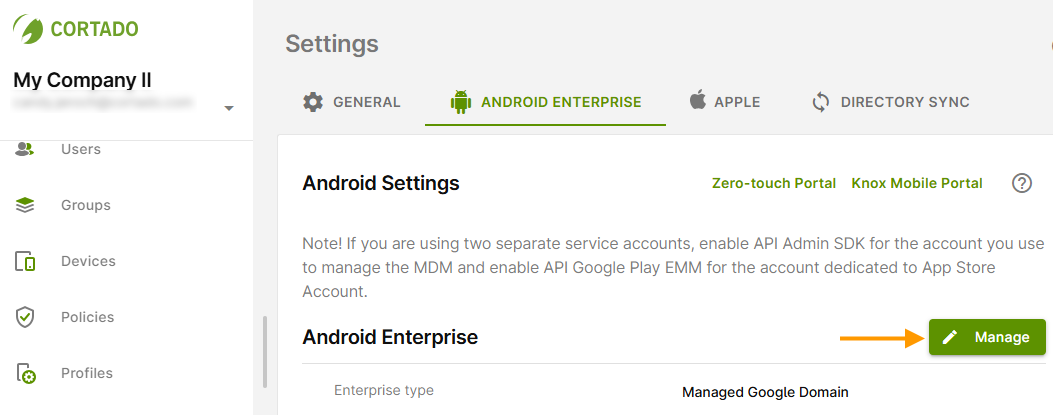
- To do this, go to the Android Enterprise tab in Settings and click Manage (arrow in the image).
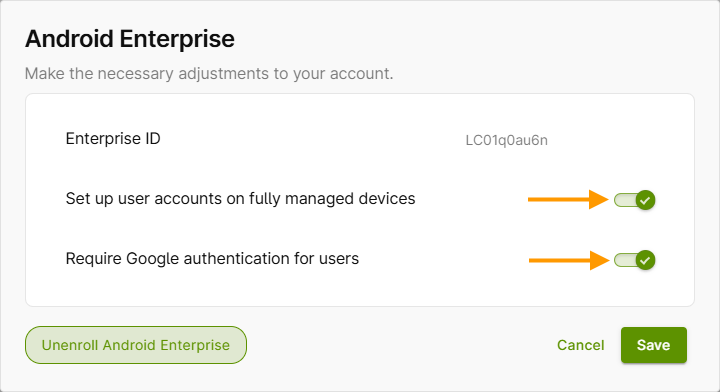
Here you will find your enterprise ID for Android Enterprise.
The Set up user accounts on fully managed devices checkbox is selected by default (top arrow in the image). Keep this setting enabled when using Google accounts.
Also, check the box labeled Require Google authentication for users (bottom arrow in the image). This requires users to sign in with a Google account (belonging to the domain registered in the first step) during device registration. If the checkbox is unchecked, users can sign in with their Google account, but are not required to do so. If they do not, a Managed Google Play account is automatically created on the Android device. Unless the managed Google account has been previously added in user management (either as an entry for local users or as an import from Google Workspace groups). In that case, registration with the Google account is also required.
We'll explain how to configure the remaining settings here: