This feature is already available in our new administration portal. The new portal is currently in beta. Instructions for using the new portal can be found at the end of this article.
In our help articles Create MDM policies – Configure restrictions for managed devices, Create policies for iOS/iPadOS devices and Create policies for Android devices, we showed you how to create new policies for your managed devices. In this article, we will use Android as an example to show you how to distribute these new policies to your users, groups or devices and what other options are available when configuring policies.
Assign policy
- Select one or more policies in the left-hand column (upper arrow in illus.).
- Then click on Assign (lower arrow in illus.).
- Now decide whether the policy should be assigned to users, groups or devices.

- Then select the desired users, groups or devices (example of an assignment of the policy to two groups in the image).

Note! When assigning multiple directives, please refer to our help article Special conditions when assigning multiple policies.
As a rule, the policies are applied to the mobile devices after a short time. If necessary, the Cortado app must be updated (upper arrow in left illus.) so that the included restrictions are enforced. Under Policies (lower arrow in left illus.), users can see which restrictions are activated/deactivated or allowed/not allowed (example in right illus.).

Unassign policy
- Select one or more policies in the left-hand column (upper arrow in illus.).
- Then click on Unassign (lower arrow in illus.).
- Depending on whether the policy was originally assigned to users, groups or devices, it must also be removed there.

- Then select the desired users, groups or devices (example in the image: canceling the assignment of a policy that was originally assigned to two groups).

Duplicate policy
You can duplicate a policy. This is useful, for example, if you want to make the same policy available to other users, groups or devices in a similar form.
- To do this, select the policy in the left-hand column (left arrow in illus.) and then click on Duplicate (middle arrow in illus.).
- Assign a new name for the policy (right arrow in illus.).

Edit policy
- Select the policy in the left-hand column (upper arrow in illus.).
- Then click on Edit (lower arrow in illus.).
- You can now make any desired changes/additions to your policy.

- Save your changes and then assign the policy to the desired users/groups/devices (see above).
Remove policy
- Select the desired policy in the left-hand column (upper arrow in illus.).
- Then click on Remove (middle arrow in illus.).
- You can now delete the selected policy (lower arrow in illus.).

If the deleted policy is still assigned to users, groups or devices, any remaining restrictions will be removed from the mobile devices.
NEW ADMINISTRATION PORTAL: Assign/unassign, edit, duplicate and remove policies
The new administration portal is currently in the beta phase. Please feel free to send us your feedback on the new portal by clicking the corresponding button (located at the bottom left of the new administration portal).
In our help articles How do I create MDM policies? and in our articles on creating policies for iOS/iPadOS devices, macOS devices, tvOS devices, and Android devices, we’ve shown you how to set up new policies for your managed devices. In this article, we’ll show you examples of how to distribute these new policies to your users, groups, or devices, and what other options are available when configuring policies.
Assign policy
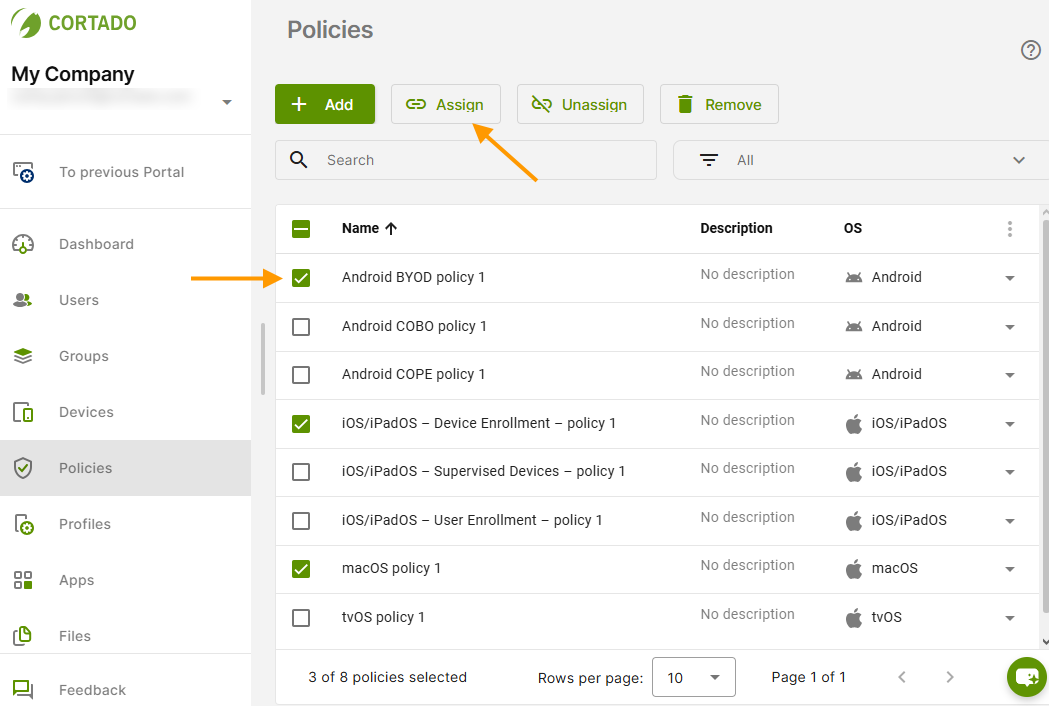
- Open Policy Management in the menu (left column).
- Now select one or more policies (left arrow in the image) and click Assign (right arrow in the image).
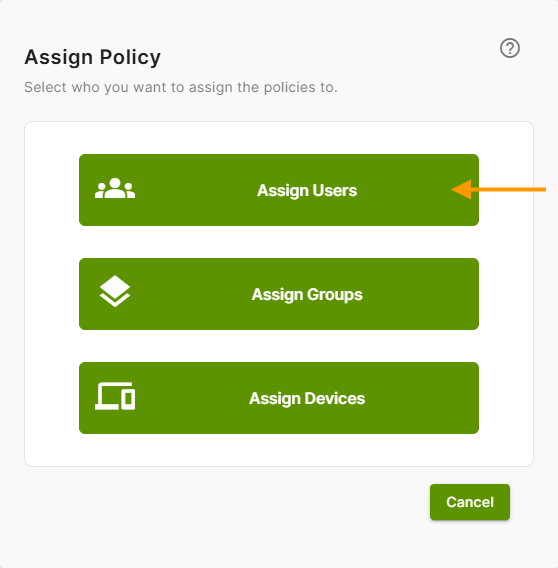
- Now select who you want to assign the policy or policies to (e.g., a user; see the arrow in the image).
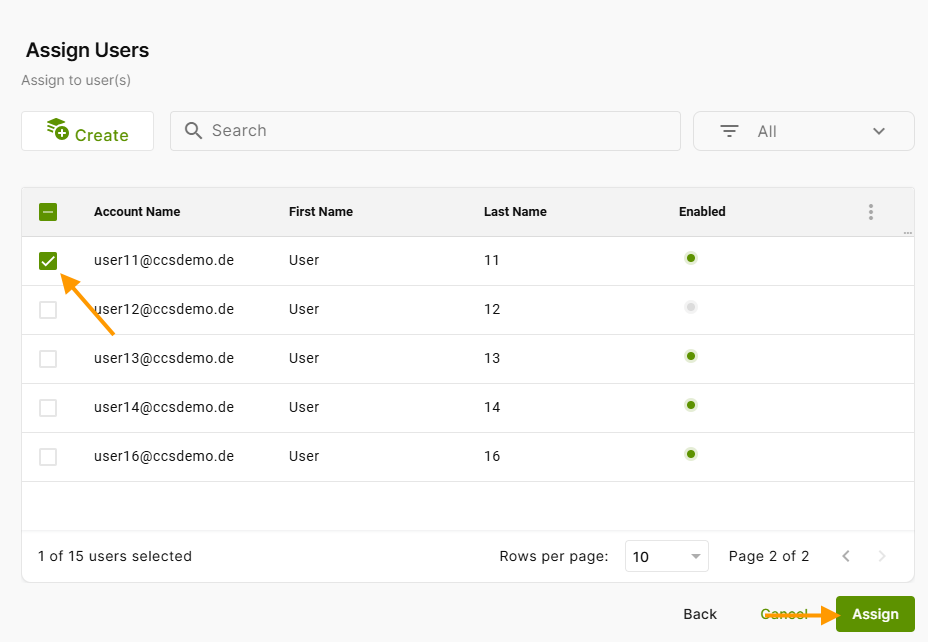
- Now you can select one or more users (top arrow in the image).
Then click Assign (bottom arrow in the image).
Note! When assigning directives, be sure to follow the instructions in our Help article Special conditions when assigning multiple policies.
Note! Alternatively, you can open the policy and assign it in the Users, Groups, or Devices tab. (see below).
As a rule, the policies are applied to the mobile devices after a short time. If necessary, the Cortado app must be updated (upper arrow in left illus.) so that the included restrictions are enforced. Under Policies (lower arrow in left illus.), users can see which restrictions are activated/deactivated or allowed/not allowed (example in right illus.).
Unassign policy
Just as you can add an assignment, you can also remove one.
- Select the policy for this in the overview and click Unassign.
- Then decide whether to unassign users, groups, or devices.
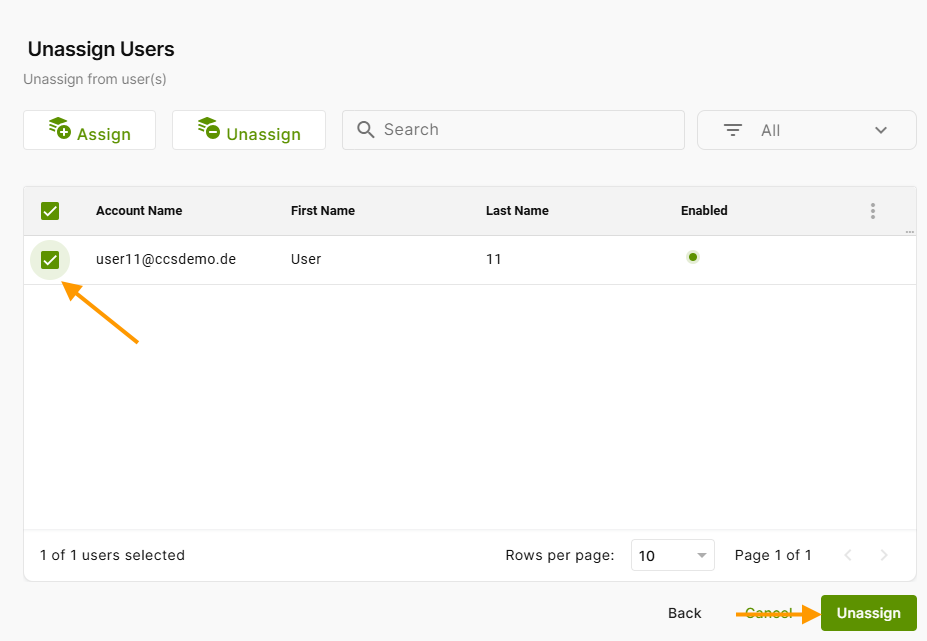
- Next, select the users (groups, devices) (left arrow in the image) and click Unassign (bottom arrow in the image).
Check Assignment
If you want to see which users, groups, or devices a policy has been assigned to, follow these steps:
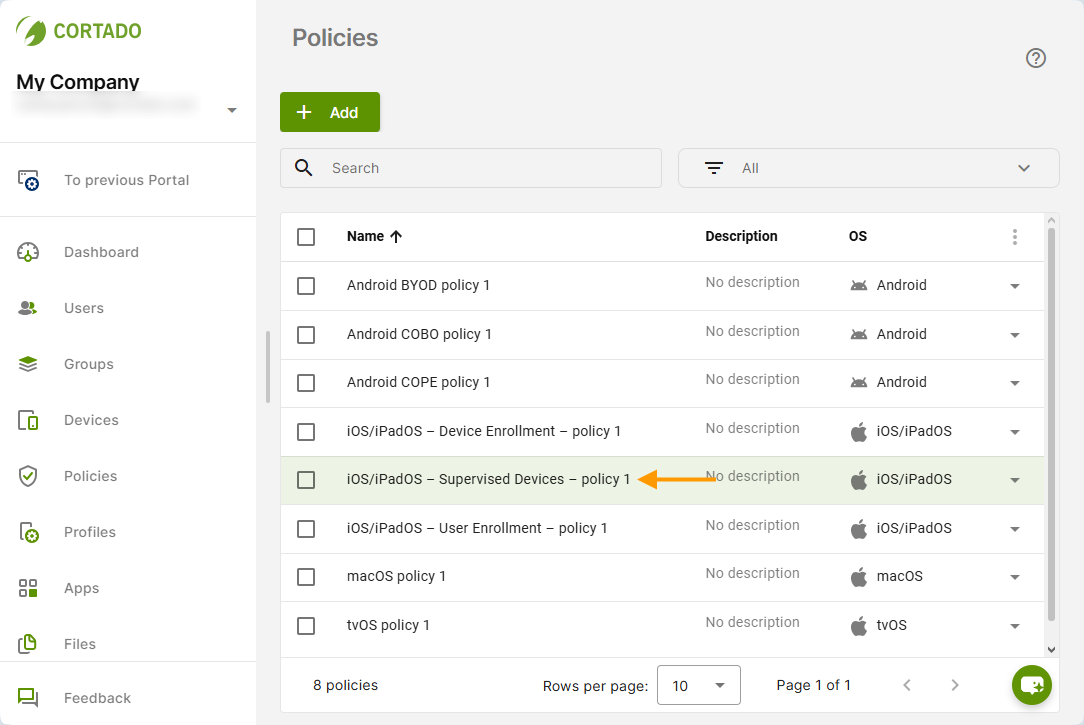
- Open the policy by clicking on it (see example in the image).
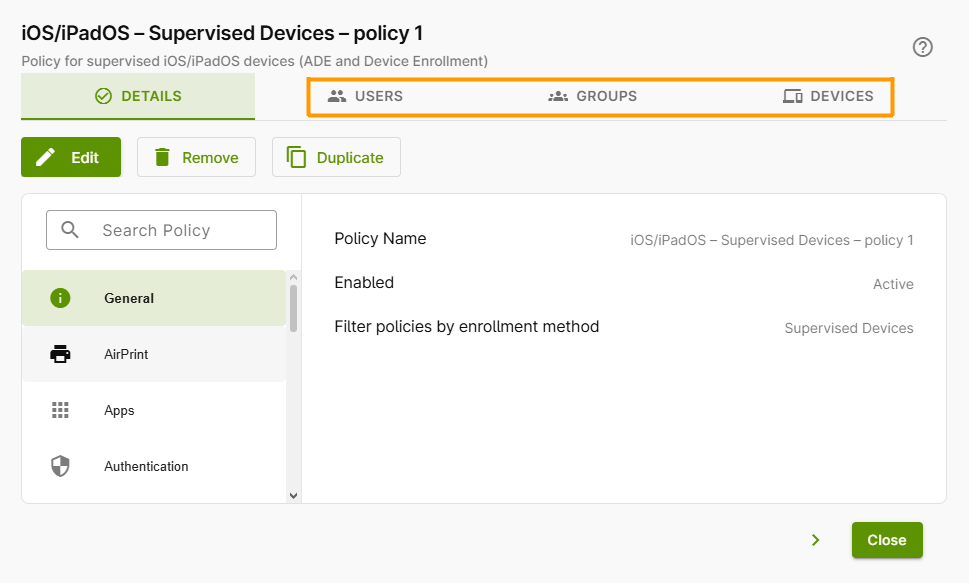
- You can find the relevant information in the corresponding tab (highlighted in the image).
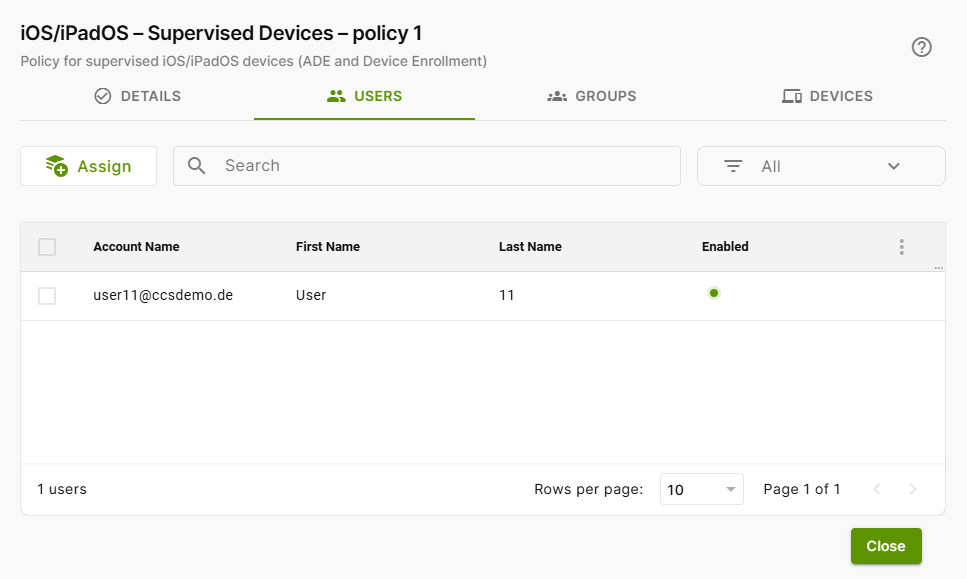
- Open the desired tab. In this example, the Users tab has been opened.
- Here you can see which users (groups, devices) the policy has already been assigned to.
- Using the Assign button, you can now assign the policy to additional users (groups, devices).
- You can also search for and filter users (groups, devices) here.
Edit policy
- Select the policy you want to edit from the overview (left arrow in the image).
- Then click Edit (right arrow in the image).
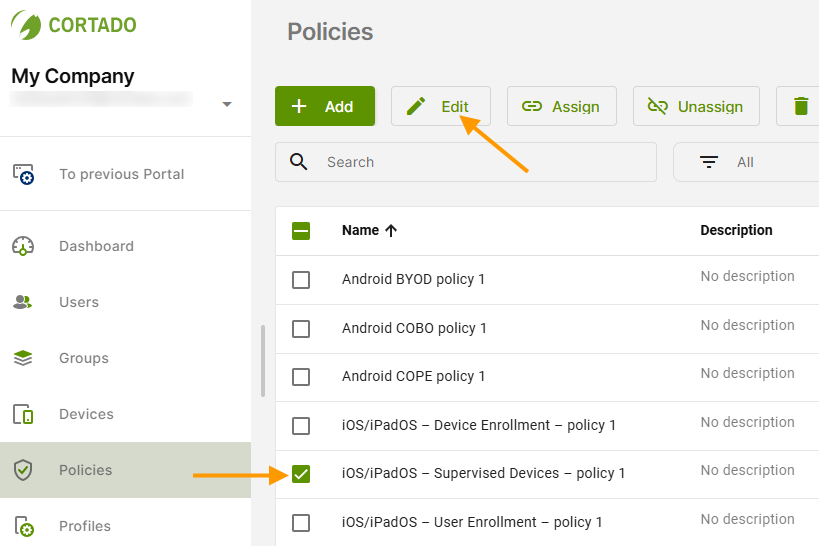
- Or open the policy by clicking on it, and then click Edit (arrow in the image) in the open policy.
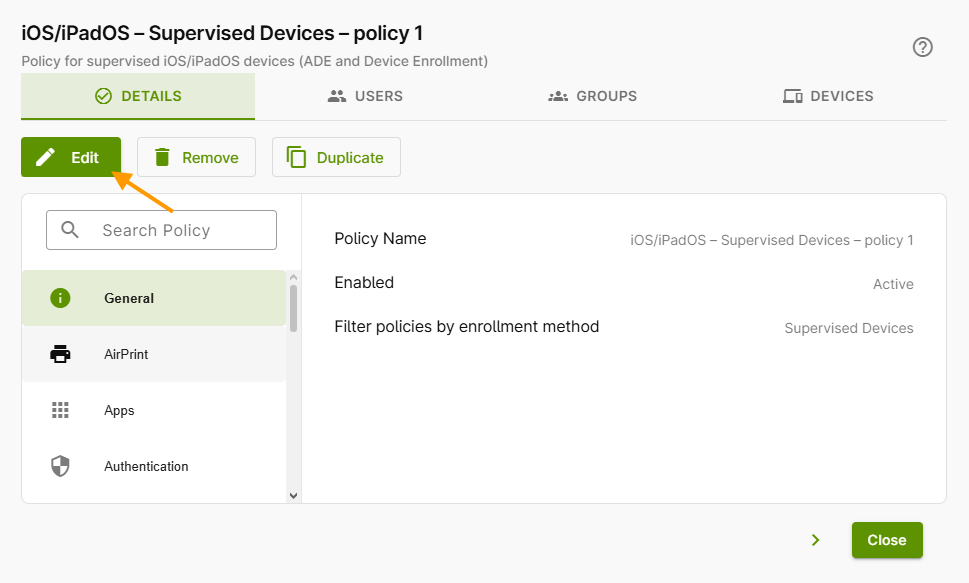
- Edit the policy as desired (see example in the image, top arrow), and then click Save (bottom arrow in the image).
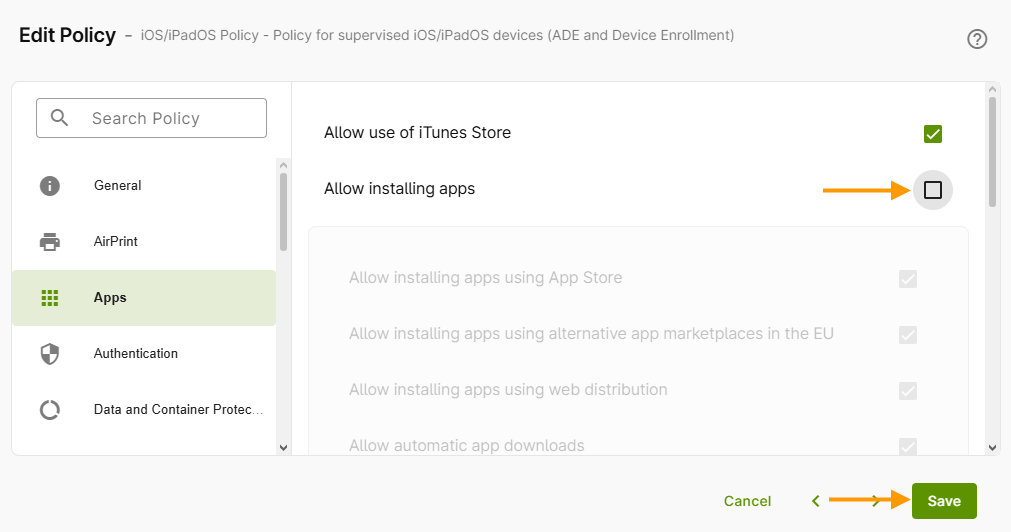
The changes will be automatically rolled out to all users, groups, and devices that have already been assigned.
Duplicate policy
You can duplicate a policy. This is useful, for example, if you want to make the same policy available to other users, groups, or devices in a similar form.
- Select the policy for this (left arrow in the image).
- Then click Duplicate (right arrow in the image).
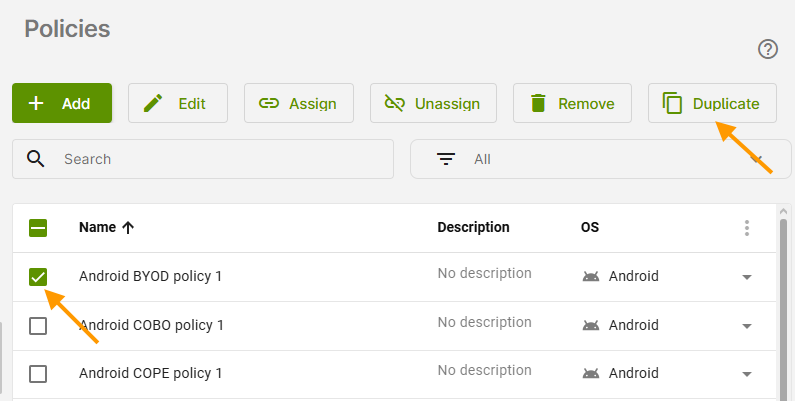
- Or open the policy by clicking on it, and then click Duplicate in the open policy (see above).
Remove policy
You can delete the policy when you no longer need it.
- Select the policy for this (left arrow in the image).
- Then click Remove (the right arrow in the image).
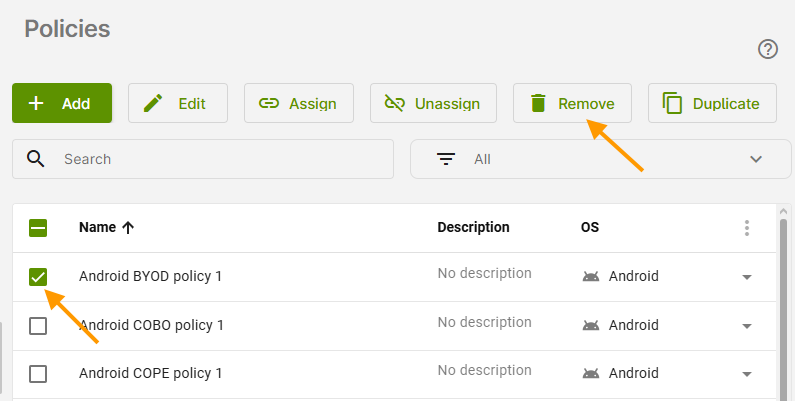
- Or open the policy by clicking on it, and then click on Remove in the policy window that opens (see above).
If the deleted policy is still assigned to users, groups, or devices, any remaining restrictions will be removed from the mobile devices.