This feature is already available in our new administration portal. The new portal is currently in beta. Instructions for using the new portal can be found at the end of this article.
In this article, we will show you how to make policies available to your macOS users. A wide range of policies are available for macOS devices.
- If you want to create a new policy for macOS, first proceed as described here.
- Then select macOS as the policy you want to add.
- You now have access to all policies available for supervised macOS devices.
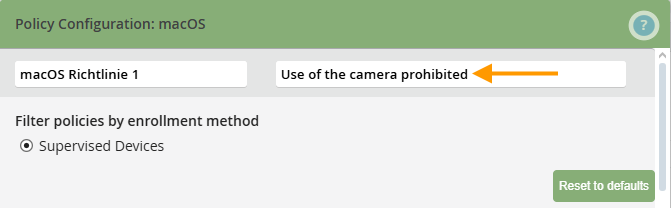
- Add a name and description for your policy (example shown in illus.).
A list of all guidelines, including explanations of the individual functions, can be found here.
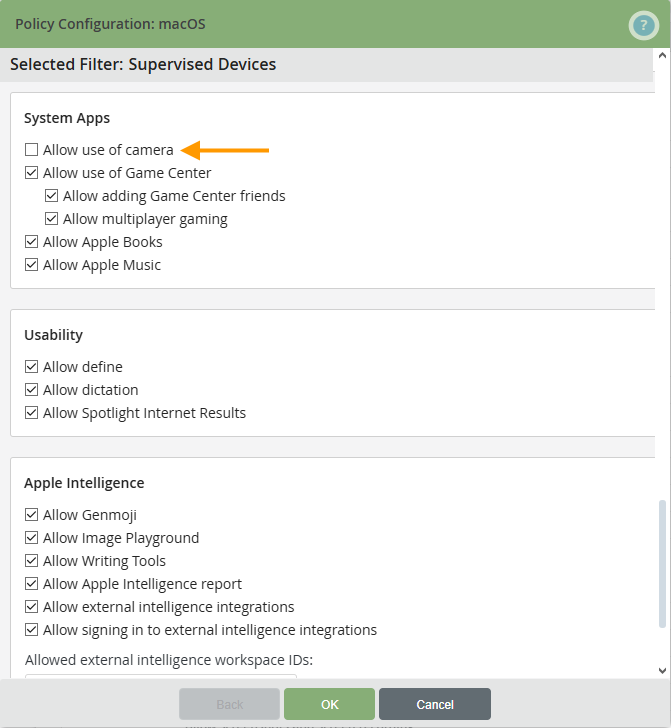
Select the desired options. In the example, the Allow camera usage checkbox has been deactivated (example in illus.).
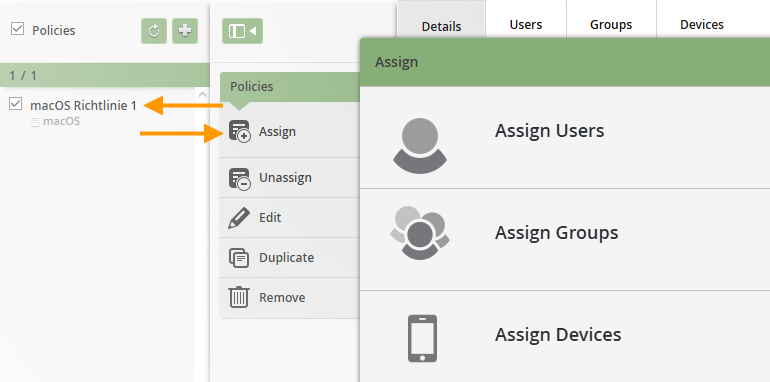
- Then select the appropriate policy (upper arrow in illus.) and click Assign (lower arrow in illus.).
- Now select the users, groups, or devices to which you want to assign the policy.
NEW ADMINISTRATION PORTAL: Creating policies for macOS devices
The new administration portal is currently in the beta phase. Please feel free to send us your feedback on the new portal by clicking the corresponding button (located at the bottom left of the new administration portal).
In this article, we will show you how to make policies available to your macOS users. A wide range of policies are available for macOS devices.
- If you want to create a new policy for macOS, first proceed as described here.
- Then select macOS as the policy you want to add.
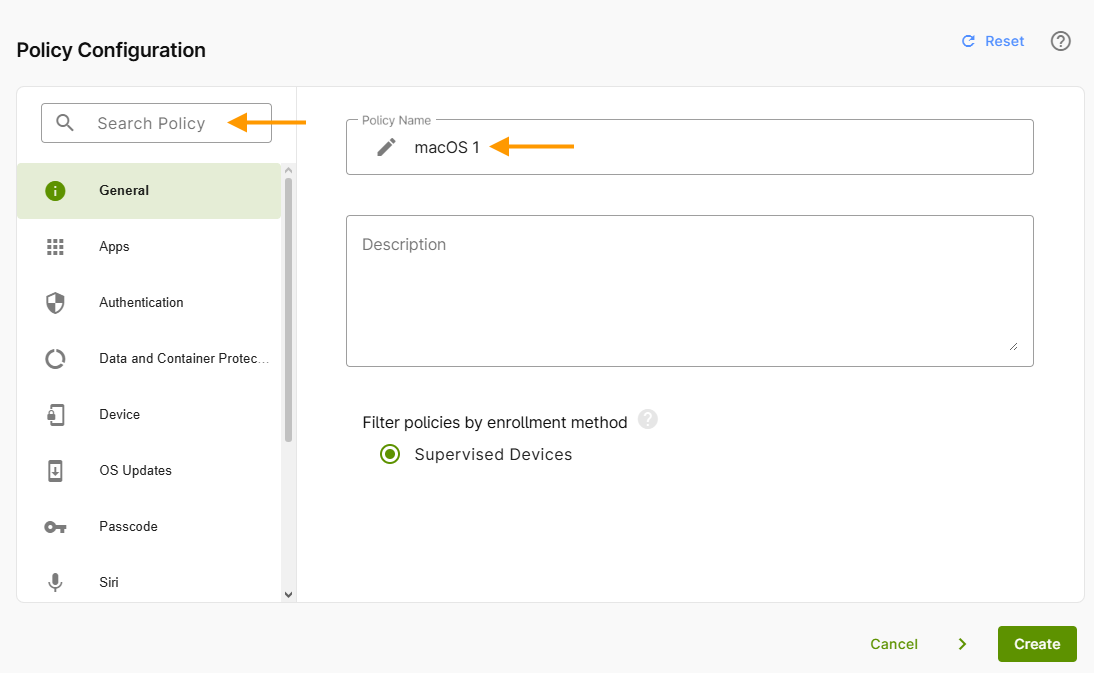
- Add a name and description for your policy (right arrow in illus.).
- You can find all the policies in the menu on the left side of the page. In the top-left corner, you can search for policy details (left arrow in the image).
- Use the Reset button (top right) to restore all previously made changes to their default settings.
- You can find a list of all policies, including explanations of the individual features, here.
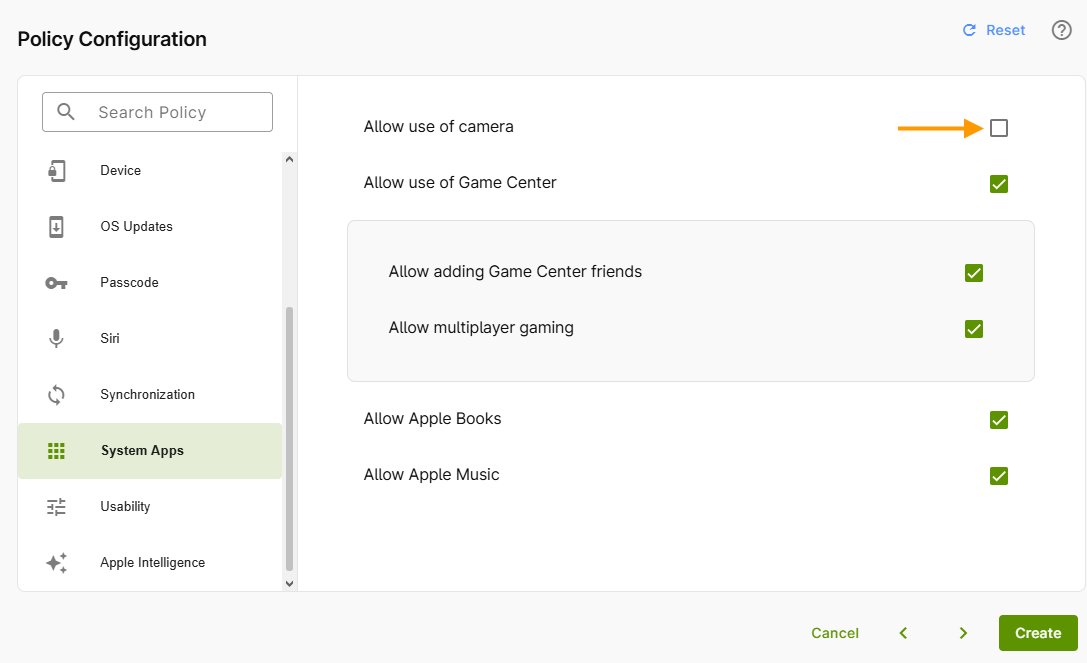
- Select the desired options. In the example, the Allow camera usage checkbox has been deselected (see example in the image).
The next step is to assign the policy. We'll show you how to do that in our help article, How can I assign/unassign, edit, duplicate and remove policies?
Note! When assigning directives, be sure to follow the instructions in our Help article Special conditions when assigning multiple policies.