This feature is already available in our new administration portal. The new portal is currently in beta. Instructions for using the new portal can be found at the end of this article.
Details
- Open the device management under Administration→ Devices.

In the Details tab you will get an overview of all mobile devices of yours users.

The devices will appear in the overview once the MDM profile has been downloaded.
In the device overview, you will see which user uses each device. You can also get information about the device (Model, Operating system, Device memory etc.). In addition, you can get information on the status of certain functions of the device (Data protection, Jailbroken, Roaming, Supervised, Bluetooth, Wi-Fi, eSIM Support etc.). Each of these functions is generally available on the device as soon as it is listed. The current status can be seen as follows:
- green point: on
- gray point: off
- gray check mark: current status of the function is not known
Note! A green dot with eSIM support indicates that the device is basically eSIM-capable and not whether an eSIM is currently being actively used.
- Under Administration→ Devices select a device.
- The following options are now available:
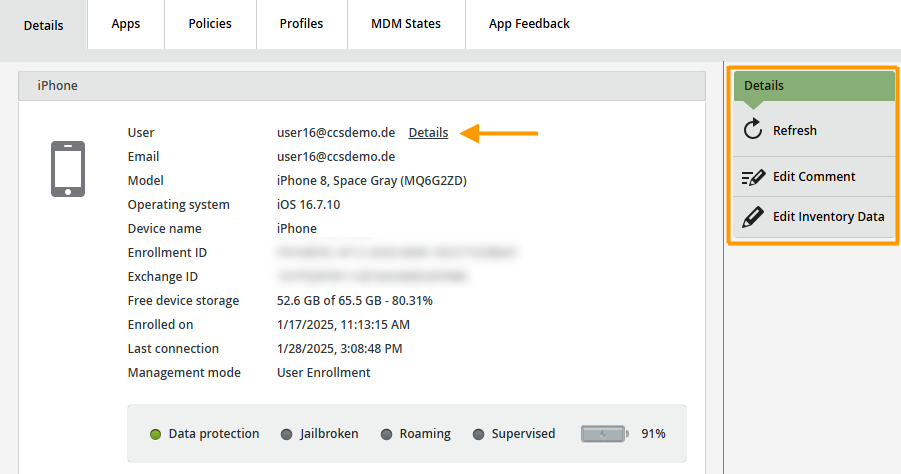
- Details: Switch directly to this user int the user administration.
- Refresh: Refresh the view of your device data here.
- Edit Comment: You can add comments for the respective devices here.
- Edit Inventory Data: In the Mobile Asset Manager you can store important inventory data for each of your devices (regarding rental information, mobile phone provider, insurance, data volume, roaming, etc.).
Note! This feature is only available to users of a Pro or Enterprise plan.

Report a calm
If you rent company cell phones from Cortado, you can easily report damage to these devices via the administration portal under Administration→ Devices. To do this, select the device in question in the left-hand column and then click on Report a claim.

You will be redirected to a new website. Fill out the form and send it off. Our team will then get in touch with you.
Apps
Under Administration→ Devices→ Apps select a mobile device. Now you can see the apps that are installed on the selected devices. In addition, the version number and the status of the app are displayed.

For how to add more apps to devices, see here.
Policies
Under Administration→ Devices→ Policies select a mobile device (left arrow in illus.). Now you can see which Policies were assigned to the selected user user or device (right arrow in illus.).

You also have the option here to assign Policies to more devices.
- For this, you select the desired device and click on Assign (right arrow in illus.). Now all available Policies are displayed.
- Select one or more and confirm with OK.

You can learn how to create new policies here.
Profiles
Under Administration→ Devices→ Profiles select a mobile device (left column in illus.). Now you can see which profiles were assigned to the selected device. You have the further option here to assign profiles to other devices.
- To do this, select the required device (left in illus.) and click on Assign (right in illus.). Now all available profiles will be displayed.
- Select one or more and confirm with OK.

You can learn how to create new profiles here.
MDM States
- Select an device on the left and click on the right on MDM States to obtain a status display for Mobile Device Management.

- Here you can use Filter MDM States (arrow in illus.) to select what content you want to display. For each state, you can select how many events you want to list (Count per state) and for what time period (Time range).

- You can use Remove All to remove all existing entries.
NEW ADMINISTRATION PORTAL: Information about mobile devices
The new administration portal is currently in the beta phase. You are welcome to send us your feedback on the new portal using the corresponding button (at the bottom left of the new administration portal).
Device management provides you with an overview of all devices managed with Cortado MDM. There you will find all the details about your devices, and you can add new devices or lock existing ones. You also have the option of assigning devices to a group or removing them from a group. Currently, only some of the usual device management options are available in the new portal. If you are missing an option here, please switch to the current portal. We will add the missing options as soon as possible.
How new devices are registered (button: Add) depends on the type of management (BYOD, COBO, COPE) and the platform used (Apple, Android). Detailed information on registering devices can be found here.
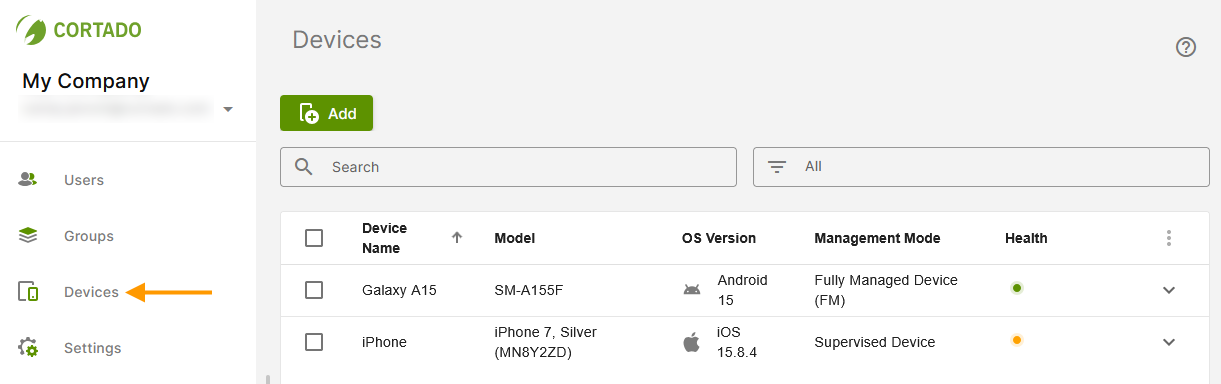
Note! We show you how to search for, filter, and export users, groups, and devices in the new administration portal and how to configure the columns in the overview here.
Depending on the platform and type of device registration, the following options are available in device management:
- Show details
- Reset passcode
- Enable/disable lost mode
- Lock screen
- Assign/unassign
- Lock workspace (Android only)
- Restart/Shutdown (supervised Apple devices only)
- Lock device (supervised macOS devices only)
- Report a claim
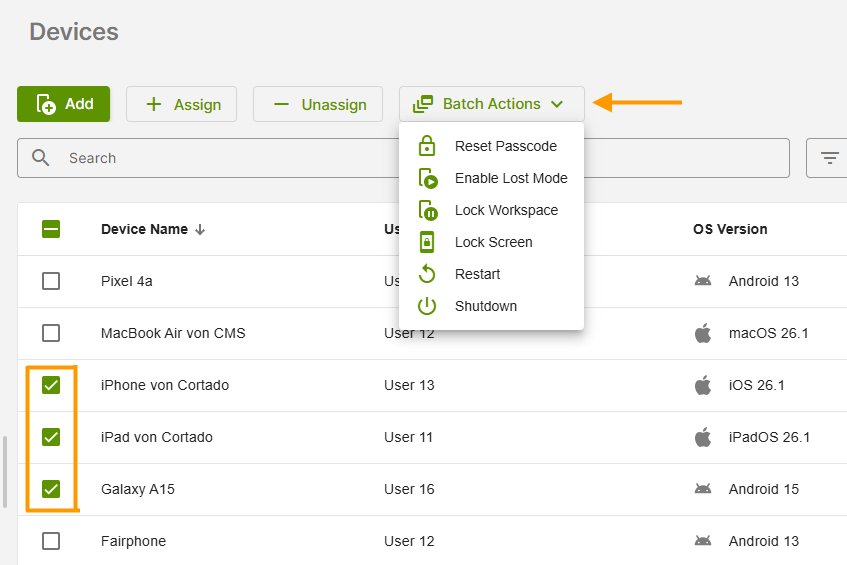
Note! Some of the options described here are also available as bulk actions. To do this, simply select multiple devices and click on Batch Actions. Further information on the individual actions can be found in the following sections.
Show details
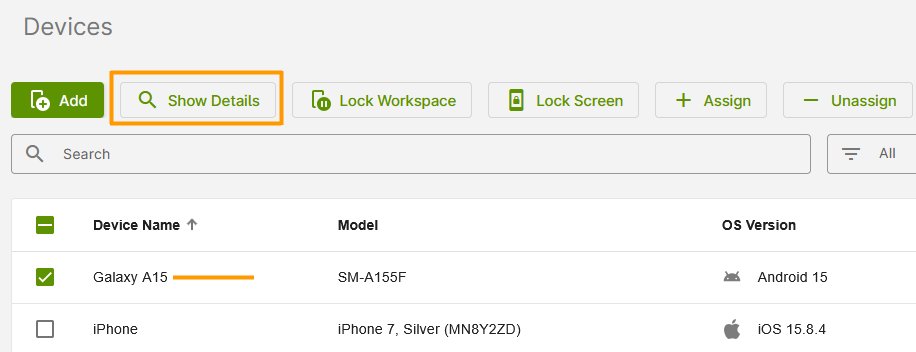
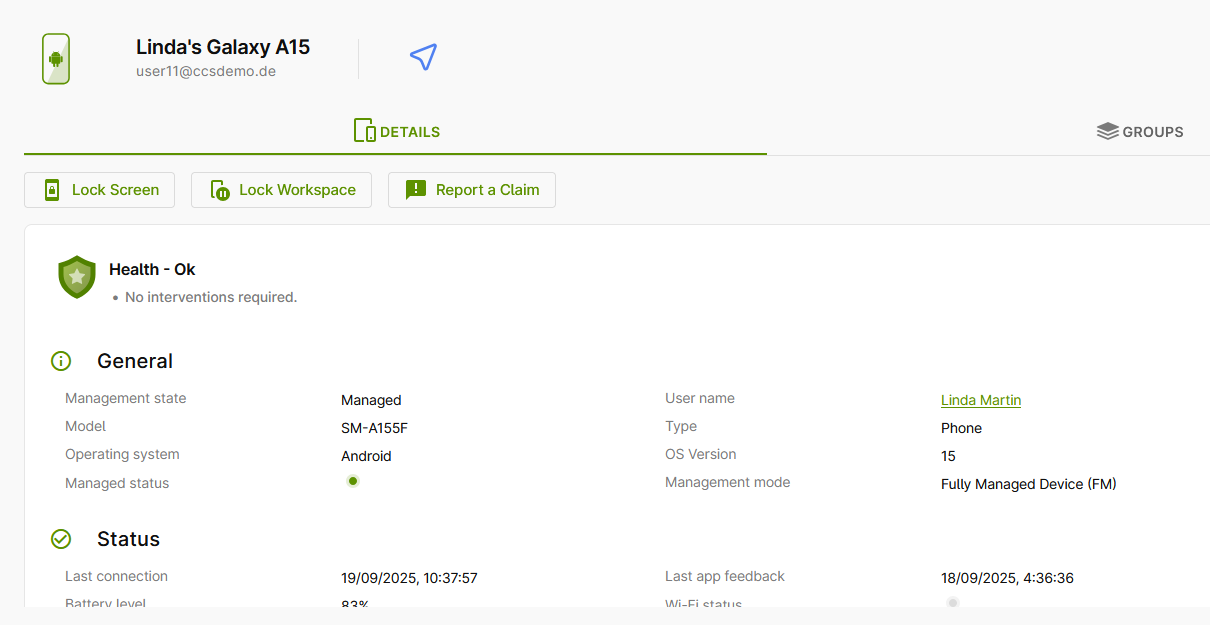
- Display all details about the device by either clicking on it directly or selecting it first and then using the Show Details button (see illus.).
All important information about your device will now be displayed. You can also see the status of your device. Detailed information about the device status can be found here.
Report a claim
If you rent company phones from Cortado, you can easily report damage to these devices via the administration portal.
- To do so, click on the device in the device overview to open the detailed view or click on Show Details.
- Than click on Report a Claim.
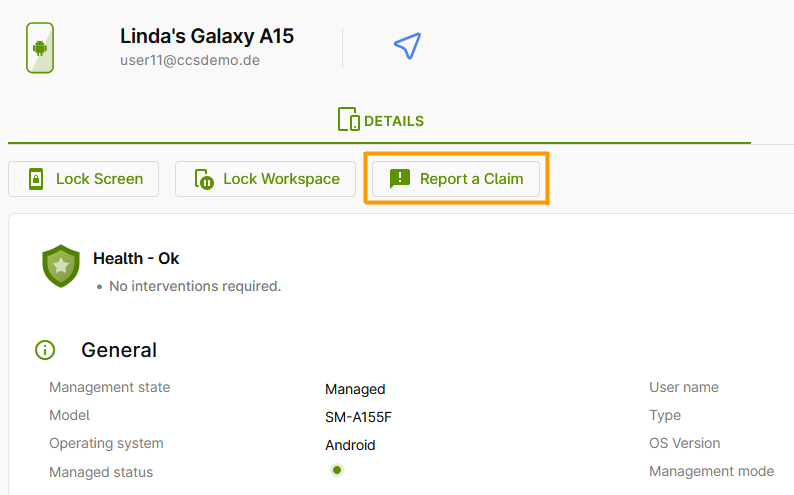
You will be redirected to a new website. Fill out the form and submit it. Our team will then contact you.