This feature is already available in our new administration portal. The new portal is currently in beta. Instructions for using the new portal can be found at the end of this article.
- Open the device management under Administration→ Devices.

- Select the device on which you wish to activate the screen lock (left arrow in illus.).
- Then click on Lock Screen (right arrow in illus.).

Additionally, on iOS devices, a message can be left that will appear on the lock screen on the device.

The screen will be locked and can only be unlocked again with the device password.

NEW ADMINISTRATION PORTAL: Lock screen on managed devices
The new administration portal is currently in the beta phase. You are welcome to send us your feedback on the new portal using the corresponding button (at the bottom left of the new administration portal).
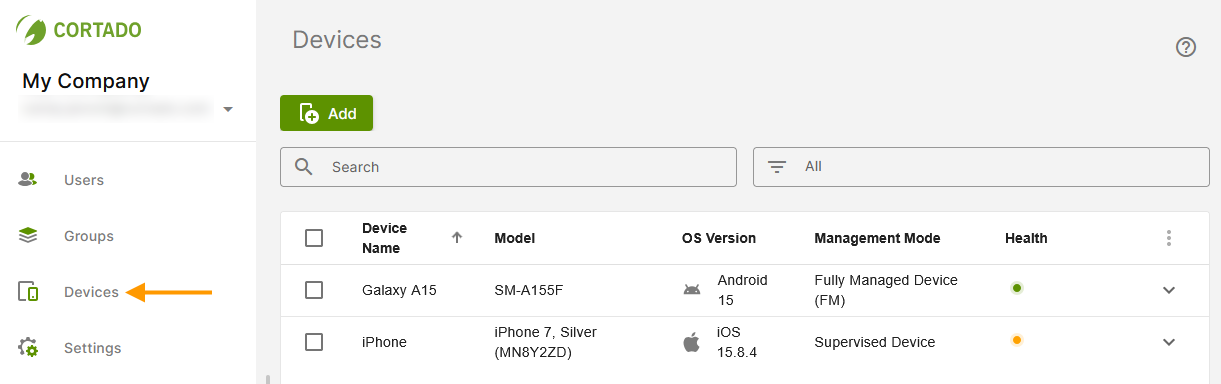
- Open the Device Management (arrow in illus.).
- Select the desired device in Device Management or click on it to open the device details (arrow in illus.).
- Then click on Lock Screen.
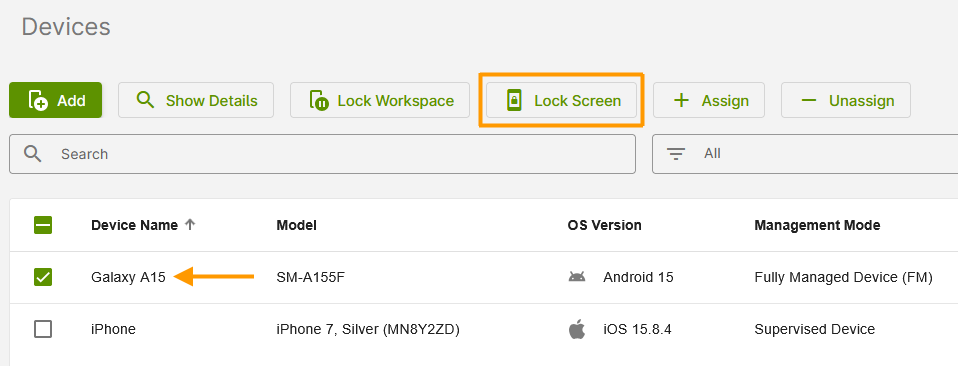
- The device screen will then be locked.
- The user can unlock the device again using the PIN.
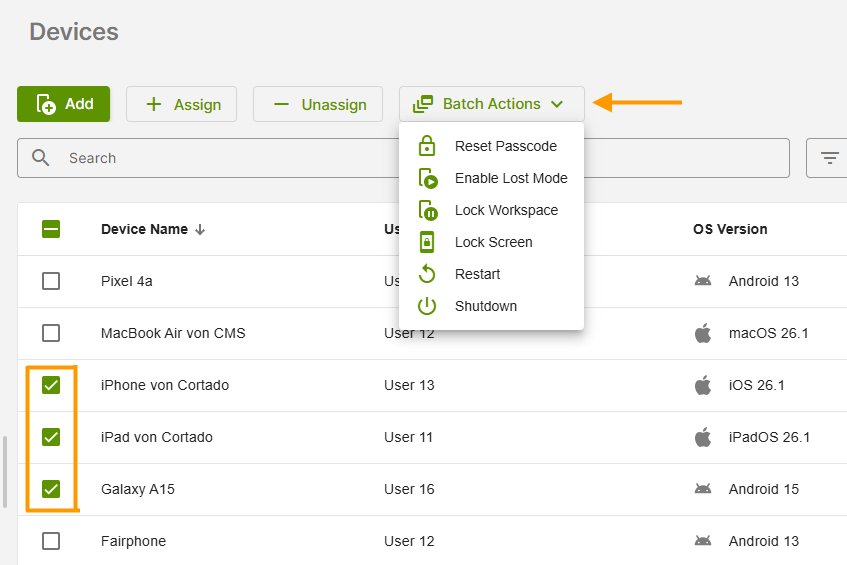
Note! This option is also available as a bulk action. To do this, simply select multiple devices and click on Batch Actions.