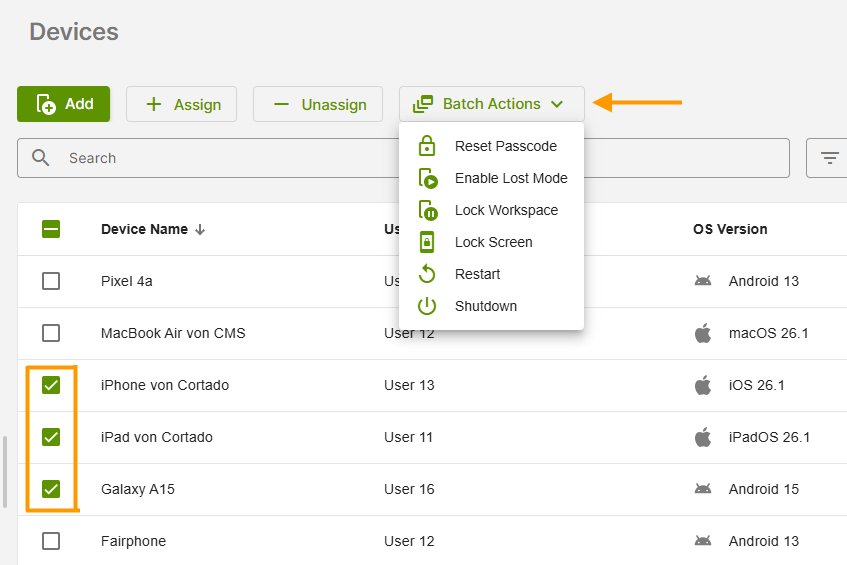
This feature is already available in our new administration portal. The new portal is currently in beta. Instructions for using the new portal can be found at the end of this article.
Remotely restarting or shutting down managed Apple devices may not sound particularly exciting at first. In practice, however, there are numerous scenarios in which these functions are extremely helpful.
For example, devices in public areas—kiosks, information terminals, or exhibitions—can be restarted or shut down with just a few clicks. This also plays an important role in update management: some updates only take effect after a restart. With our MDM solution, updates can be installed automatically at night and the devices can then be restarted so that they are ready for use the next day.
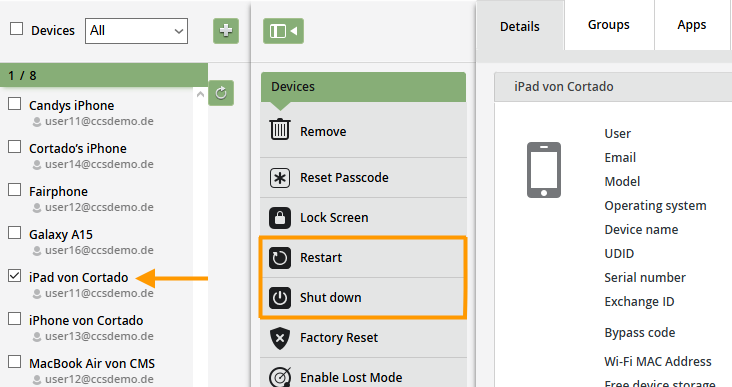
- Open Device Management by clicking on Administration→ Devices.
- Select the device (left arrow in illus.). Now you can either restart or shut down the device by clicking on the corresponding button.
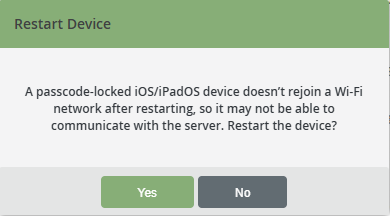
- Then confirm the message that appears by clicking Yes.
Note! After restarting an iOS or iPadOS device, you must first enter the device passcode so that the device can reconnect to the network (Wi-Fi or cellular). This behavior, which is normal for iOS/iPadOS, is only relevant if you plan to perform further actions afterwards.
The device will now restart or shut down.
NEW ADMINISTRATION PORTAL: Restart or shut down Apple devices
The new administration portal is currently in the beta phase. You are welcome to send us your feedback on the new portal using the corresponding button (at the bottom left of the new administration portal).
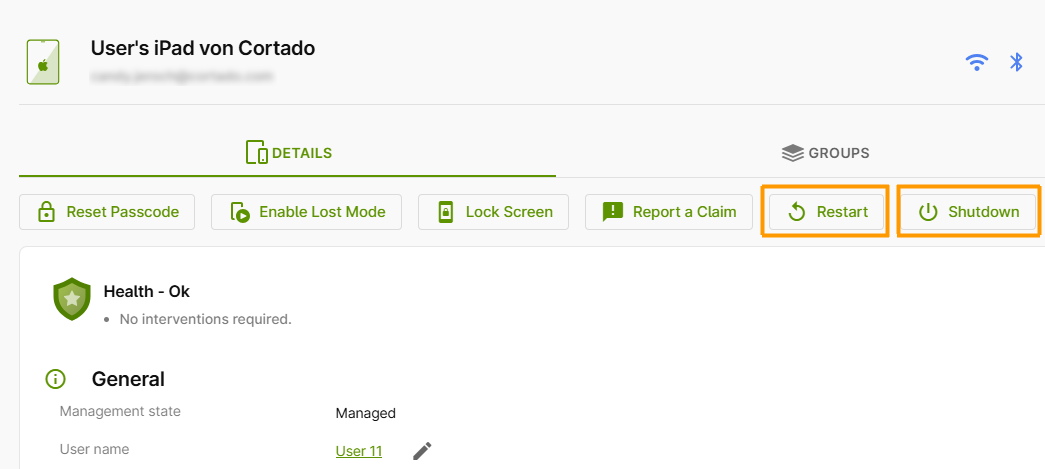
For managed Apple devices, you have the options Restart and Shut Down.
- Select the desired device in Device Management or click on it to open the device details (arrow in the image).
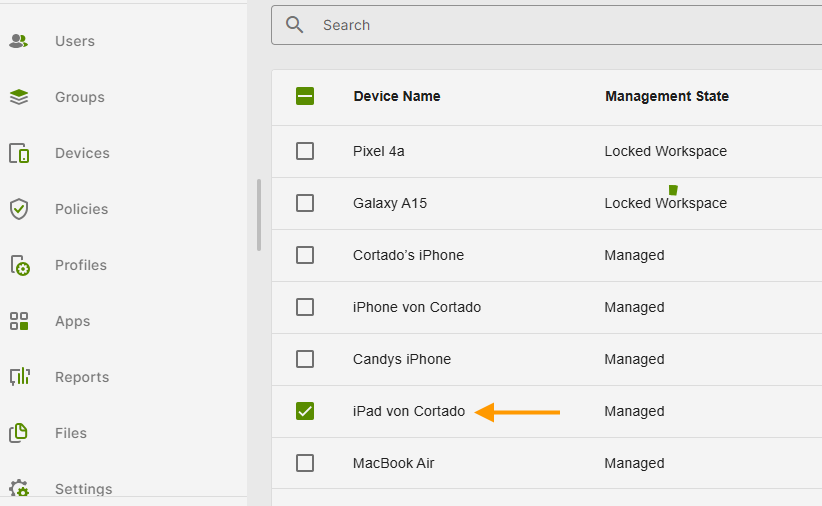
- You now have the option to restart the device by clicking on the Restart button. Or you can shut down the device by clicking on the corresponding button.
Note! This option is also available as a bulk action. To do this, simply select multiple devices and click on Batch Actions.