This feature is already available in our new administration portal. The new portal is currently in beta. Instructions for using the new portal can be found at the end of this article.
You have the option of grouping multiple devices together and assigning specific profiles, policies, apps, and other settings to this group. This eliminates the need to assign settings to each device individually. There are two ways to assign devices to a group: Either select an existing group in Group Management and add the desired devices, or select the relevant devices in Device Management and then assign them to a specific group. In this article, we will show you the second method.
- Open Device Management by clicking on Administration→ Devices.
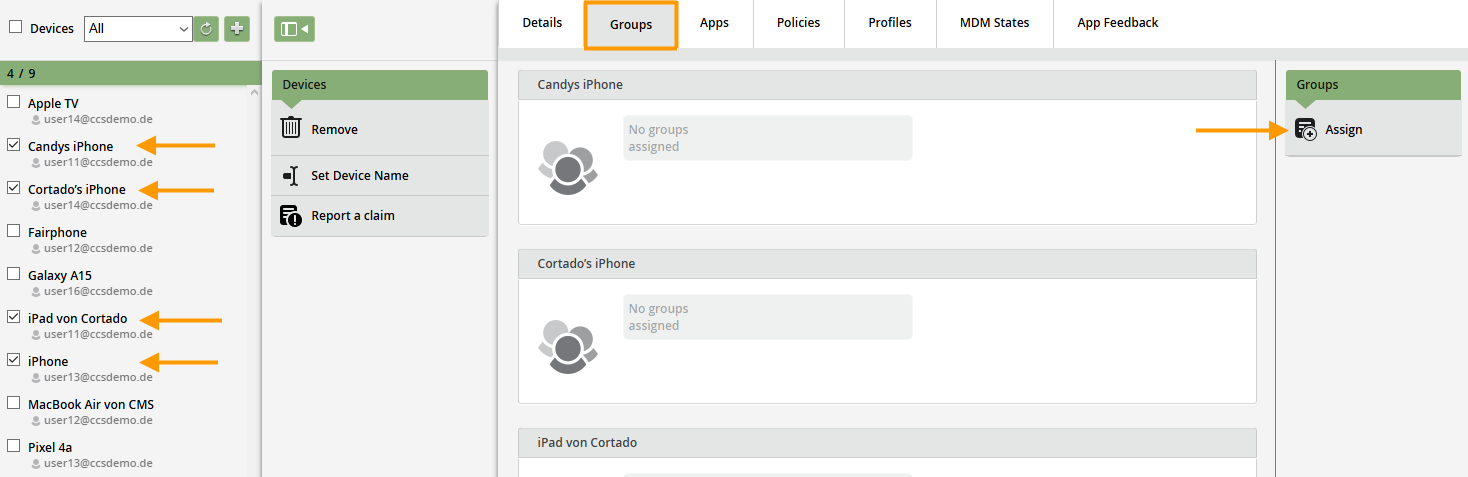
- Then select one or more devices (arrows on the left in the image).
- Next, switch to the Groups tab and click on Assign (right arrow in the image).
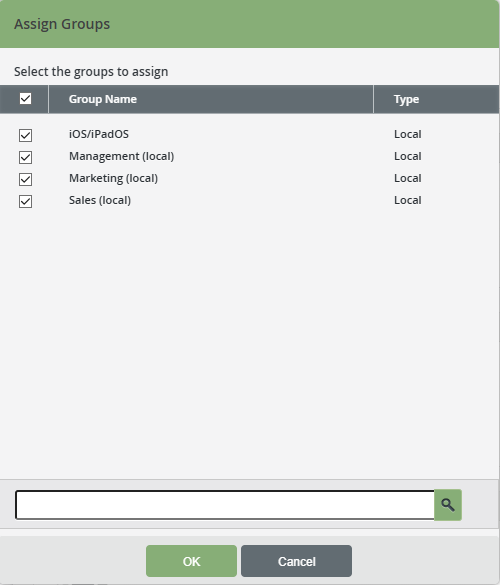
- Select the group to which you want to add the devices.
- Confirm your selection by clicking OK.
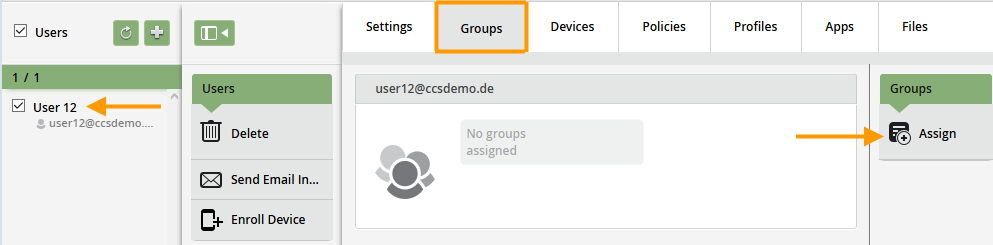
All selected devices have been successfully added to the group.
NEW ADMINISTRATION PORTAL: Assigning devices to a local group
The new administration portal is currently in the beta phase. You are welcome to send us your feedback on the new portal using the corresponding button (at the bottom left of the new administration portal).
In our help article Creating local groups, we have already shown you how to add a local group in the administration portal. In this article, we will show you how to add devices to your group.
- Select a device (lower arrow in illus.) in device management (upper arrow in illus.) and then click on Assign.
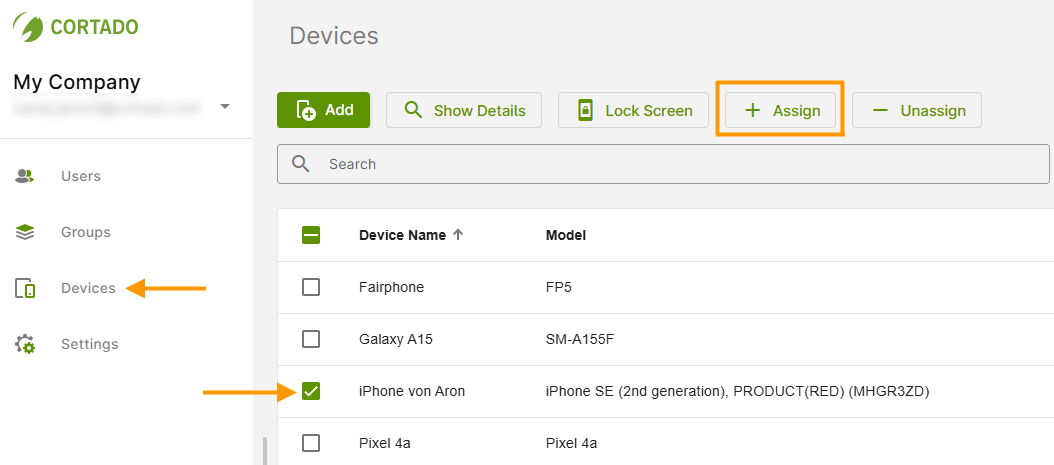
- Then click on Groups (arrow in illus.).
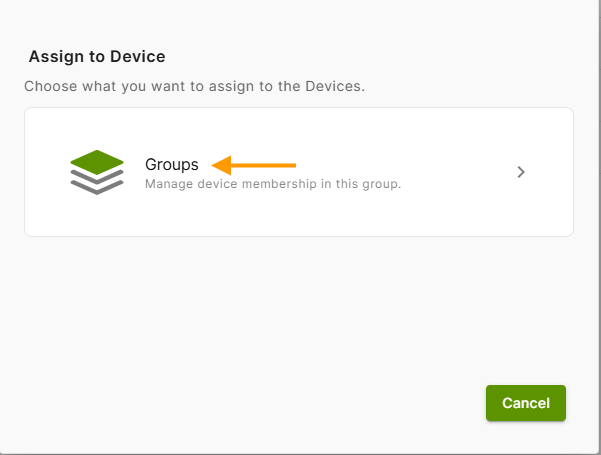
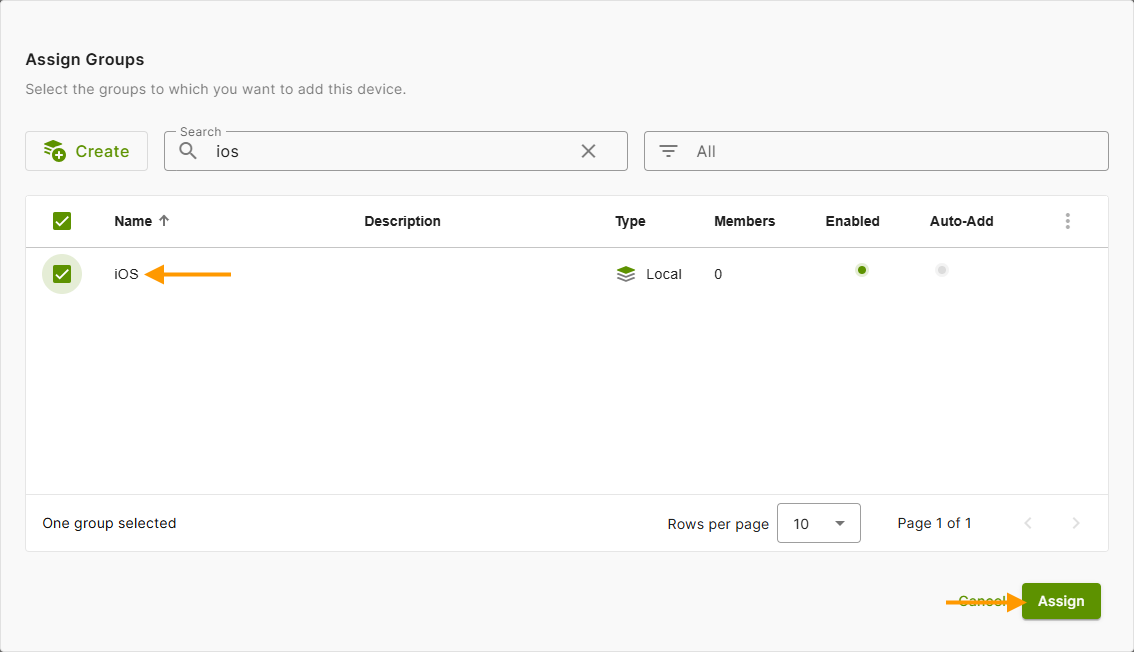
- Then select the group to which you want to add your device.
- Next, click on Assign.
Note: You can also create a new group by clicking on Create.
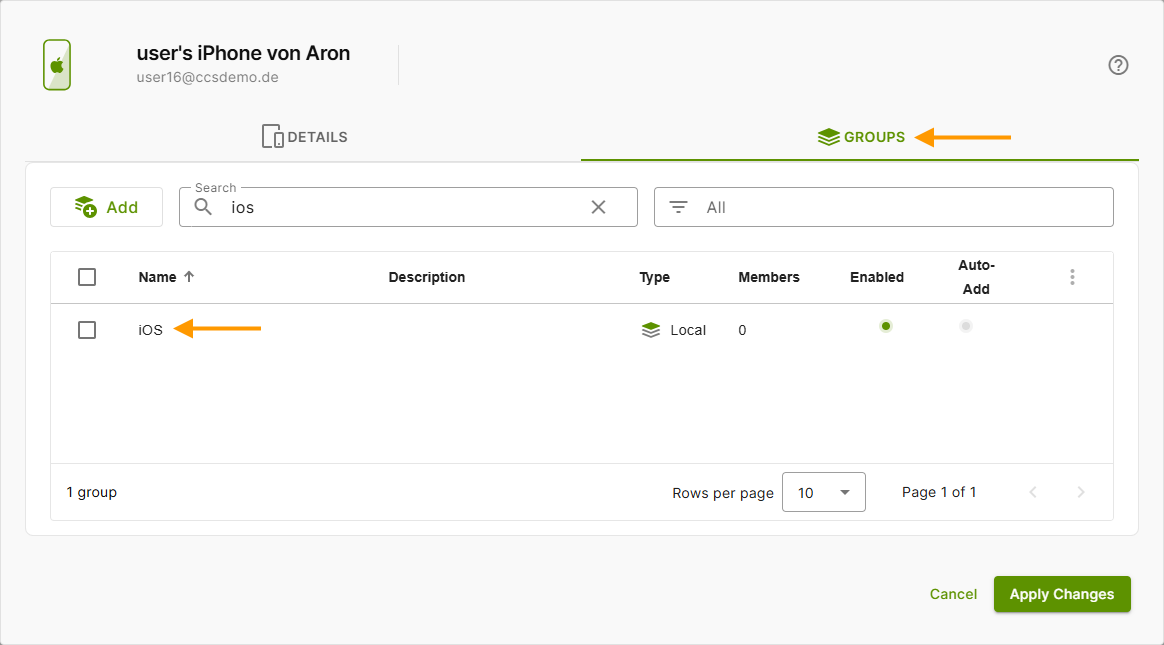
- Select your device in the device overview or click on Show details. You can then see your newly assigned group (left arrow in illus.) in the Groups tab (right arrow in illus.).
- Alternatively, you can add your device to other groups using the Add button.