This feature is already available in our new administration portal. The new portal is currently in beta. Instructions for using the new portal can be found at the end of this article.
Are you already using Android Enterprise with Managed Google Play accounts (upper arrow in illustration) and would like to switch to Google accounts instead? In this article, we’ll show you how to perform the upgrade.
Note! If you also want to manage your Google users and groups with Cortado MDM, you’ll need an Enterprise plan.
Requirement: You must have an administrator account to sign in to the Google Admin Console. If necessary, create an account there first before continuing.
Upgrade Enterprise Type
- Go to Administration → Settings and open the Android Enterprise tab.
- Click on Upgrade Enterprise Type (right arrow in illus.).
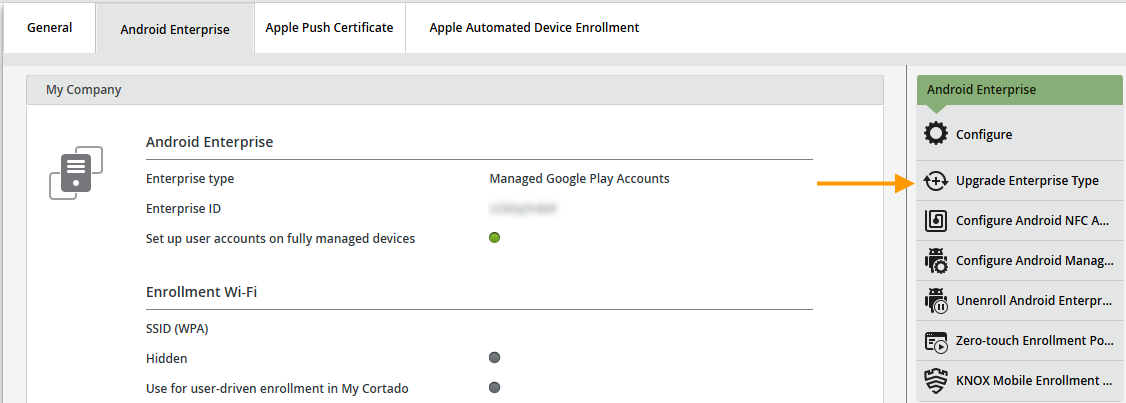
- Confirm the message in the next window by clicking Yes.
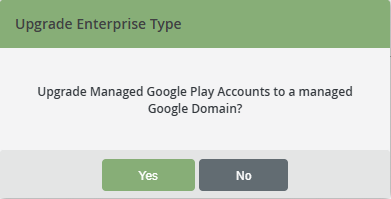
- You will then be redirected to the Google upgrade pages.
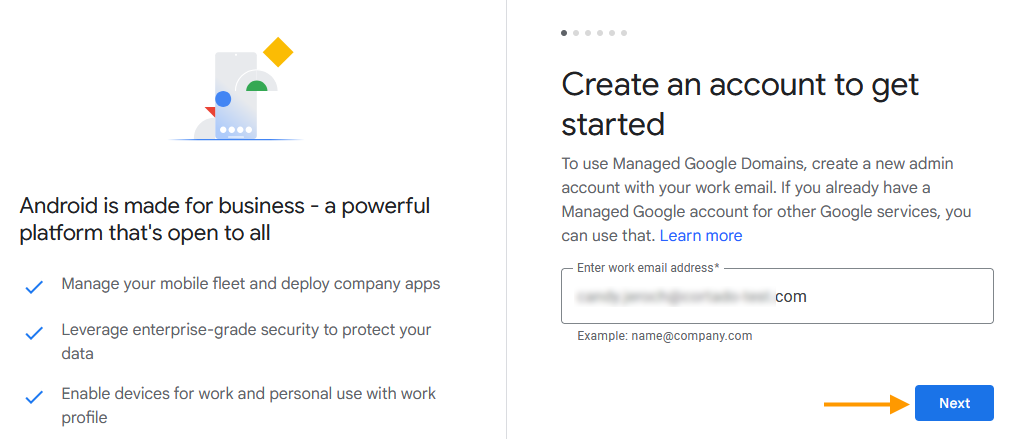
- Enter the email address for your administrator account here, and then click Next (arrow in illus.).
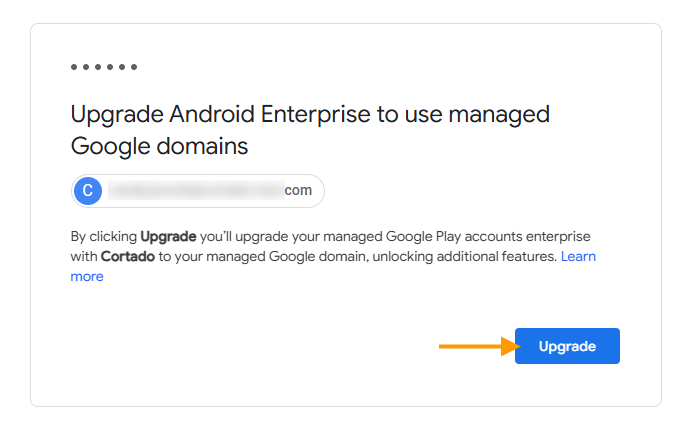
- In the next window click on Upgrade (arrow in illus.).
- And then on Enable (arrow in illus.).
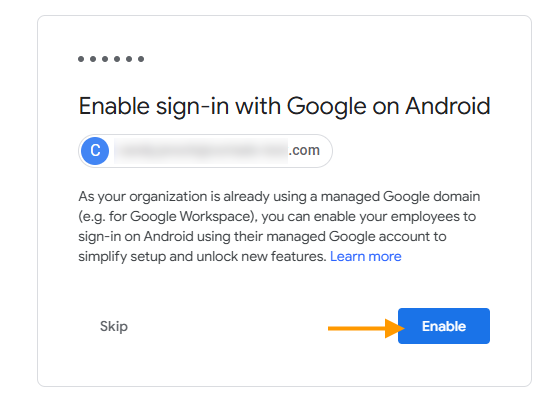
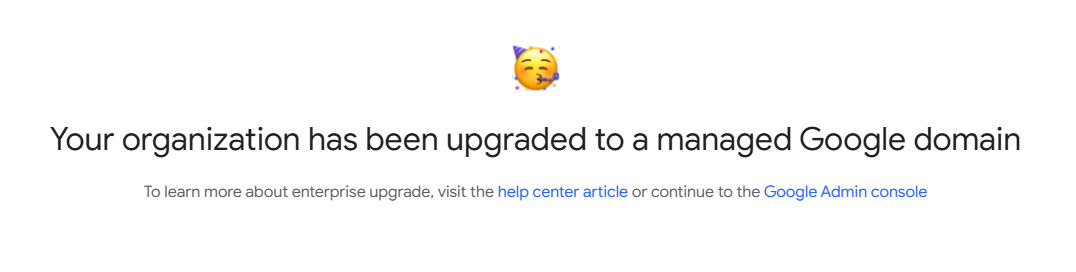
- After that, you can see whether the upgrade was successful. You will find more information on the Google help pages.
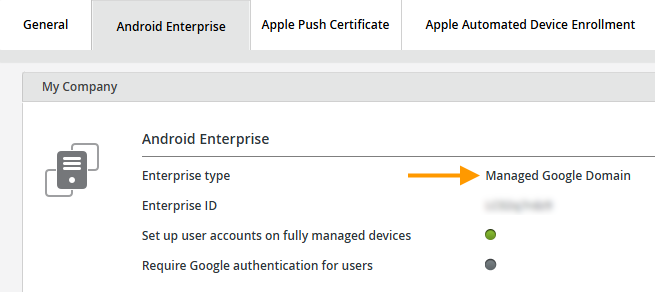
In the Cortado administration portal, you can see whether your account has been successfully migrated (arrow in illus.).
Upgrade Google Accounts on Android Devices
To allow existing users who currently have a managed Google Play account on their Android devices to sign in to Cortado with their managed Google account, two additional steps are required:
1a. Add the Google account in User Management
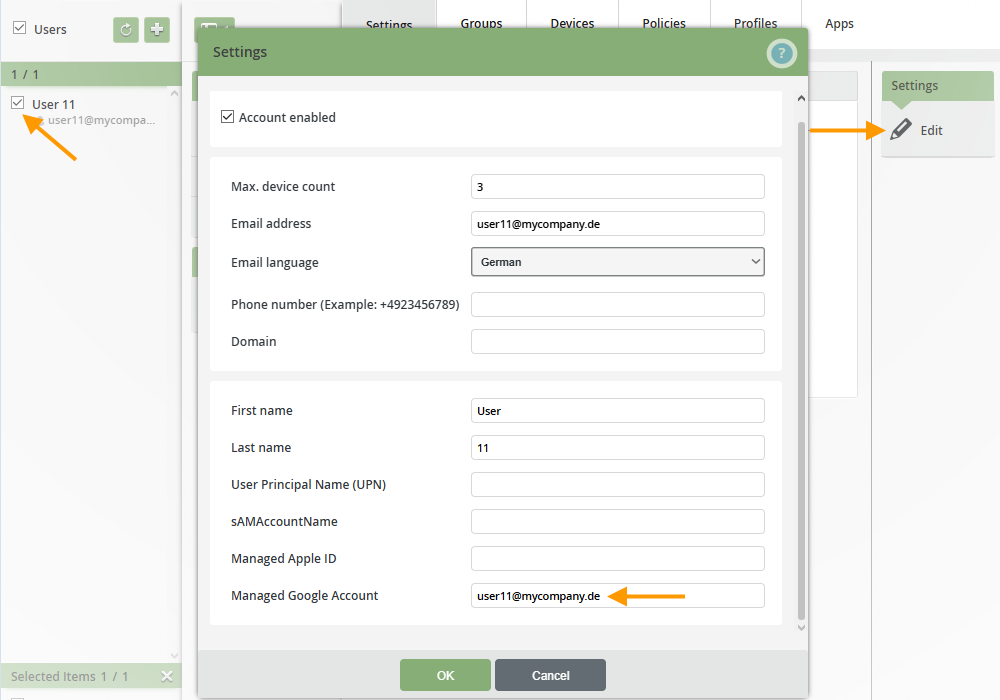
- Open User Management by clicking Administration → Users.
- Select a user from the left column (left arrow in the image).
- Then click Edit (right arrow in the image).
- Enter the managed Google account there (middle arrow in the image).
1b. Replace existing local user accounts
Alternatively, you can connect to Google Workspace (Directory Sync) and replace the existing local user accounts with Google Workspace users. We show you how to do this in our how-to guide: How to replace existing Cortado accounts with Workspace users.
2. Upgrade your account in Device Management
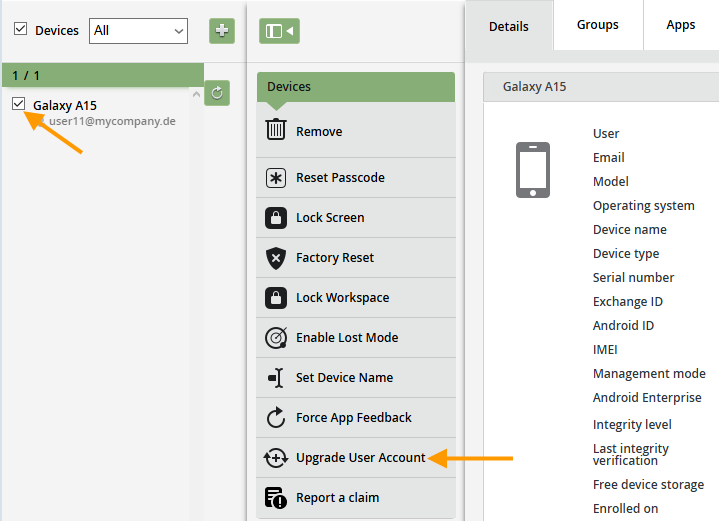
- Now open Device Management by clicking on Administration→ Devices.
- Select the device in the left column (left arrow in the image), then click on Upgrade User Account (right arrow in the image).
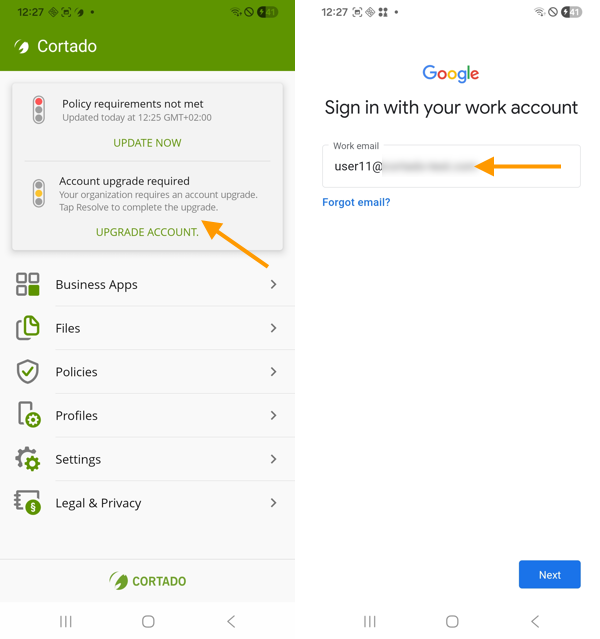
Users are now prompted in the Cortado app to update their account by signing in with their managed Google account.
NEW ADMINISTRATION PORTAL: Managing local users
The new administration portal is currently in the beta phase. You are welcome to send us your feedback on the new portal using the corresponding button (at the bottom left of the new administration portal).
Are you already using Android Enterprise with Managed Google Play accounts (upper arrow in illustration) and would like to switch to Google accounts instead? In this article, we’ll show you how to perform the upgrade.
Note! If you also want to manage your Google users and groups with Cortado MDM, you’ll need an Enterprise plan.
Requirement: You must have an administrator account to sign in to the Google Admin Console. If necessary, create an account there first before continuing.
Upgrade Enterprise Type
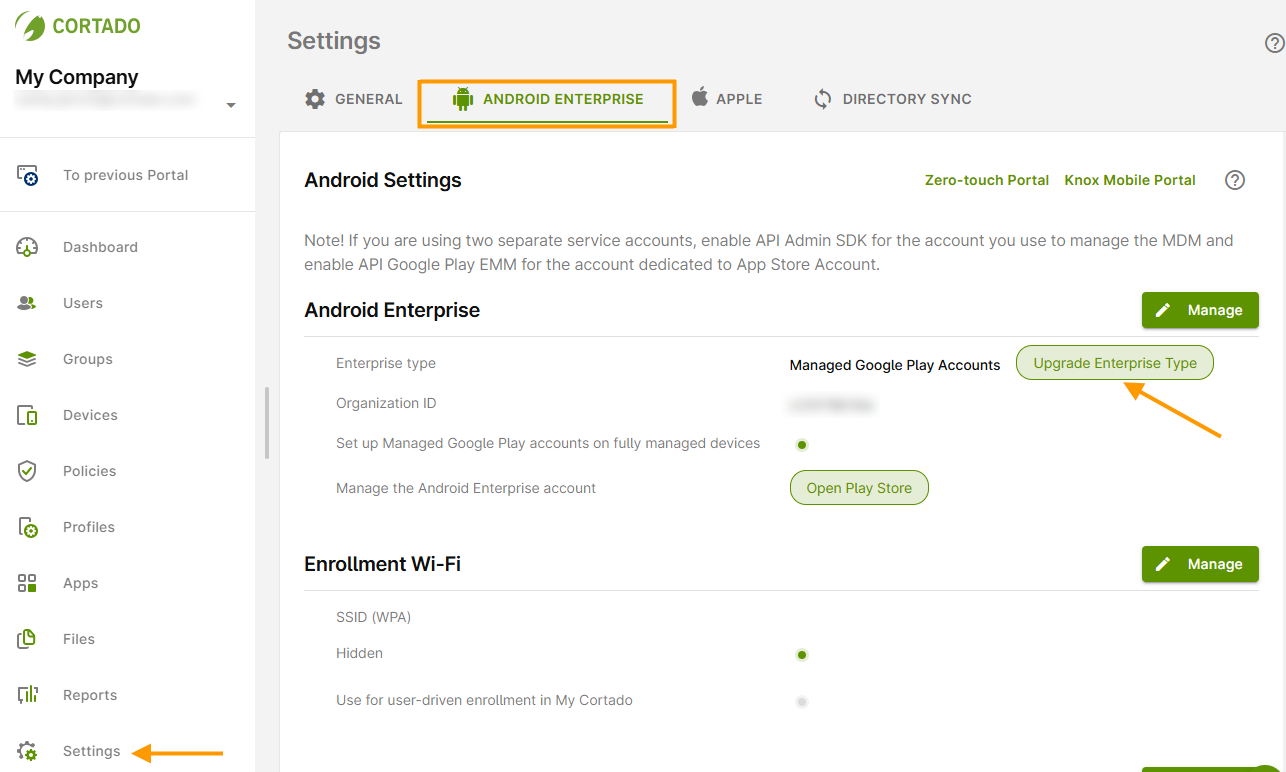
- Go to Settings (left arrow in illus.) and open the Android Enterprise tab.
- Click on Upgrade Enterprise Type (right arrow in illus.).
- You will then be redirected to the Google upgrade pages.
- Enter the email address for your administrator account here, and then click Next (arrow in illus.).
- In the next window click on Upgrade (arrow in illus.).
- And then on Enable (arrow in illus.).
- After that, you can see whether the upgrade was successful. You will find more information on the Google help pages.
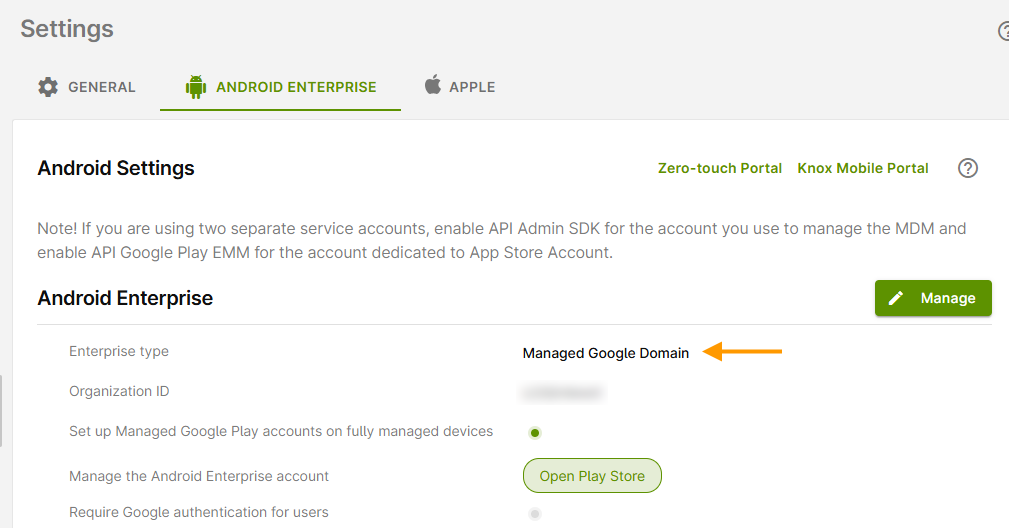
In the Cortado administration portal, you can see whether your account has been successfully migrated (arrow in illus.).
Upgrade Google Accounts on Android Devices
To allow existing users who currently have a managed Google Play account on their Android devices to sign in to Cortado with their managed Google account, two additional steps are required:
1. Add the Google account in User Management
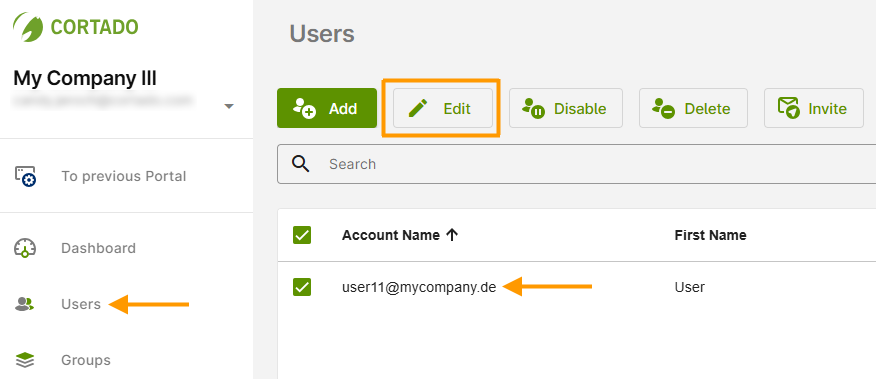
- Open User Management in the menu (left column) by clicking on Users (left arrow in the image).
- Select a user (right arrow in the image).
- Then click on Edit (highlighted in the image).
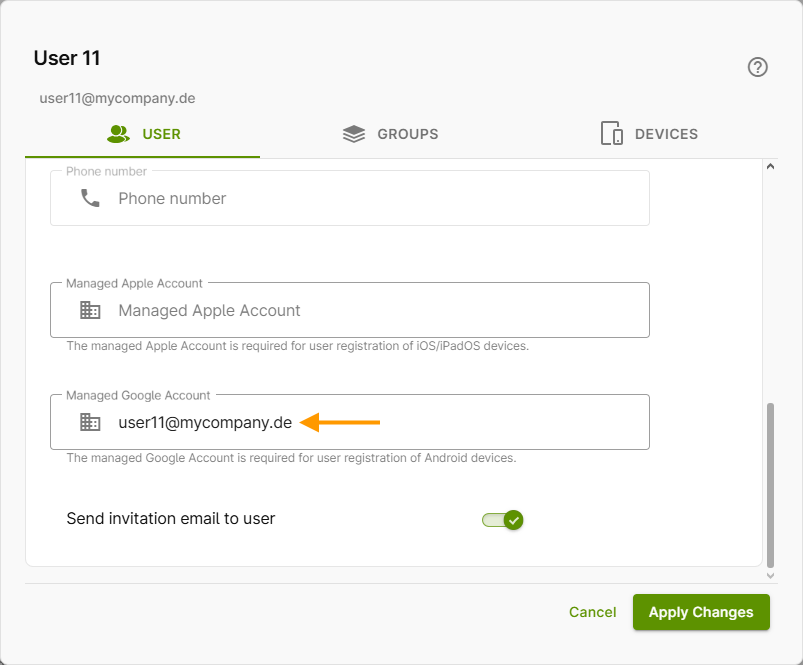
- Enter the managed Google account there (arrow in the image).
2. Upgrade your account in Device Management
This feature is not yet available in the new administration portal. Please perform the upgrade in the old portal (see above).