This feature is already available in our new administration portal. The new portal is currently in beta. Instructions for using the new portal can be found at the end of this article.
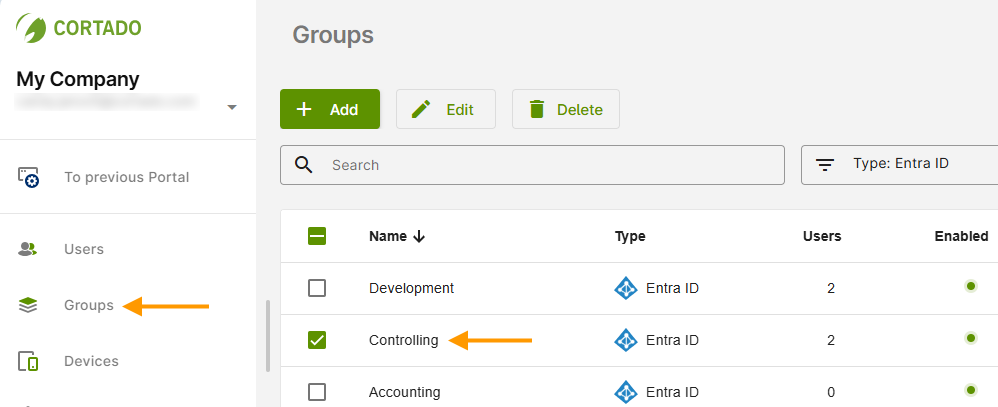
If you select at least one Microsoft Entra group (formerly Azure AD group) in the Administration Portal, under Administration→ Groups (arrows in illus.), the following options are available:

| Delete | Here you can delete selected groups from Cortado Administration Portal. |
| Transfer Settings | With this action you can assign settings from one user to another (Settings, Policies, Profiles, Apps). |
| Enroll Device | With this action you can configure the users’ devices yourself or together with the user (see Embedding mobile devices). |
| Remove Settings | Here you can delete configuration settings for selected groups. You can select which settings you want to delete. Select the relevant settings (Policies, Profiles, Apps) and delete them with Remove. |
Note! Please note that adding and removing users from Entra groups can only be done via the Microsoft Entra ID portal. For more information, please refer to the Microsoft help pages. For all changes made in this regard in the Microsoft Entra ID portal, an automatic synchronization with the Cortado administration portal takes place every 30 minutes. Under Administration→ Settings→ Directory Services, you can synchronize changed data immediately at any time.
NEW ADMINISTRATION PORTAL: Manage Microsoft Entra groups
The new administration portal is currently in the beta phase. You are welcome to send us your feedback on the new portal using the corresponding button (at the bottom left of the new administration portal).
In this article, we explain what you need to know about editing, activating/deactivating, and deleting your local groups and Entra groups.
- Open the group management by clicking on Groups (left column in the image).
- Select an Entra group (left arrow in the image).
Note! We show you how to search for, filter, and export users, groups, and devices in the new administration portal and how to configure the columns in the overview here.
The following options are now available (right arrow in the image):
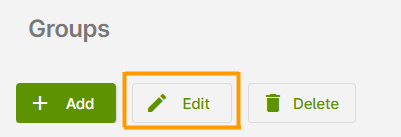
Edit
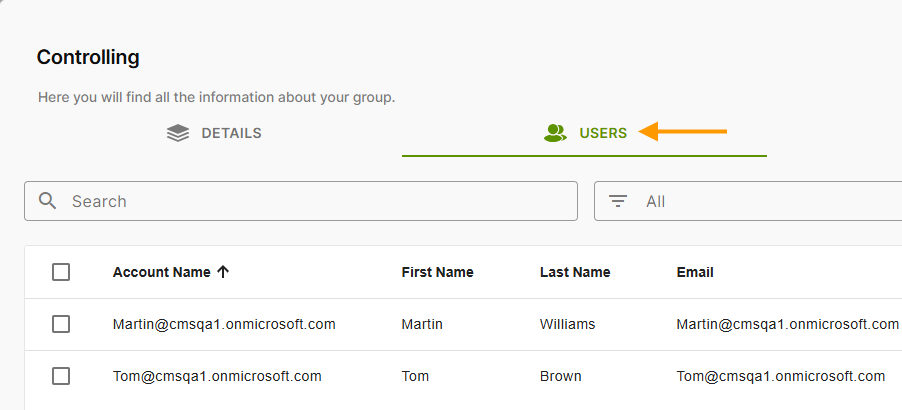
Entra groups can only be edited in the Microsoft Entra ID portal. This is also where Entra group members are managed (added/removed). Here, you can see who is a member of the selected Entra group. To do this, open the Users tab (arrow in the image). For more information, see the Microsoft help pages. Any changes made in the Microsoft Entra ID portal are automatically synchronized with the Cortado administration portal every 30 minutes. Under Settings→ Directory Sync, you can synchronize changed data immediately at any time.
Note! Entra groups are purely user groups. No devices can be assigned to an Entra group.
Enable/Disable
Entra groups can only be edited in the Microsoft Entra ID portal. For more information, see the Microsoft help pages. Any changes made in the Microsoft Entra ID portal are automatically synchronized with the Cortado administration portal every 30 minutes. Under Settings→ Directory Sync, you can synchronize changed data immediately at any time.
Delete
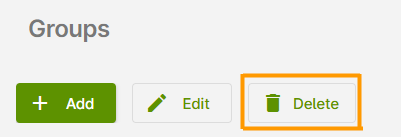
Entra groups can be removed here from the Cortado administration portal. The members of the Entra groups will be deactivated for Cortado and must then be deleted separately in the user administration (select users in the left column). Please note that users can only be deleted once no devices are linked to them anymore.