This feature is already available in our new administration portal. The new portal is currently in beta. Instructions for using the new portal can be found at the end of this article.
Import your groups (including users) from Microsoft Entra ID (formerly Azure Active Directory) into the Cortado Administration Portal. To do this, first connect your Microsoft Entra ID to the Administration Portal. You can find out how to do this in our help article Connect Microsoft Entra ID for group import.
Note! These options are only available for customers who have taken out a Pro or Enterprise plan subscription.
- In the Administration Portal select Administration→ Groups (arrow in illus.).

- Then click on the plus button at the top left of the display (arrow in illus.).

- After this select Microsoft Entra ID Group (arrow in illus.).

- You can then select all Entra groups that you want to import into the Cortado administration portal.
- Click OK to import the Entra groups.

- The Entra groups have been successfully imported into the Cortado Administration Portal.
- In the Details tab, you can see whether your group is a Local Group or an Microsoft Entra group (arrows in illus.). To learn how to create local groups in the Cortado Administration Portal, please refer to our help article Setting up local groups.

- Under Administration→ Users you can find the Entra users imported together with the groups.

NEW ADMINISTRATION PORTAL: Importing groups from Microsoft Entra ID
The new administration portal is currently in the beta phase. You are welcome to send us your feedback on the new portal using the corresponding button (at the bottom left of the new administration portal).
Import your groups (including users) from Microsoft Entra ID (formerly Azure Active Directory) into the Cortado Administration Portal. To do this, first connect your Microsoft Entra ID to the Administration Portal. You can find out how to do this in our help article Connect Microsoft Entra ID for group import.
Note! These options are only available to customers who have taken out an Enterprise plan.
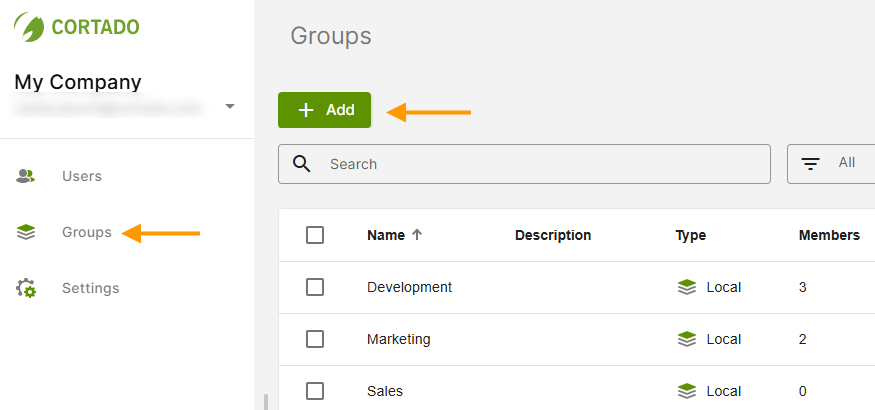
- Under Groups (left arrow in illus.), click on Add (right arrow in illus.).
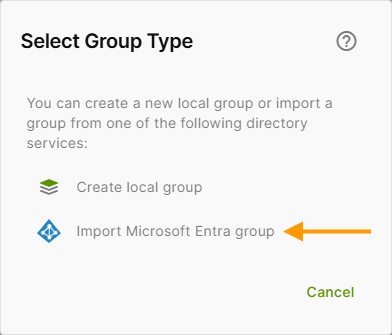
- Then select Import Microsoft Entra group (arrow in illus.).
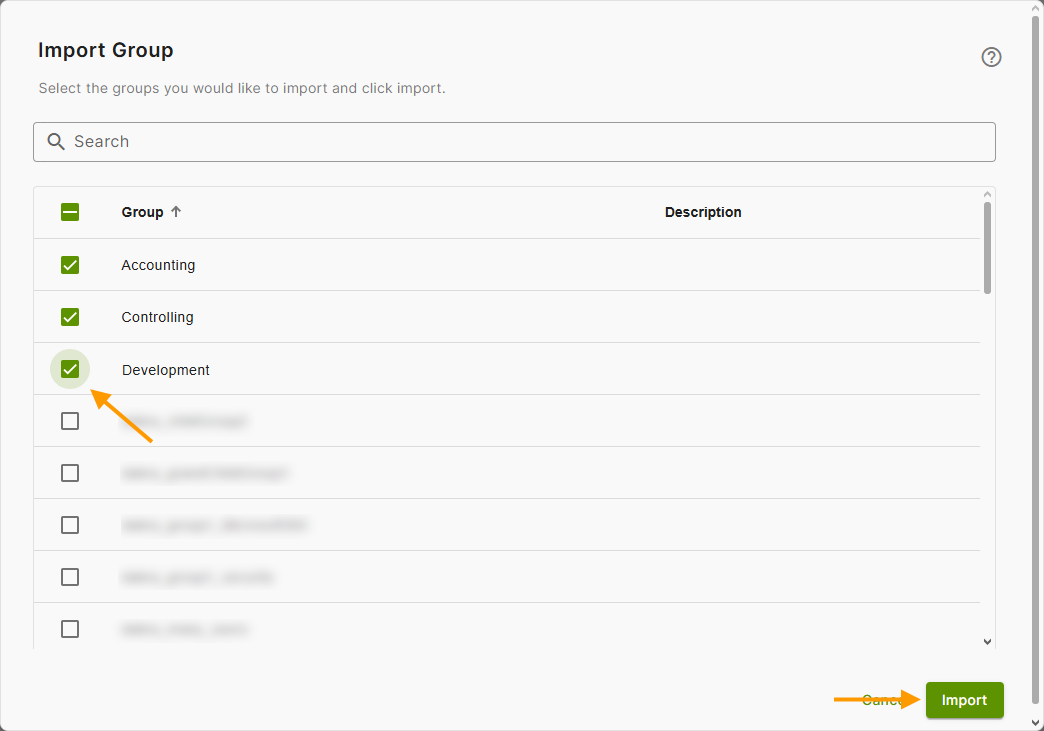
- Select the groups you want to import from Microsoft Entra (example in illus.).
- Then click on Import (right arrow in illus.).
Note! Adding the groups may take a moment. Please be patient.
After the successful import, you will find your newly added groups in the overview. Under Type, you can see whether it is a local group or a Microsoft Entra group. You can find out how to add local groups in our help article Creating local groups.
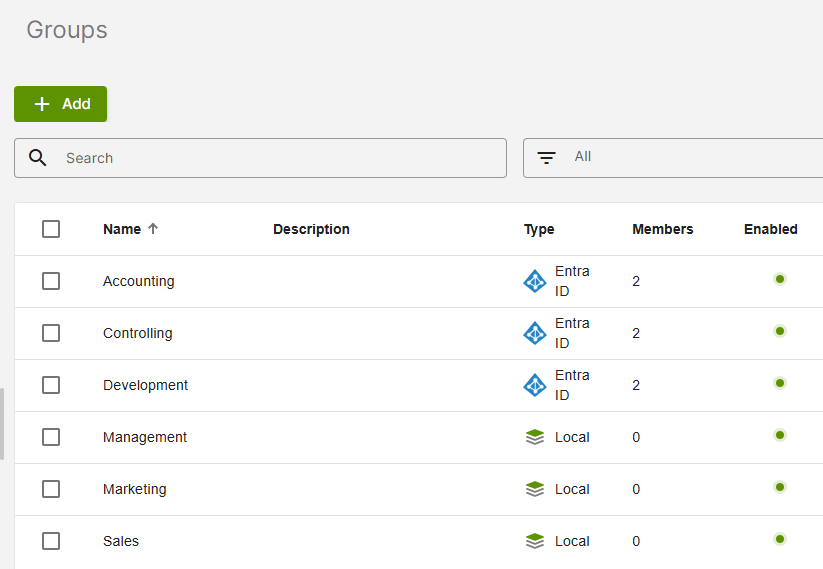
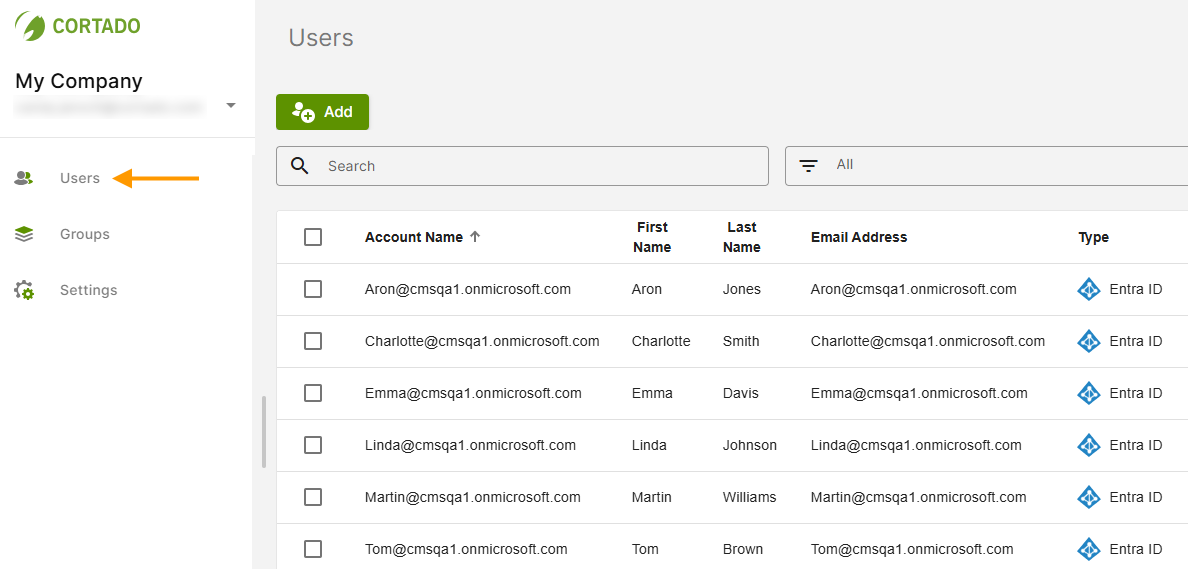
The users of these groups have also been added to the portal. You can find them in the user administration (arrow in illus.).
Note! Entra groups can only be enabled/disabled in the Microsoft Entra ID portal. This is also where you can manage (add/remove) the members of the Entra groups. Further information on this can be found on the Microsoft help pages. All changes made in the Microsoft Entra ID portal are automatically synchronized with the Cortado administration portal every 30 minutes. Under Settings→ Directory services you can synchronize changed data immediately at any time.