This feature is already available in our new administration portal. The new portal is currently in beta. Instructions for using the new portal can be found at the end of this article.
Connect your Microsoft Entra ID (formerly Azure Active Directory) with Cortado MDM. This allows you to quickly and easily import Entra groups (including users) into the Cortado Administration Portal.
Note! These options are only available for customers who have taken out a Pro or Enterprise plan subscription.
- To do this select Administration→ Settings in the Administration Portal (arrow in illus.).

- Then select Directory Services→ Connect (arrow in illus.).

- In the welcome screen click on Next (arrow in illus.).

- Now log into Microsoft Entra ID and open the overview (upper arrow in illus.). Here you will find your Tenant ID and the Primary Domain Name (lower arrows in illus.).

- Now enter the Primary Domain Name or Tenant ID (upper arrow in illus.).
- Then click on Next (lower arrow in illus.).

- You will be redirected to the Microsoft login. Log in to Microsoft Entra ID using a Microsoft account with global admin privileges.
- Accept the required permissions. Without these permissions, Cortado MDM cannot access Microsoft Entra ID.

- Close this screen and open the Cortado Administration Portal.

Microsoft Entra ID has been successfully connected to the Cortado Administration Portal when the status shows a green dot (arrow in illus.). Now you can import your Entra groups, you can learn how to do this in our help article Import groups from Microsoft Entra ID.

You can make the following settings here:
- Sync: If you have made changes in Microsoft Entra ID, you can synchronize them here immediately. In addition, all data from Microsoft Entra ID is automatically synchronized every 30 minutes.
- Reconnect: If you have (accidentally) disconnected from the Cortado Administration Portal in Microsoft Entra ID, e.g. under Enterprise applications, you can reconnect it here. To do so, click Reconnect. All existing settings, assignments, groups, etc. will not be lost in this case.
- Disconnect: Here you can disconnect the connection between the Cortado Administration Portal and Microsoft Entra ID again. Please note that all groups that you have already imported will be deleted again. In addition, all settings that you have already made will be lost. Policies, profiles, apps, and managed configurations will be unassigned. When you reconnect afterwards, all these settings will have to be reconfigured.

- Settings: Here you can replace your existing local Cortado users with Entra users. How to do this and what you need to keep in mind is explained in our help article: How to replace existing Cortado accounts with Entra users.

NEW ADMINISTRATION PORTAL: Connecting Microsoft Entra ID for group import
The new administration portal is currently in the beta phase. You are welcome to send us your feedback on the new portal using the corresponding button (at the bottom left of the new administration portal).
Connect Microsoft Entra ID with Cortado MDM. This allows you to quickly and easily import Entra ID groups (including users) into the Cortado administration portal.
Note! These options are only available for customers who have an Enterprise plan.
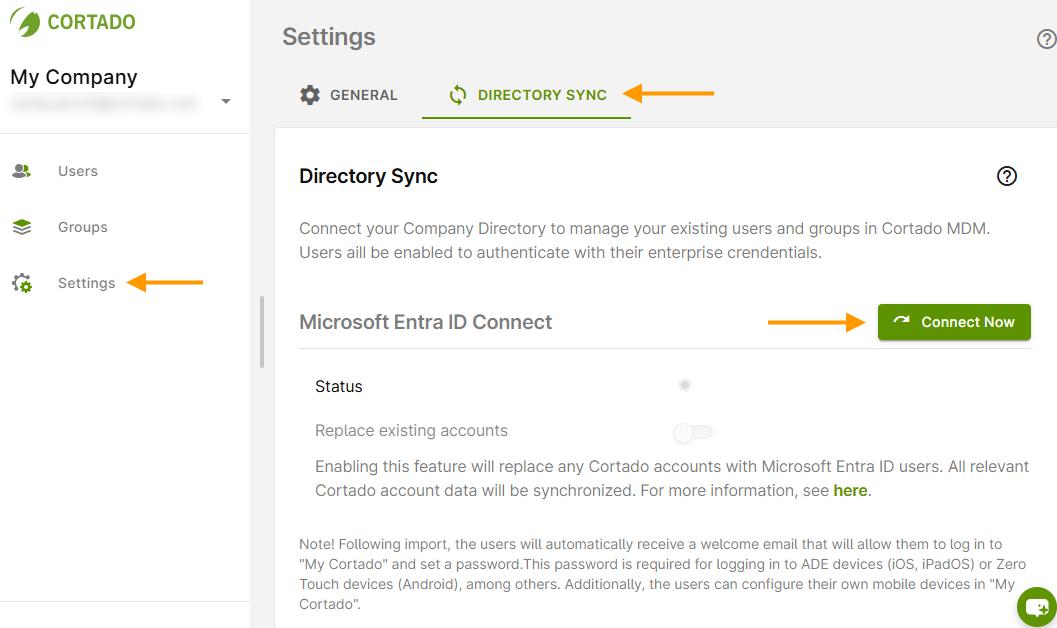
- In the settings (left arrow in illus.), select Directory sync (middle arrow in illus.).
- Then click on Connect (right arrow in illus.).
- In the welcome screen click on Next (arrow in illus.).
- Now log into Microsoft Entra ID and open the overview (upper arrow in illus.). Here you will find your Tenant ID and the Primary Domain Name (lower arrows in illus.).
- Now enter the Primary Domain Name or Tenant ID (upper arrow in illus.).
- Then click on Next (lower arrow in illus.).
- You will be redirected to the Microsoft login. Log in to Microsoft Entra ID using a Microsoft account with global admin privileges.
- Accept the required permissions. Without these permissions, Cortado MDM cannot access Microsoft Entra ID.
- Close this screen and open the Cortado Administration Portal.
Microsoft Entra ID has been successfully connected to the Cortado administration portal when the status shows a green dot (arrow in illus.). Now you can import your Entra groups, you can find out how to do this in our help article Importing groups from Microsoft Entra ID.
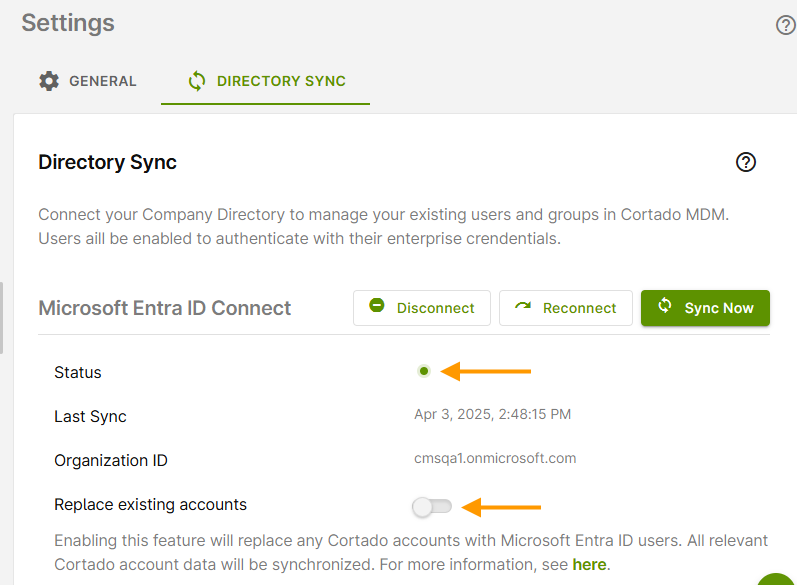
You can configure the Microsoft Entra ID directory services as follows:
- Synchronize: If you have made changes in Microsoft Entra ID, you can synchronize them here immediately. In addition, all data from Microsoft Entra ID is automatically synchronized every 30 minutes.
- Reconnect: If you have (accidentally) disconnected from the Cortado management portal in Microsoft Entra ID, e.g. under Enterprise Applications, you can reconnect here. To do this, click on Reconnect. All existing settings, assignments, groups etc. will not be lost in this case.
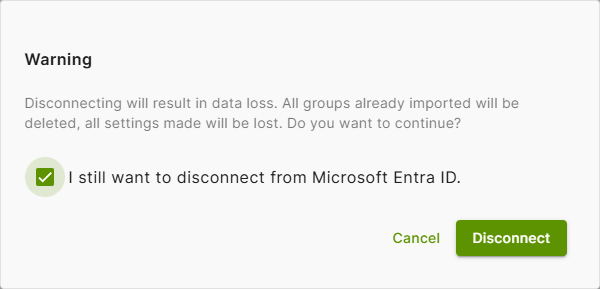
- Disconnect: Here you can disconnect the connection between the Cortado administration portal and Microsoft Entra ID. Please note that all groups that you have already imported will be deleted. In addition, all settings that you have already made will be lost. The assignment of policies, profiles, apps and managed configurations will be removed. If you reconnect afterwards, all these settings will have to be reconfigured.
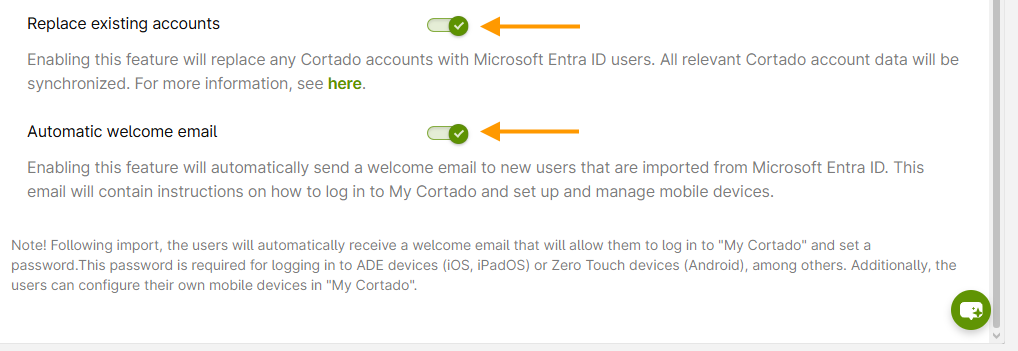
- Replace existing accounts: Here (lower arrow in upper illus) you can replace your existing local Cortado users with Entra users. We explain how to do this and what you need to bear in mind in our How-To How to replace existing Cortado accounts with Entra users.
- Automatic welcome email: Here (lower arrow in the image), you can set whether your users should receive a welcome email. This email informs them how to log in to the My Cortado user portal to set up their devices.