This feature is already available in our new administration portal. The new portal is currently in beta. Instructions for using the new portal can be found at the end of this article.
Import your Google Workspace groups (including users) into the Cortado administration portal. To do this, first connect Google Workspace to the admin console. You can find out how to do this in our help article How do I connect Google Workspace for group import?.
Note! These options are available only to customers with an Enterprise plan.
- In the Administration Portal select Administration→ Groups (arrow in illus.).

- Then click on the plus button at the top left of the display (arrow in illus.).

- Then select Google Workspace Group (arrow in the illus.).
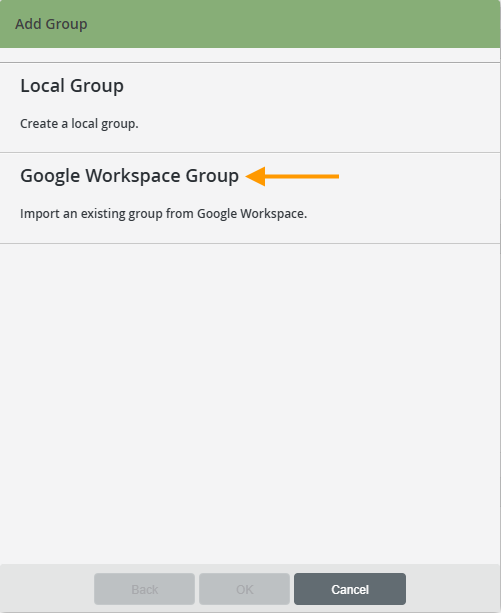
- You can then select all the workspace groups you want to import into the Cortado administrative portal.
- Click OK to import the workspace groups.
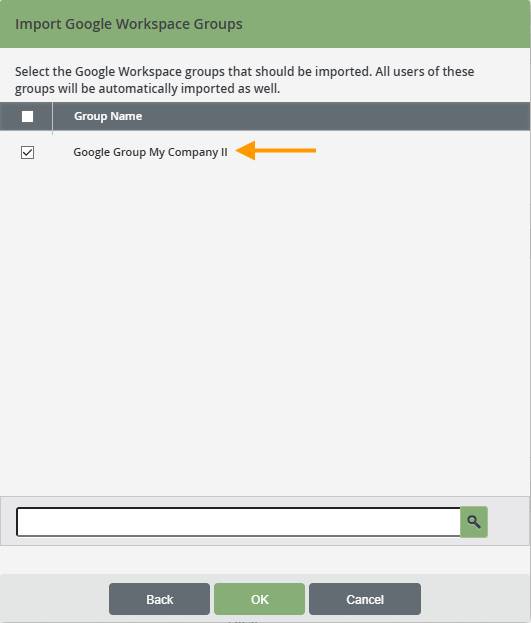
Note! Importing Workspace users may take a little longer. Workspace groups may appear before the associated users. Please be patient.
- The Workspace groups have been successfully imported into the Cortado Administration Portal.
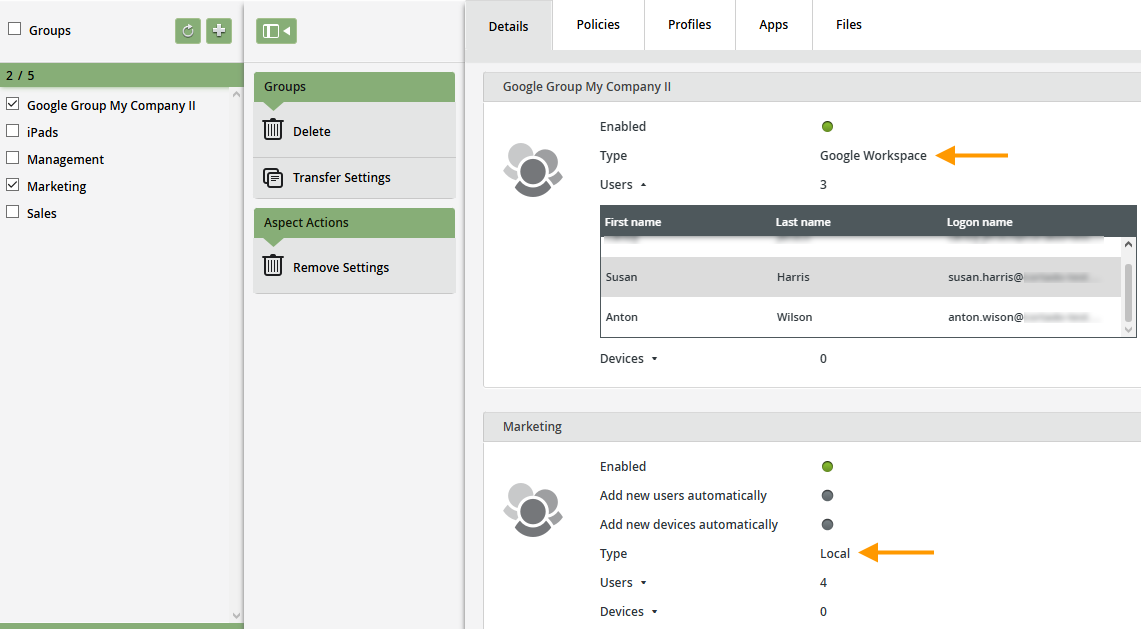
- In the Details tab, you can see whether your group is a Local Group or an Workspace group (arrows in illus.). To learn how to create local groups in the Cortado Administration Portal, please refer to our help article Setting up local groups.
- Under Administration→ Users you can find the Workspace users imported together with the groups.
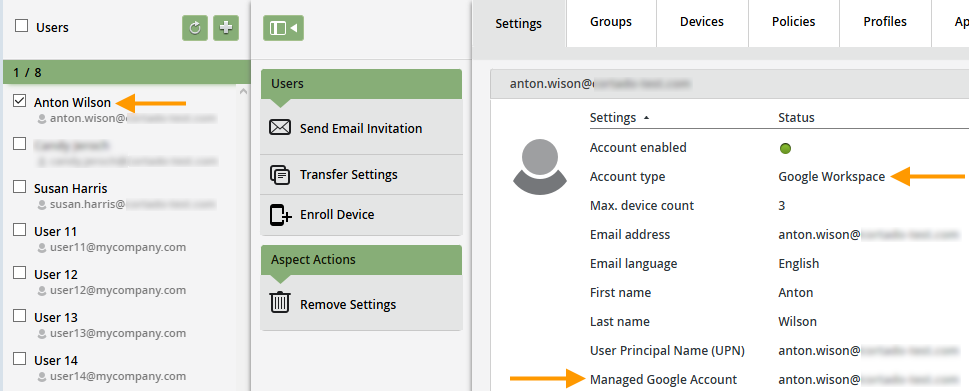
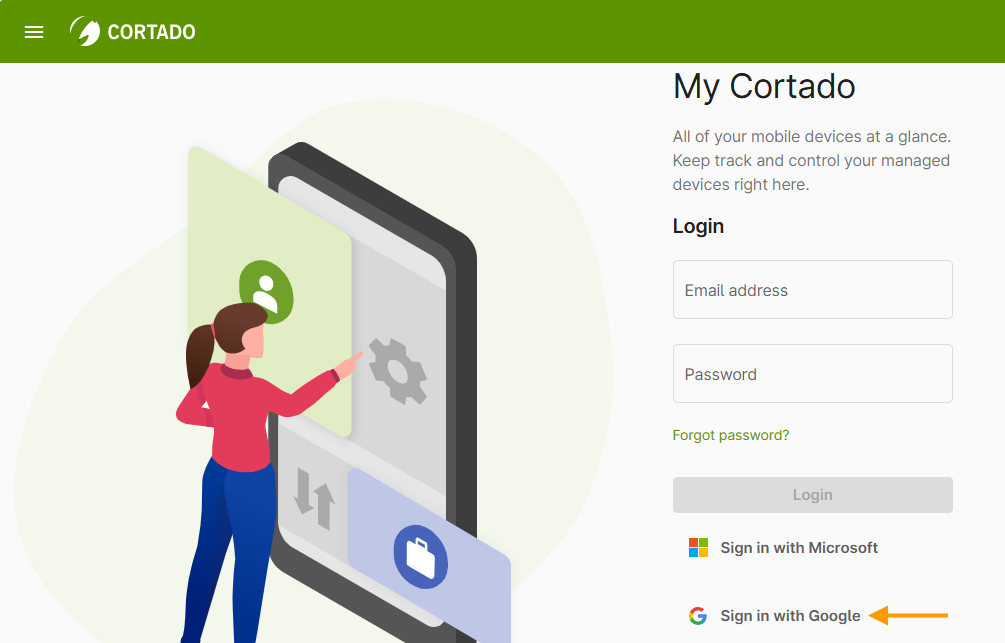
Note! All Workspace users who were imported along with a Workspace group can now sign in to My Cortado using their Google account.
NEW ADMINISTRATION PORTAL: Importing Google Workspace groups into the admin console
The new administration portal is currently in the beta phase. You are welcome to send us your feedback on the new portal using the corresponding button (at the bottom left of the new administration portal).
Import your Google Workspace groups (including users) into the Cortado administration portal. To do this, first connect Google Workspace to the admin console. You can find out how to do this in our help article How do I connect Google Workspace for group import?.
Note! These options are available only to customers with an Enterprise plan.
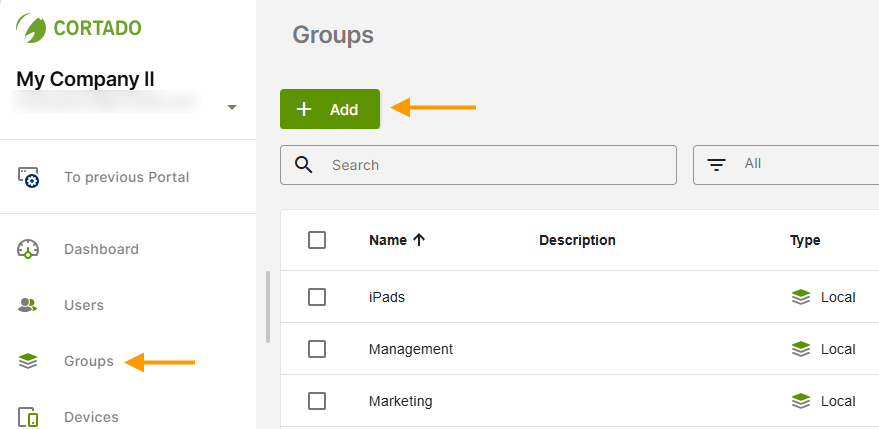
- Open Group Management in the menu on the left (left arrow in the image).
- Click Add (right arrow in the image).
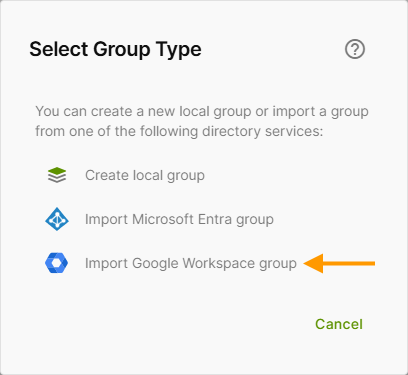
- Then click Import Google Workspace group (arrow in the image).
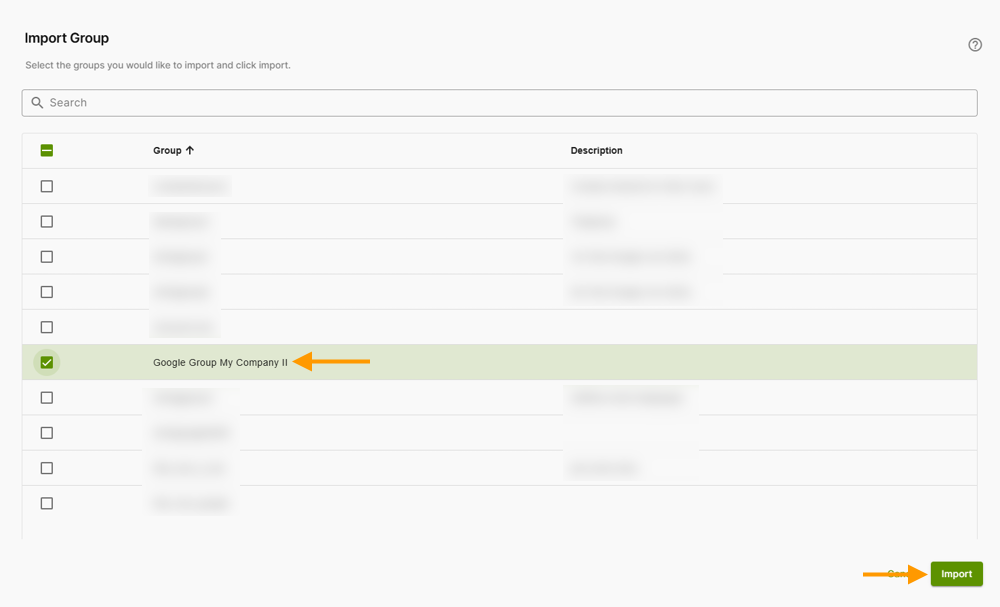
- Select the desired group(s) (left arrow in the image).
- Then click Import (right arrow in the image).
Note! Importing Workspace users may take a little longer. Workspace groups may appear before the associated users. Please be patient.
- The Workspace groups have been successfully imported into the Cortado Admin Portal.
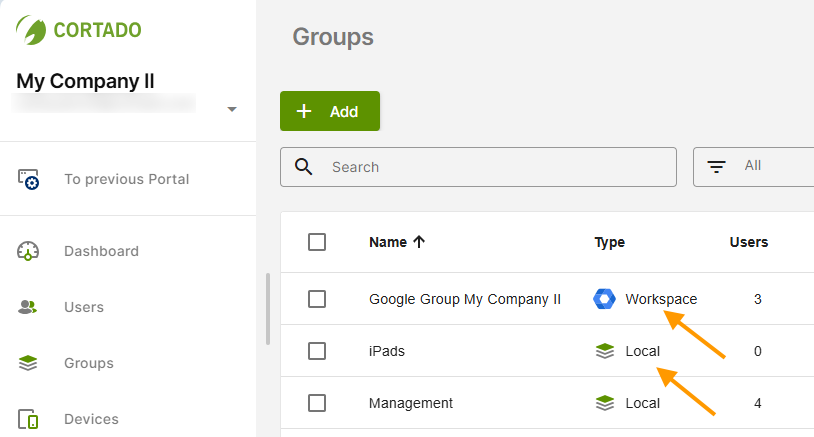
- In the group overview, you can see whether your group is a local group or a workspace group (arrows in the image). To learn how to create local groups in the Cortado Admin Portal, see our help article Creating new local group.
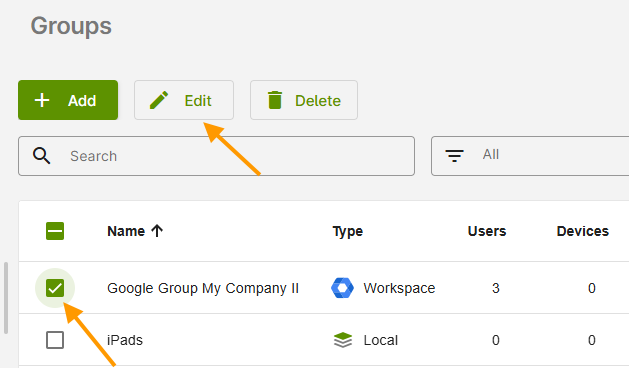
The users in your Workspace group were imported into the Cortado admin portal along with the group.
- Select your Workspace group (bottom arrow in the image) to view it.
- Then click Edit (top arrow in the image).
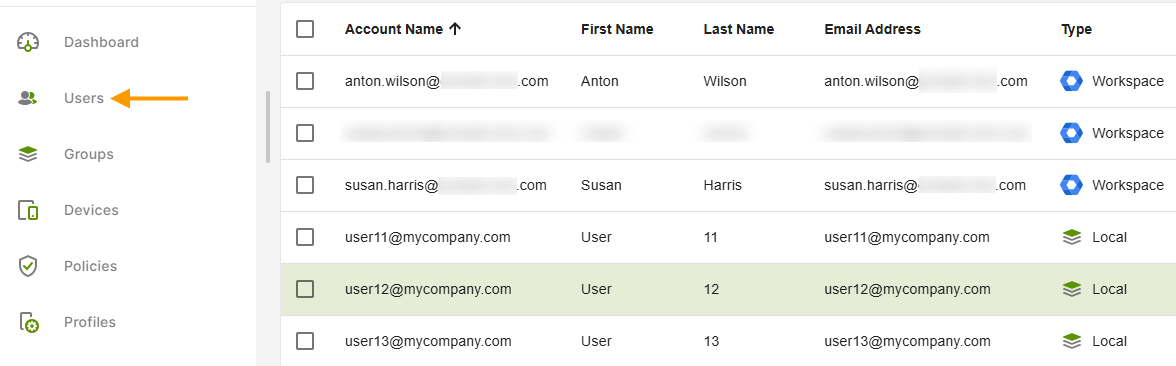
In the Users tab (arrow in illus.), you'll find all users who belong to the workspace group.
Note! All Workspace users who were imported along with a Workspace group can now sign in to My Cortado using their Google account.