Note! This option is available only in the new admin portal.
Note! These options are available only to customers with an Enterprise plan.
Prerequisites
- You have an administrator account to sign in to the Google Admin console.
- You have set up domain-wide delegation for Google Workspace in the Google Admin console.
Setup
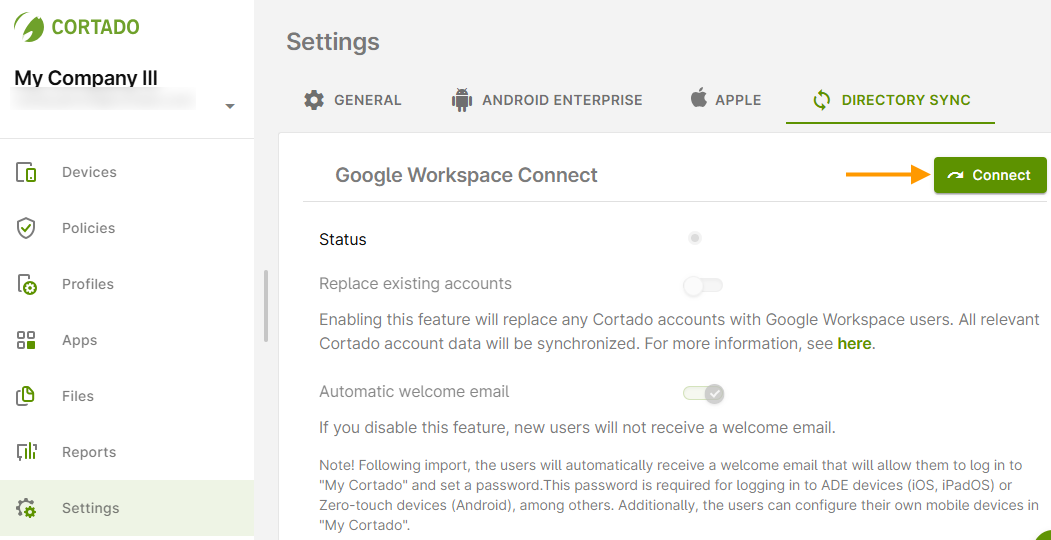
- Open Settings and go to the Directory Sync tab.
- Then click Connect (arrow in the image).
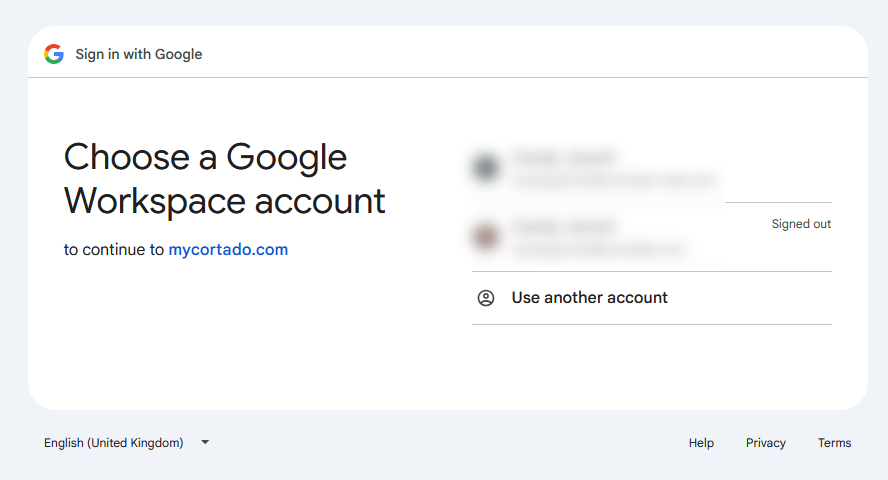
Sign in now using the Google Admin account for Google Workspace.
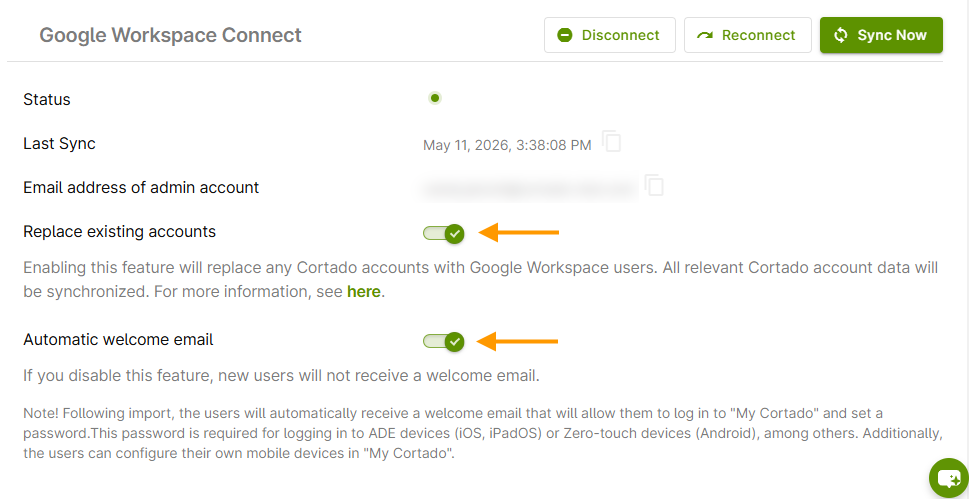
- In the Cortado Administration Portal settings, go back to the Directory Sync tab.
- Replace existing accounts: Here (top arrow in the image), you can replace your existing local Cortado users with Workspace users. We explain how to do this and what you need to keep in mind in our how-to guide: How to replace existing Cortado accounts with Workspace users.
- Automatic welcome email: Here (lower arrow in the image), you can set whether your users should receive a welcome email. This email informs them how to log in to the My Cortado user portal to set up their devices.
You can configure Google Workspace directory services as follows:
- Sync now: If you've made changes in Google Workspace, you can synchronize them here immediately. In addition, all data from Google Workspace is automatically synchronized every 30 minutes.
- Reconnect: If the connection to the Cortado Administration Portal in Google Workspace has been (accidentally) disconnected, you can restore it here. To do so, click Reconnect. In this case, all existing settings, assignments, groups, etc., will not be lost.
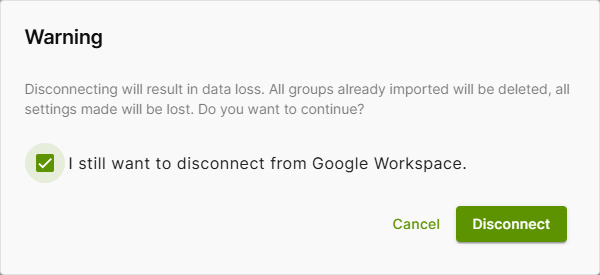
- Disconnect: Here you can disconnect the Cortado Administration Portal from Google Workspace. Please note that all groups you have already imported will be deleted. Additionally, all settings you have already configured will be lost. The assignment of policies, profiles, apps, and managed configurations will be revoked. If you reconnect afterward, all these settings will need to be reconfigured.