This feature is already available in our new administration portal. The new portal is currently in beta. Instructions for using the new portal can be found at the end of this article.
Note! This enrollment method is no longer recommended. Use the automatic device registration instead Embedding company-owned iOS/iPadOS devices (COBO/COPE).
Device Enrollment can be used for company-owned devices that are not managed via ADE. These devices can be in either supervised or unsupervised mode. However, supervised mode (Supervised Device) should be favored here. When a device is supervised, there are considerably more control options available. There are, for example, a far greater range of policies for supervised devices. Unsupervised, company-owned devices can also be embedded using Device Enrollment.
Note! In this mode, a clear separation between private and work areas is not possible. For this reason, this type of embedding should not be used for devices that are the private property of the user.
Proceed as follows:
- Using the Apple Configurators, place the device in supervised mode (optional). Carry this out as described in the Apple user guide.
- Select the user under Administration→ Users (upper left arrow in illus.) and then tap on Enroll Device (lower left arrow in illus.).
- Then tap on iOS/iPadOS (right arrow in illus.).

- Here select Device Enrollment (arrow in illus.).

Note! Alternatively, you can also integrate the devices via Administration→ Devices, by clicking on the plus button. There you also first select the desired user(s) and then Enroll Device. Then you can select the platform and the method as above.
- Use the camera on the iOS/iPadOS to scan the QR code.

- This will automatically load the MDM profile onto the device (see illus.).
NEW ADMINISTRATION PORTAL: Enrollment of company-owned iOS/iPadOS devices via device registration
The new administration portal is currently in the beta phase. You are welcome to send us your feedback on the new portal using the corresponding button (at the bottom left of the new administration portal).
Note! This enrollment method is no longer recommended. Use automatic device registration instead (see article Enrollment of company-owned iOS/iPadOS device (COBO/COPE).
Device registration can be used for company-owned devices that are not managed via ADE. These devices can be in either managed or unmanaged mode. However, managed mode should be preferred here. Managing a device provides significantly more control options. For example, the number of policies for managed devices is much more extensive. Unmanaged company-owned devices can also be integrated via device registration.
Note! In this mode, it is not possible to clearly separate the private area from the work area. For this reason, this type of registration should not be used for devices that are privately owned by users.
Proceed as follows:
- Using Apple Configurator, put the device into supervised mode (optional). To do this, follow the instructions in the Apple user manual.
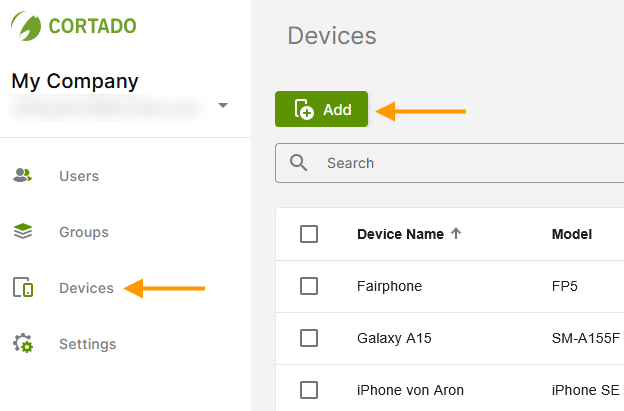
- In Device Management (left arrow in illus.), click Add (right arrow in illus.).
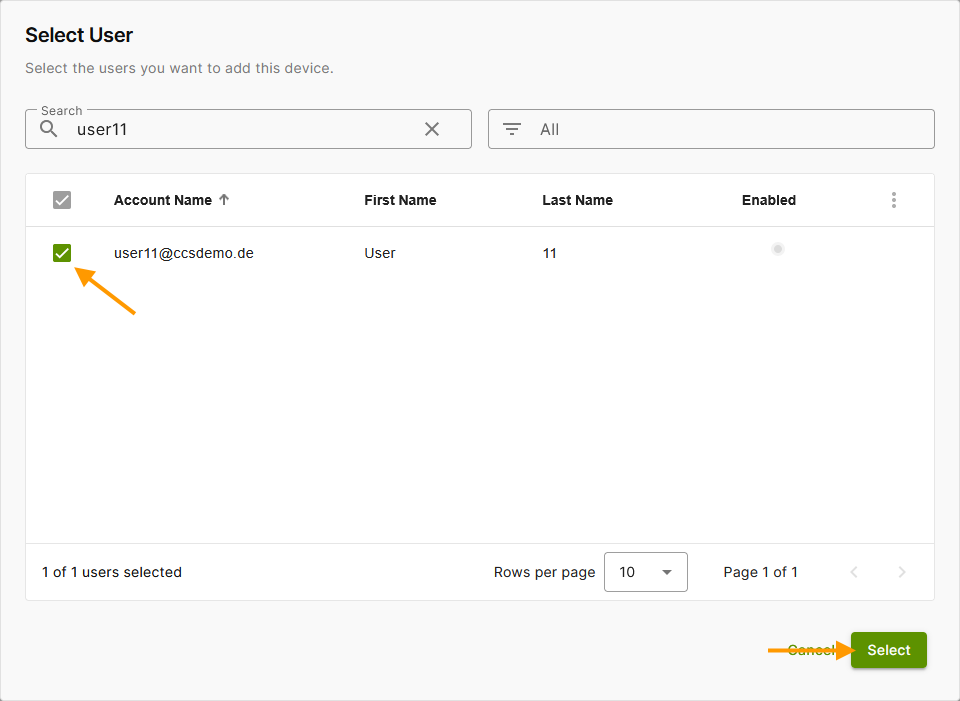
- Select a user (left arrow in illus.) and then click Select (right arrow in illus.).
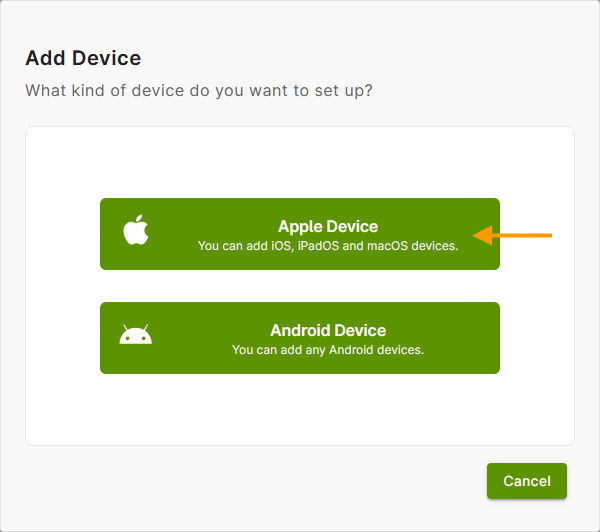
- Then select Apple Device as the type of device to be added (arrow in illus.).
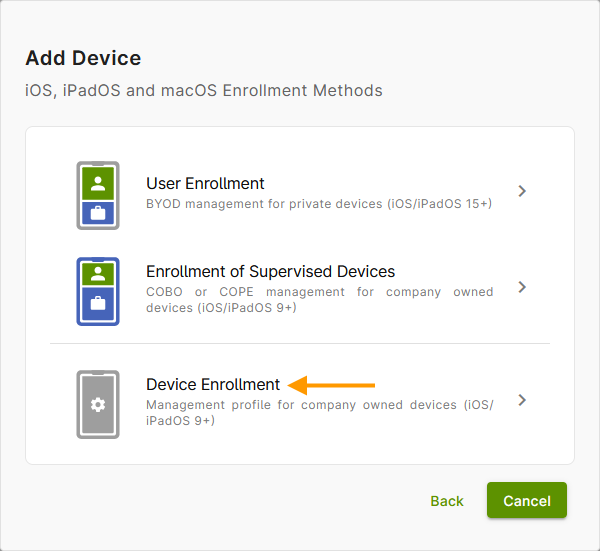
- Then select Device Registration under Add Device (arrow in illus.).
- Scan the QR code with the camera of your iOS/iPadOS device.
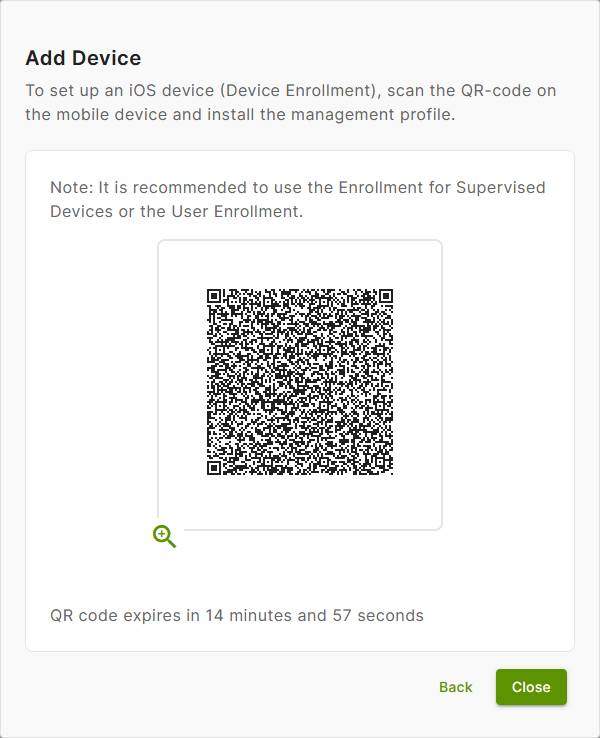
- The MDM profile is then automatically loaded onto the device (see illus.).
