This feature is already available in our new administration portal. The new portal is currently in beta. Instructions for using the new portal can be found at the end of this article.
In this article, we'll show you how to provide your Android users with a variety of different policies. The policies available to you depend on how the devices are set up. Depending on the method, you can create policies for fully managed devices, devices with a work profile, or company-owned devices with a work profile.
- If you want to create a new policy for Android, first proceed as described here.
- Select Android as the policy that you want to add.
- First enter a name for the policy in the field below as well as an optional description.
- Using the filter, you can view the existing policies depending on the enrollment method. Depending on whether you are using fully managed devices, private devices with work profile or company-owned devices with work profile.
- The Reset button resets all previously made changes back to the default settings.

Note! Detailed information about the policies Minimum integrity level and Action for non-compliant devices can be found in our help article How to set a minimum integrity level for Android devices.
In the following, you'll learn how to create policies using two examples:
- Policies for private devices with a work profile (example)
- Policies for Fully Managed Devices (example)
Policies for private devices with a work profile (example)
In the following example, we show you how to create a policy for a private device with a work profile. Setting up policies for the other enrollment methods can be done analogously to this example. Just filter by the enrollment method used first. There are significantly more policies available for company-owned devices.
Policies for a work profile on private devices apply only to the work profile and do not affect the private portion of user devices. The exchange of data between the private and the business part of the devices can be prevented by means of a policy.
- Under Filter policies by enrollment method select Work Profile (arrow in illus.).

- Now, select the desired option(s), in the example, the checkbox Allow use of Camera has been disabled (arrow in illus.).
- Close the dialog by clicking OK.

In the next step you need to assign the policy:
- Select the appropriate policy and click on Assign.
- Now select the users, groups or devices to whom you would like to assign the policy.
Note! When assigning directives, be sure to follow the instructions in our Help article Special conditions when assigning multiple policies.

Note! You can also assign the policies under Administration→ Users or Groups.
Result in the example: The camera app in the work profile (left illus.) has been disabled and is grayed out (middle illus.). The Cortado app also says that the use of the camera is not allowed (right illus.).

Policies for Fully Managed Devices (example)
- Under Filter policies by enrollment method select Fully Managed Device (arrow in illus.).

- First enter a name for the policy in the field below as well as an optional description.
- Now, select the desired option(s).
- In the example, the checkbox Allow factory reset has been disabled. Users are denied the right to reset the device (lower arrow in the illus.).
- Close the dialog by clicking OK.

In the next step you need to assign the policy:
- Select the appropriate policy and click on Assign (illus. above).
- Now select the users, groups or devices to whom you would like to assign the policy.
Note! When assigning directives, be sure to follow the instructions in our Help article Special conditions when assigning multiple policies.
Note! You can also assign the policies under Administration→ Users or Groups.
Result in the example: In the Cortado app you can see that resetting the device to factory settings is not allowed (arrow in left illus.). The action cannot be performed by the user (right illus.).

NEW ADMINISTRATION PORTAL: Creating policies for iOS/iPadOS devices
The new administration portal is currently in the beta phase. Please feel free to send us your feedback on the new portal by clicking the corresponding button (located at the bottom left of the new administration portal).
In this article, we'll show you how to provide your Android users with a variety of different policies. The policies available to you depend on how the devices are set up. Depending on the method, you can create policies for fully managed devices, devices with a work profile, or company-owned devices with a work profile.
- If you want to create a new policy for Android, first proceed as described here.
- Select Android as the policy that you want to add.
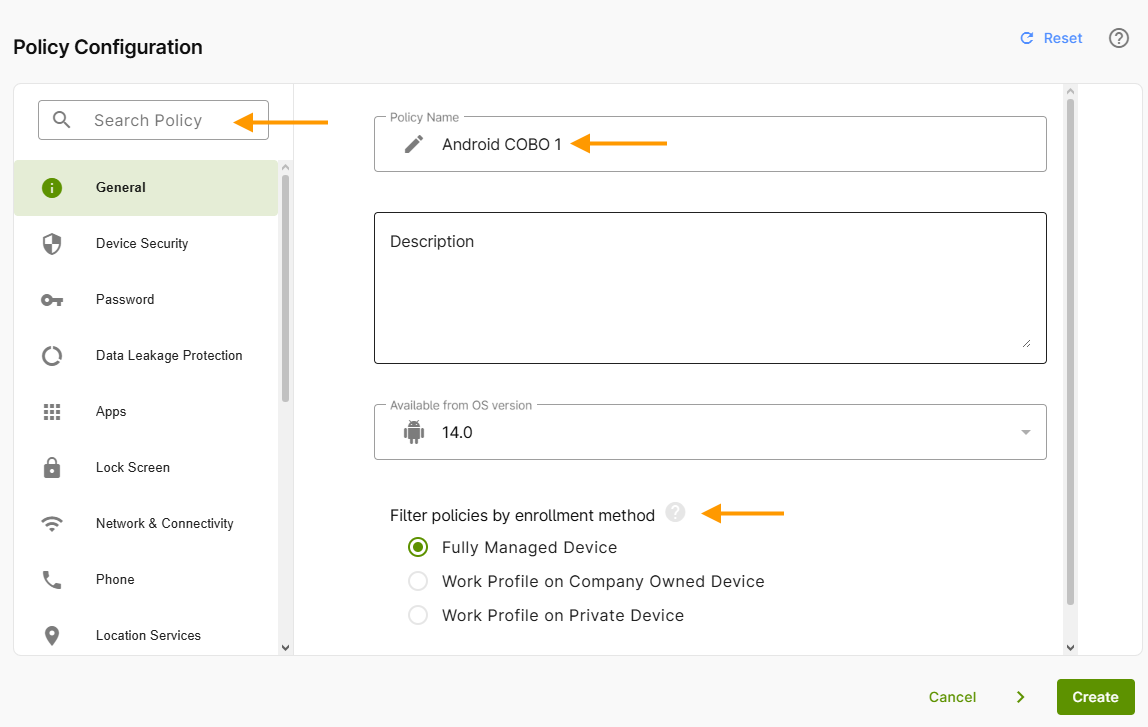
- First enter a name for the policy in the field below as well as an optional description.
- Using the filter, you can view the existing policies depending on the enrollment method.
- You can also filter the policies by operating system (OS) version.
- You can find all the policies in the menu on the left side of the page. In the top-left corner, you can search for policy details (left arrow in the image).
- Use the Reset button (top right) to restore all previously made changes to their default settings.
Note! Detailed information about the policies Minimum integrity level and Action for non-compliant devices can be found in our help article How to set a minimum integrity level for Android devices.
The following section provides examples of how policies are created:
- Policies for Personal Devices with a Work Profile – BYOD (Example)
- Policies for Fully Managed Devices – COBO (Example)
- Policy for Company-Owned Devices with a Work Profile – COPE (Example)
Policies for Personal Devices with a Work Profile – BYOD (Example)
In this example, we’ll show you how to create a policy for a personal device with a work profile. You can set up policies for the other setup methods in the same way as shown here. Simply filter by the desired setup method first. There are significantly more policies available for company-owned devices.
Policies for a work profile on personal devices apply only to the work profile and do not affect the personal portion of the devices. The exchange of data between the personal and work portions of the devices can be prevented by means of a policy.
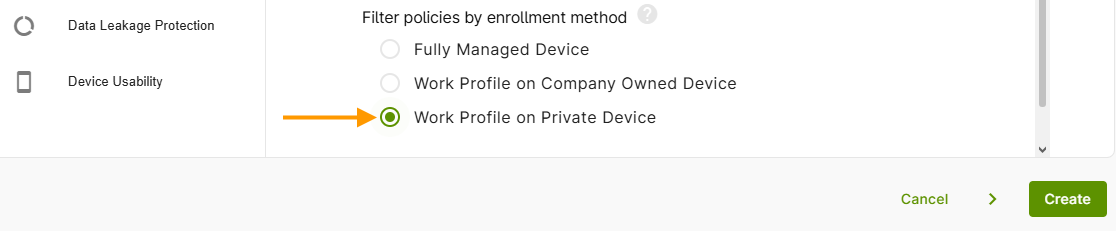
- Under Filter policies by enrollment method, select Work Profile on Private Device (arrow in illus.).
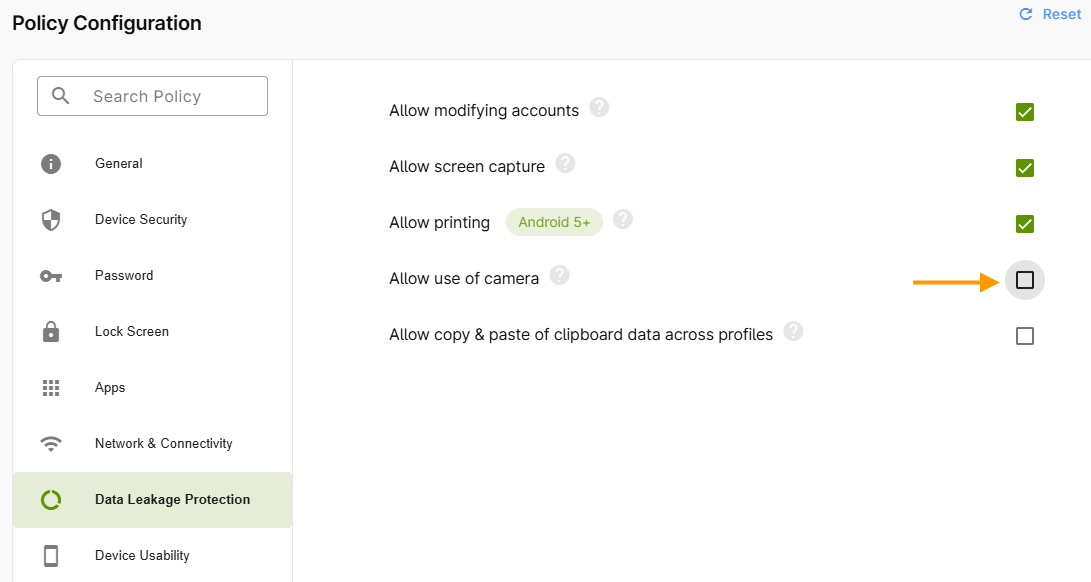
- Now select the options you want. In the example, the Allow use of camera checkbox has been deselected (arrow in the image).
- Save your new policy by clicking Create.
The next step is to assign the policy. We'll show you how to do that in our help article, How can I assign/unassign, edit, duplicate and remove policies?
Note! When assigning directives, be sure to follow the instructions in our Help article Special conditions when assigning multiple policies.
Result in the example: The camera app in the work profile (left illus.) has been disabled and is grayed out (middle illus.). The Cortado app also says that the use of the camera is not allowed (right illus.).
Policies for Fully Managed Devices – COBO (Example)
In this example, we'll show you how to create a policy for a fully managed device.
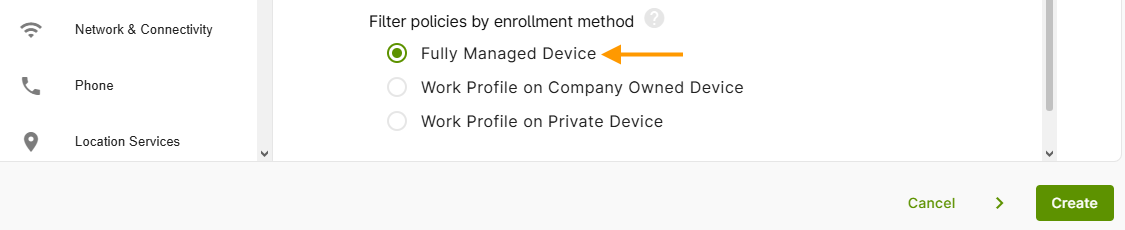
- Under Filter policies by enrollment method, select Fully Managed Device (arrow in illus.).
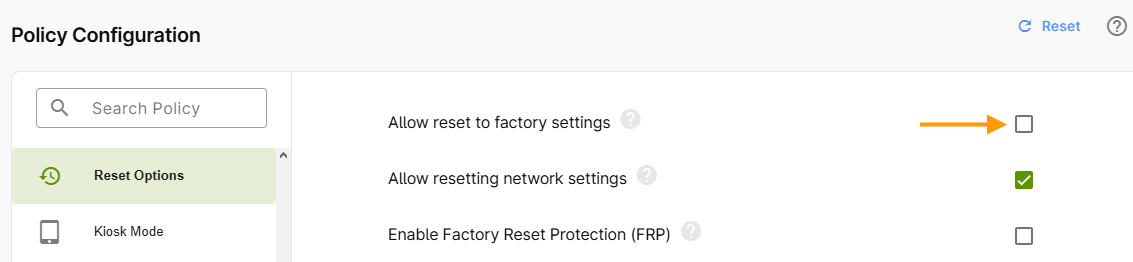
- Now select the options you want. In the example, the Allow reset to factory settings checkbox has been unchecked. This revokes users' permission to reset their device to factory settings (see the down arrow in the image).
- Save your new policy by clicking Create.
The next step is to assign the policy. We'll show you how to do that in our help article, How can I assign/unassign, edit, duplicate and remove policies?
Note! When assigning directives, be sure to follow the instructions in our Help article Special conditions when assigning multiple policies.
Result in the example: In the Cortado app you can see that resetting the device to factory settings is not allowed (arrow in left illus.). The action cannot be performed by the user (right illus.).
Policy for Company-Owned Devices with a Work Profile – COPE (Example)
In this example, we'll show you how to create a policy for a company-owned device with a work profile.
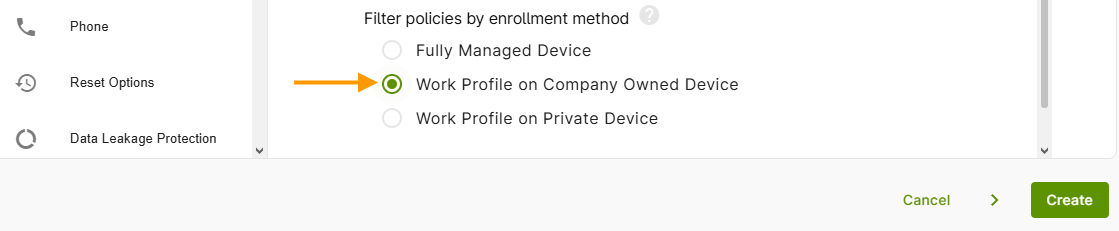
- Under Filter policies by enrollment method, select Work Profile on Company Owned Device (arrow in illus.).
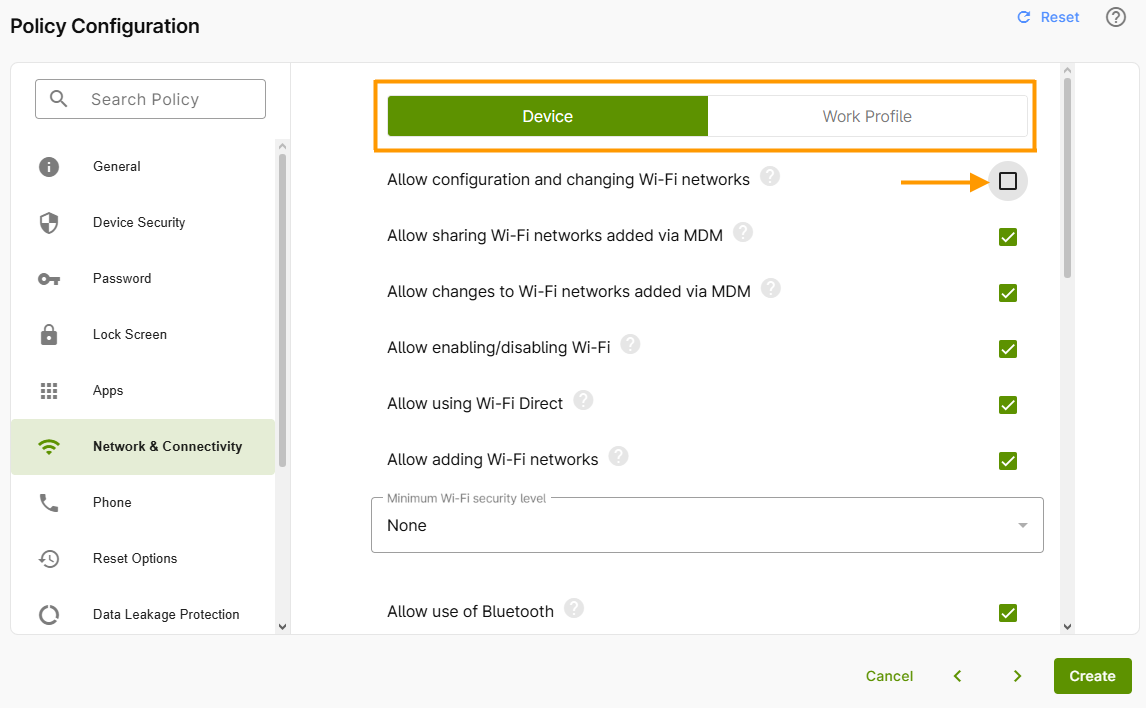
If you select a menu item in the left column now, you can choose whether to create your policy for the work profile or the rest of the device.
- In the next step, select the desired tab—Device or Work Profile.
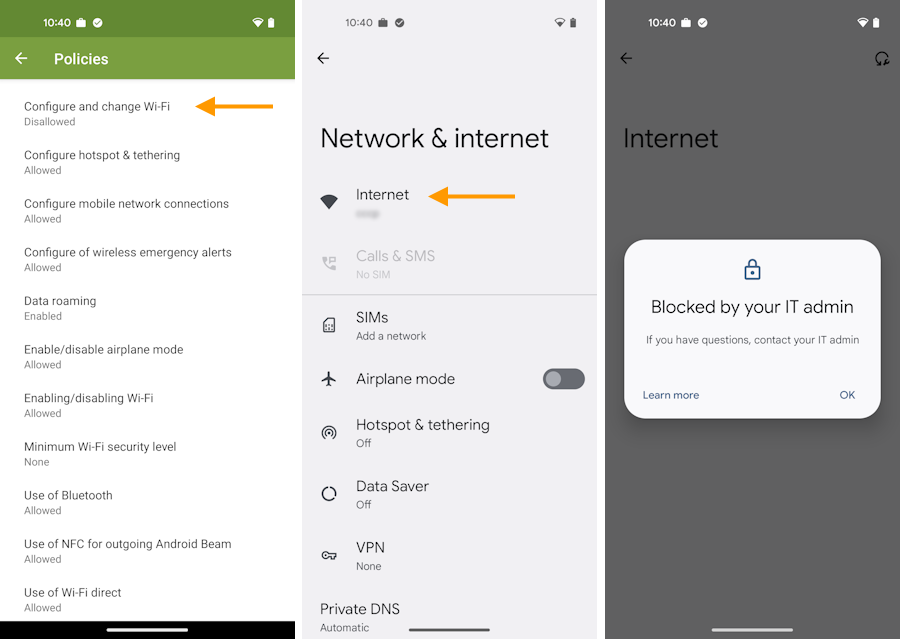
- In our example, we unchecked the Allow configuration and changing Wi-Fi networks checkbox for the device—this keeps the Wi-Fi settings locked for users.
The next step is to assign the policy. We'll show you how to do that in our help article, How can I assign/unassign, edit, duplicate and remove policies?
Note! When assigning directives, be sure to follow the instructions in our Help article Special conditions when assigning multiple policies.
Result in the example: Users can find this setting in the Cortado app on their device under Policies (arrow in the left image). As soon as users open the Internet settings on the device (arrow in the middle image), they receive a message stating that these settings are Blocked by the IT admin (right image). This prevents any changes from being made to the Wi-Fi settings.