A Wi-Fi profile is used to centrally provide the Wi-Fi configuration (e.g., SSID, authentication method, certificates, and access data) so that managed devices can automatically connect to the intended network.
- To create a new profile, start by selecting Administration→ Profiles.
- Under the Details tab, click on the plus icon to add a profile.

- Now select tvOS (arrow in illus.).
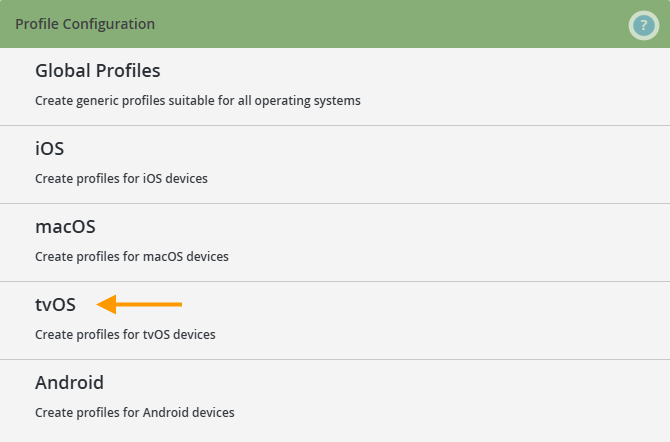
The following dialog will open:
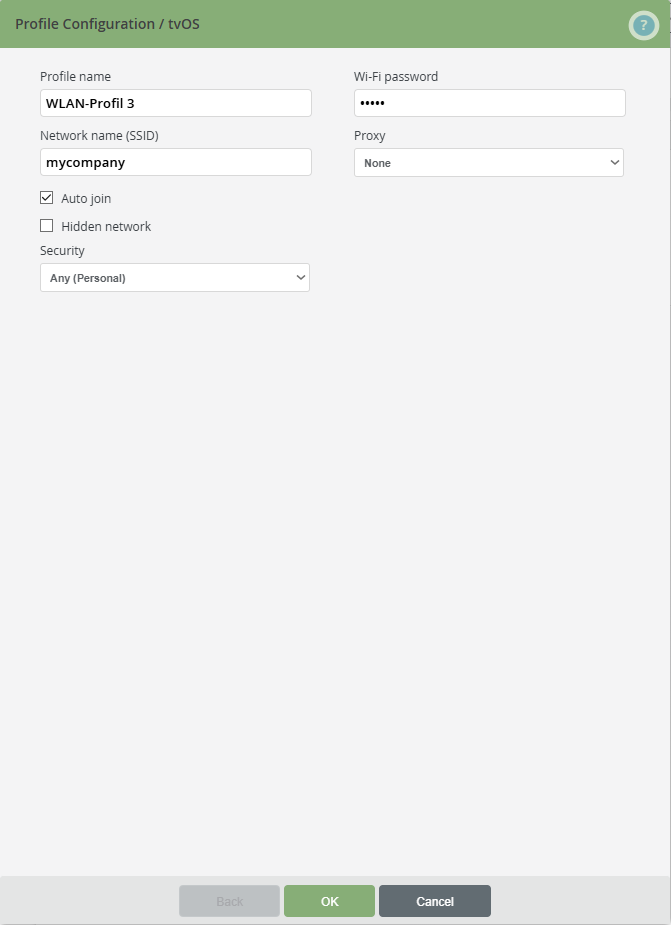
- Profile name: Enter a name for the profile here.
- Service Set Identifier (SSID): Enter the network name or device number (SSID) of the Wi-Fi hotspot here.
- Security type: Select the type of Wi-Fi encryption here. Depending on the Wi-Fi encryption used, you can select a predefined SCEP profile or Certificate profile.
Note! If you want to use the certificate profile to distribute a root certificate that was generated with your own certificate authority, you must enter the certificate name in this Wi-Fi profile.
To do this, select one of the security types with name "Enterprise" and enter the certificate name under Trusted server certificate names. Otherwise, users would be asked to agree to the untrusted certificate.
- Wi-Fi password: Enter the Wi-Fi password here. Then the user will not have to enter the password to access the wireless network.
- Proxy: Here you can make the settings for a proxy server for iOS devices. Select None, if you want to do the configuration without a proxy server. Otherwise, select Manual or Automatic.
- Enable Auto Join if, after authenticating himself once, the user is always connected automatically to the wireless network provided here.
- Select Hidden Network, if your wireless network is hidden. Then the user has to enter the SSID of the Wi-Fi hotspot to use the wireless network.
You can now assign this profile to the mobile device users. Note that, to do so, Wi-Fi must be enabled on the device.
Now you can distribute the newly created profile to users / groups / devices.
- To do this, select the desired profile in the left-hand column of the Administration Portal and click Assign.
- Now select the users, groups or devices to whom you want to assign this profile.
Note! You can also assign the profiles under Administration→ Users or Groups.