This feature is already available in our new administration portal. The new portal is currently in beta. Instructions for using the new portal can be found at the end of this article.
- Open the device management under Administration→ Devices.

- Select a device (upper arrow in illus.) and then click on Set Device Name (lower arrow in illus.).
- Enter a new name for the device (middle arrow in illus.).

- The new device name will then be displayed in the console.

- You can also select multiple devices and use one of the variables for renaming.
- On iOS devices in Supervised Mode the name will also be changed in the device itself.
NEW ADMINISTRATION PORTAL: Change device name
The new administration portal is currently in the beta phase. You are welcome to send us your feedback on the new portal using the corresponding button (at the bottom left of the new administration portal).
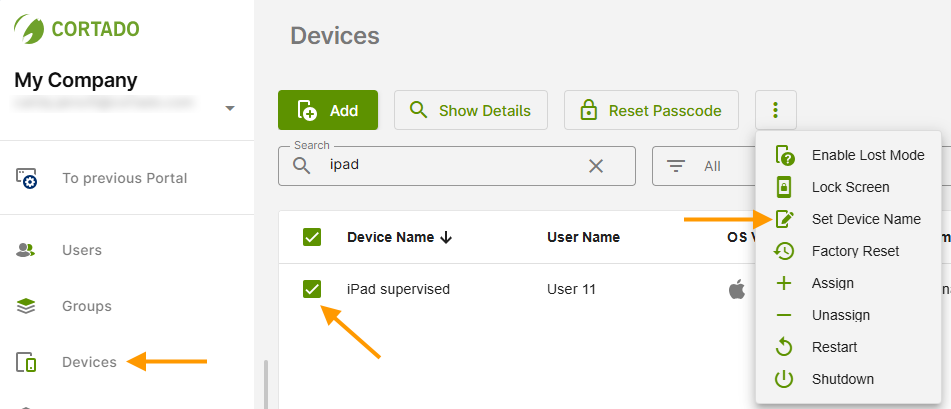
- Select a device in Device Management (left arrow in the image) (middle arrow in the image).
- Then click on Set Device Name (right arrow in the image).
- Now you can delete the existing name and enter a new one.
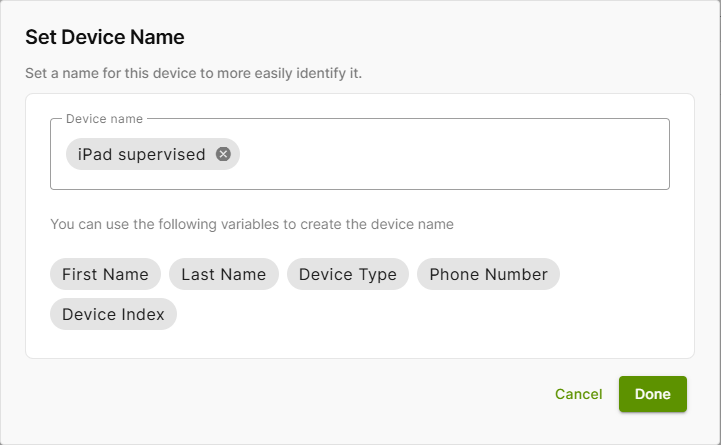
- Enter a new name for the device (arrow in the image).
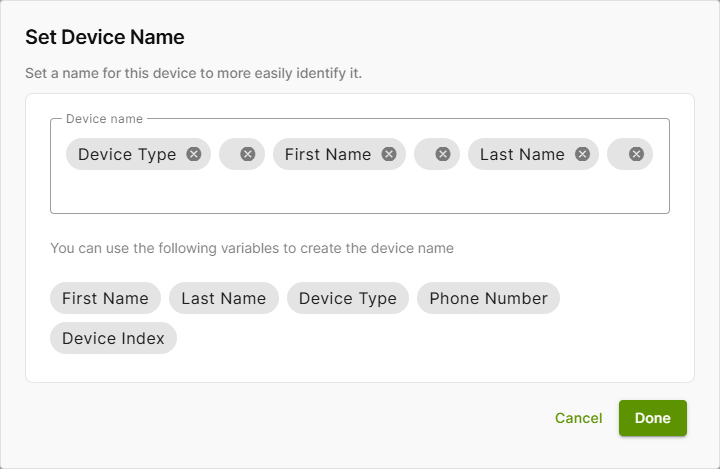
- You can also select multiple devices and use one of the listed variables for renaming.
- If you use multiple variables, a space is automatically inserted after the variables.
The device name will then be changed:
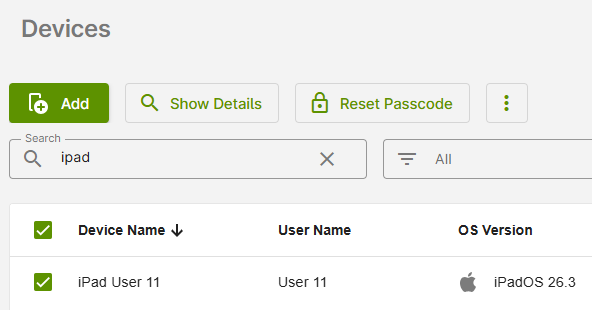
Note! For supervised iOS/iPadOS devices, the name is also changed in the device itself.